Highlights
- Interactive slides make presentation content explorable. The October 7 Message Center update describes independent attendee interaction in Teams PowerPoint Live; worldwide GA for the slide-creation skill and ribbon button is planned for mid–end October 2026. Early access is not completed GA.
- Record a Skill targets repeated PowerPoint work. The October 7 notice schedules an automatic worldwide GA rollout beginning and completing in early October 2026; exact days and platform coverage are not supplied.
- Next-generation sharing separates a stable link from its audience. The October 7 notice now schedules GA for early October–end November 2026. Changing the primary link’s audience does not remove access granted elsewhere.
- Targeted Release is retiring. New user and tenant enrolments stop in November 2026, with retirement in January 2027. Standard and Deferred initially cover only Copilot updates marked both major and deferred-capable, so this is not a like-for-like replacement for every update.
- Copilot Search connects discovery with conversation. Search-to-chat on Windows and web lets you move from finding information to asking follow-up questions without starting a disconnected conversation.
- PowerPoint skills expand to Windows, and Mac gains cloud-file references. Reusable instructions help with recurring presentation work; referencing SharePoint and OneDrive files reduces manual uploads.
- Connector administration become more useful. Editable query and identity-mapping rules make connectors easier to maintain.
- Brand kits and Foundry IQ provide useful context. The documented Brand kit workflows support consistent content, while the preview Foundry IQ connection gives Copilot Studio builders a knowledge-integration option. These are background, not additional launches this week.
There is plenty here for people using Copilot in their everyday work—and for the teams keeping it useful behind the scenes. I particularly like the improvements that connect information, reusable workflows and visibility into cost. Let’s take a closer look!
Release management
Copilot is getting more capable, but the first thing I would put on the calendar this week is an administrative change. Targeted Release is going away (MC1490899). If you use it to give your help desk, champions or application owners an early look at changes, this deserves attention before the next shiny demo!
Microsoft’s Standard and Targeted release guidance, updated October 7, says administrators will no longer be able to enrol additional users or tenants in November 2026. Targeted Release retires in January 2027. These are month-level dates; the page does not supply exact days.
Timing: New enrolments stop in November 2026; retirement follows in January 2027. Exact days are not announced. Administrators can look up MC1490899 for the related Message Center notice.
A new audience model is not automatically a like-for-like replacement
The modern model uses Frontier, Standard and Deferred. Frontier is pre-GA experimentation. Standard is generally available feature delivery. Deferred provides additional preparation time for eligible GA updates; it is not another preview channel.
There is a scope limit worth reading twice. Microsoft’s configuration documentation says modern Standard and Deferred initially apply only to Copilot changes identified as both a major update and deferred-capable in Message Center. Expansion across Microsoft 365 is a direction, not evidence that every service is covered today.
Deferred gives administrators approximately 30 days after the broad Standard rollout begins for those eligible updates. That is not 30 days after every individual user’s first access, nor a promise to delay all visible changes.
Microsoft’s public guidance also explains the retirement destination: users follow their assigned Standard or Deferred preferences; without a configuration, Targeted Release users default to Standard when Targeted Release retires. Do not assume an automatic move into Frontier. Early-access participation is a separate governance decision.
Copilot Search and Chat
One of the useful October 6 updates is the integration of conversational chat into Microsoft 365 Copilot Search on Windows and web (Roadmap 512429), documented in the official Copilot release notes.
Instead of finding something in one experience and starting a disconnected conversation in another, you can use search results as the basis for follow-up questions, synthesis and content generation.
For a practical example, imagine preparing for a customer steering meeting. You search for the current project material, identify relevant results and then ask for an explanation of the outstanding decisions. The important shift is the continuity from discovery to reasoning, not merely having another chat box.
I like this direction because finding the right starting point is often the real work. A beautifully written answer grounded in the wrong project document is still the wrong answer.
Availability: GA for Windows and web, documented in the October 6 release-note batch. Deployment is gradual within tenants; exact rollout start and completion dates are not announced. That means “documented as GA” and “visible to every user this morning” are not interchangeable.
PowerPoint — skills become a practical Windows workflow
The October 6 release notes document custom skills in Copilot in PowerPoint on Windows. The web equivalent was already in the September 23 notes, making this a platform expansion rather than the first arrival of PowerPoint skills.
A skill is interesting when it captures a workflow you would otherwise keep explaining. A presentation team might have a repeatable approach to turning source material into a customer briefing, reviewing the narrative or preparing content for a particular audience.
The useful question is not “How many skills can we create?” It is “Which repeated task has clear inputs, review criteria and an owner?” Start there.
I would begin with something narrow enough to evaluate. For example, a skill could review whether a presentation has an explicit decision, a clear audience and evidence behind the recommendations. That gives the team a repeatable review task with a result people can assess.
Then keep a human review point. Reusability is awesome, but it can also make a weak instruction repeatable at scale. A saved workflow deserves the same care as a shared template: give it a purpose, make its limitations visible and revisit it when the business process changes.
Availability: Documented GA on Windows, with desktop GA referring to Current Channel in these release notes. Exact rollout dates are not announced. This Windows entry does not establish simultaneous Mac availability.
Mac cloud-file references — reduce the upload habit
PowerPoint on Mac gains the ability to reference files in SharePoint libraries and OneDrive folders when asking Copilot to create a presentation (Roadmap 555897), according to the same release notes.
You can refer to a document by name and/or owner in the prompt rather than manually locating and attaching it first. That is a useful improvement for people whose actual work is already in Microsoft 365.
The strategic benefit is less fragmentation. A source document remains the working reference instead of becoming another detached upload people forget to update.
Still, I would make the intended source explicit and review what Copilot used. Similar file names, old versions and ambiguous project references do not disappear just because the input becomes more natural.
Availability: Documented GA for Mac in the October 6 batch; exact rollout start and completion dates are not announced.
Personal skills and organisation deployment are different workflows
Microsoft’s custom-skills support guide provides useful implementation context. It describes skills built around a SKILL.md file containing a name, description and instructions, stored in a OneDrive Skills folder. The documented ways to add personal skills include uploading, an Add skill form and the OneDrive folder. Uploaded skills are for personal use; ZIP packages cannot contain images, PDFs or nested ZIPs.
There is also a separate organisation deployment guide, where administrators upload a ZIP through Agent 365 > All agents and assign it to users or groups.
That difference matters. A useful personal shortcut is not automatically an approved organisation-wide workflow. I would establish an owner and review process before deploying a skill more broadly.
These guides describe existing personal and organisation deployment workflows, rather than additional launches this week.
PowerPoint interactive slides — exploration needs a shared story
What if a slide could let people explore the concept instead of just looking at it? I like this direction, especially for a timeline, a comparison or a system that is difficult to explain with a single static visual. But interaction should help the story, not become the story!
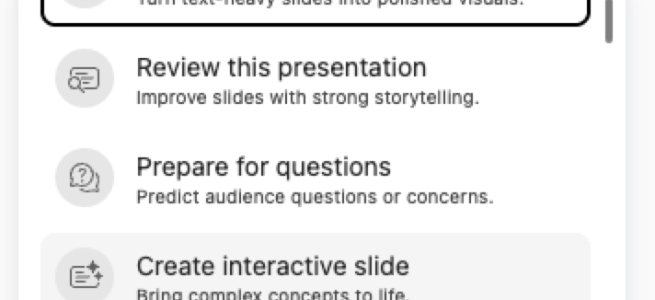
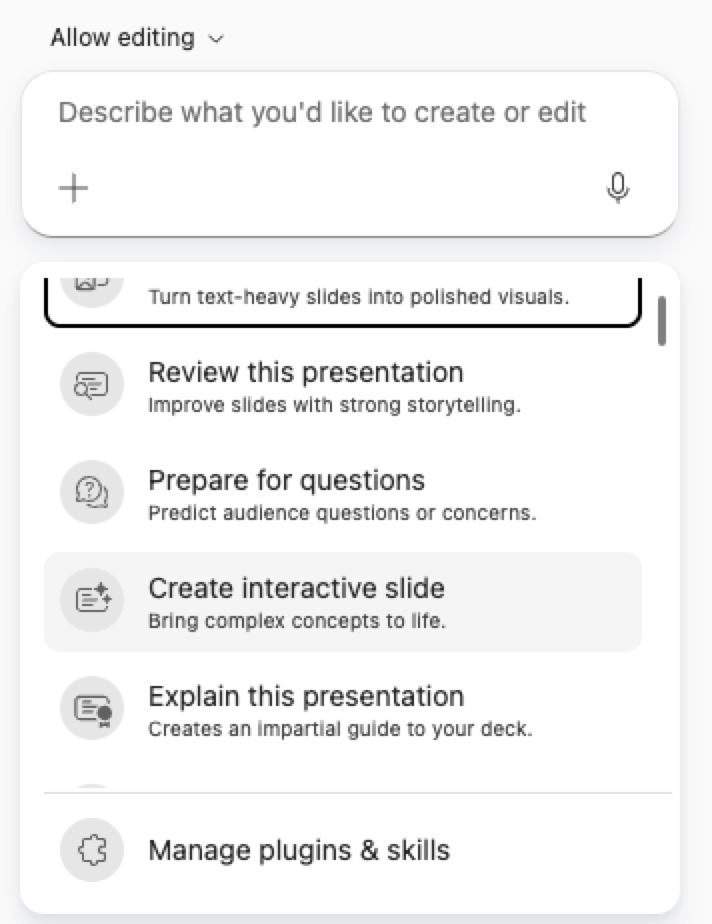
According to the October 7 updated Message Center notice MC1461152, Copilot’s Create interactive slide skill in PowerPoint creates interactive, full-slide visuals for complex concepts, timelines, comparisons, systems and data. The notice describes access through Interactive Slide on the Home and Insert ribbons, as well as the Create Interactive Slide skill in Copilot chat, across Windows, Mac and web as those experiences roll out. Tuesday this was available in desktop only ( beta) and now it is visible in web PowerPoint as well.
For a customer workshop, I would evaluate a comparison that lets people explore the differences between approaches. For an internal briefing, a timeline could give people a way to inspect the stages of a change without filling the screen with every detail at once. These are ideas for using the capability, not a claim that I have tested these examples.
The useful design question is simple: what should someone understand before they touch anything? I would make the default view carry the main message and give the audience a clear reason to explore. If the key conclusion is hidden behind an interaction, some people may never see it.
PowerPoint Live — attendees explore independently
The same October 7 notice says attendee interaction in Teams PowerPoint Live is now available. Each attendee interacts independently: they do not share their interaction, and they do not see the presenter’s or other attendees’ interactions.
That is a meaningful distinction. “Select this part of the timeline” does not mean everyone is now looking at the same view. I would narrate enough context that someone who stays on the default view can still follow the discussion, then bring the group back to the decision or takeaway in words.

Presenter-synchronised interaction is planned, according to the notice, but no date is supplied. I would not design a session around that future behaviour yet. Independent exploration can be useful in a workshop; a tightly paced presentation needs a shared story alongside it.
There is also a device limitation: the notice describes interactive viewing on iPad, while iPhone and Android show a static image. Design a clear static state. Otherwise, the people joining from their phones risk getting the least useful version of your slide.
Availability — early access is not completed GA
The dates below come from MC1461152 as updated October 7, not independent public feature verification:
- Frontier / Microsoft 365 Insider Beta: the skill is available on Windows, Mac and web. The notice places Windows and Mac ribbon availability by late September 2026, and the web skill and button by early October 2026.
- Current Channel Preview: Windows and Mac skill and button availability is described as arriving by early October 2026.
- Worldwide GA: the skill and button on Windows, Mac and web are planned to start in mid-October and complete by the end of October 2026.
As of October 8, that worldwide GA window is still ahead; early-access availability does not mean the broad rollout has completed. A Copilot licence is required, but the notice does not supply the exact SKU. No separate private-preview milestone is announced in the supplied update.
PowerPoint Record a Skill — turn repeated work into a reusable workflow
There is another PowerPoint announcement that deserves its own space. Record a Skill, described in the October 7 Message Center notice MC1490903, records recurring PowerPoint actions into reusable Copilot skills for repeated presentation tasks and consistency.
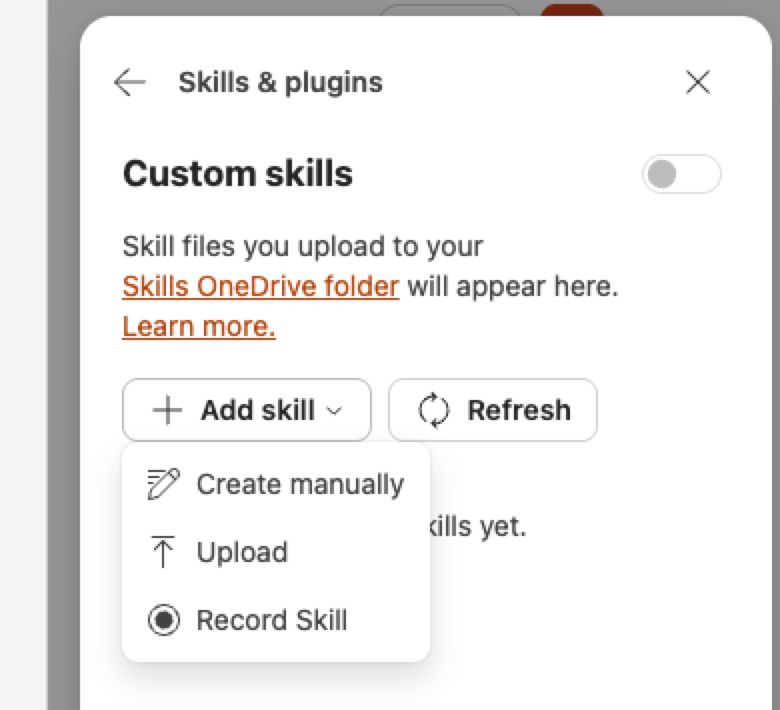
This is not video or slideshow recording. The idea is to capture a repeatable way of working, rather than a recording of your presentation delivery. It is also a separate announcement from the Windows custom-skills expansion covered above. One concerns bringing custom skills to a platform; this one concerns recording recurring actions into a skill.
I like the potential here because people often know their presentation routine better than they can describe it from a blank page. Capturing that routine could make it easier to turn repeated work into something reusable. The real value, however, is not simply recording more actions. It is deciding which routine deserves to be repeated.
Start with a task you can evaluate
My evaluation candidates would include recurring customer briefings, monthly business reviews or a team’s presentation preparation routine. These are business scenarios to assess, not a list of confirmed supported recording actions. The notice does not establish that every step in those workflows can be captured.
I would choose one narrow task, define what a good result looks like and compare the skill’s output with that expectation. Does it preserve the intended message? Does it still need substantial correction? Does it help a colleague understand the work, rather than just move through it faster?
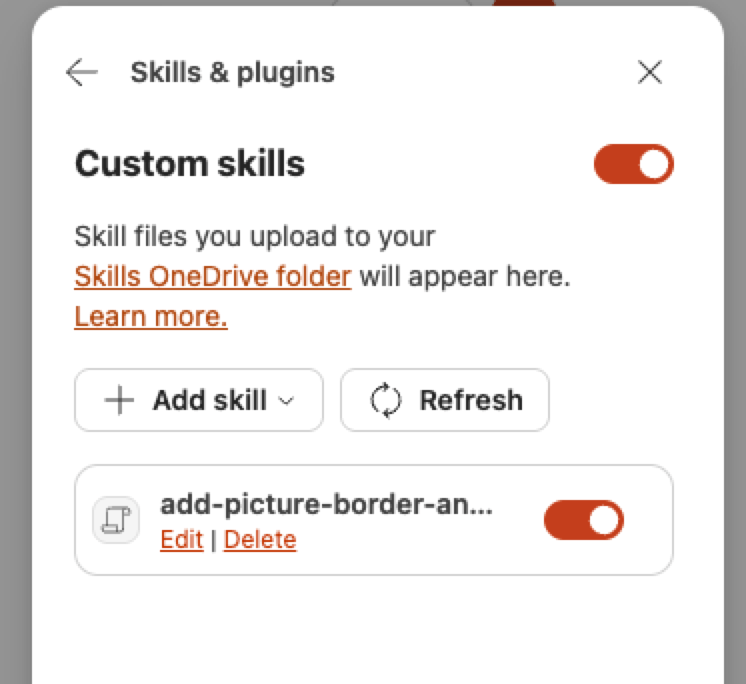
For the first test, I recorded a skill that changes picture to my preferred look.
And then tested it out
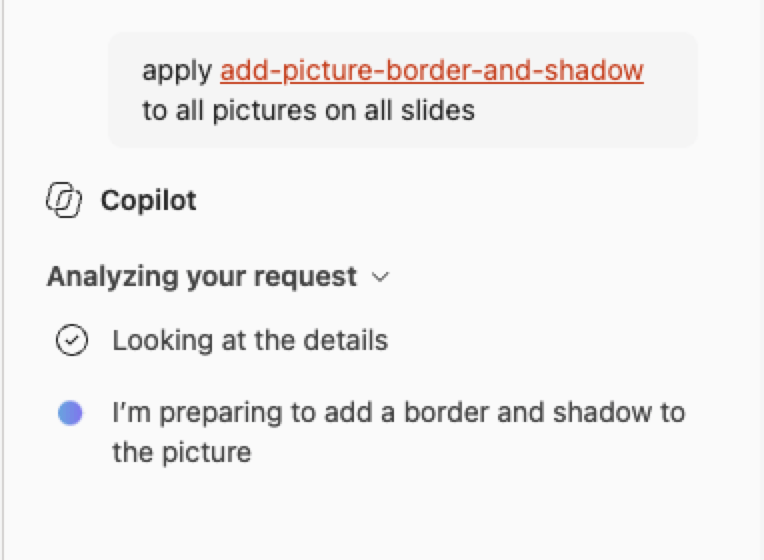
And the skill did what it was supposed to with that prompt–> updated all pictures in the presentation to uniform style. This can save time on some presentations that has lots of pictures in it and I want them to be uniform.
That human review point matters. A reusable workflow can boost consistency, but consistency is not automatically quality. I would keep an owner for the routine and revisit the result when the business requirement changes. That is my practical recommendation, not a claim about built-in versioning or approval features.
Availability: MC1490903 schedules the worldwide GA rollout to begin and complete in early October 2026, automatically, with no administrator action required. Exact days are not announced, so I would not describe it as fully deployed to every tenant on October 8. No private- or public-preview dates are supplied, and the exact licence SKU and platform coverage are not confirmed in the supplied notice. Do not infer Windows, Mac or web support from the separate custom-skills story.
The notice points to Record a Skill guidance. It is a reference for further details, not the basis here for undocumented recorder steps, storage or sharing behaviour. Start with the announced capability, then evaluate the experience available to you.
Next-generation sharing — one hero link
Have you ever copied a link, changed who should receive it and then wondered whether you needed to send a different URL? The next-generation file and folder sharing experience aims to make that part simpler. I like the idea of keeping the link stable while making the access decision more explicit.
The latest October 7 Message Center text for MC1454378 states that each file or folder has a single primary link—also described as the hero link—used consistently across copying, email and the browser URL. Its audience can be updated without changing the URL or redistributing it.
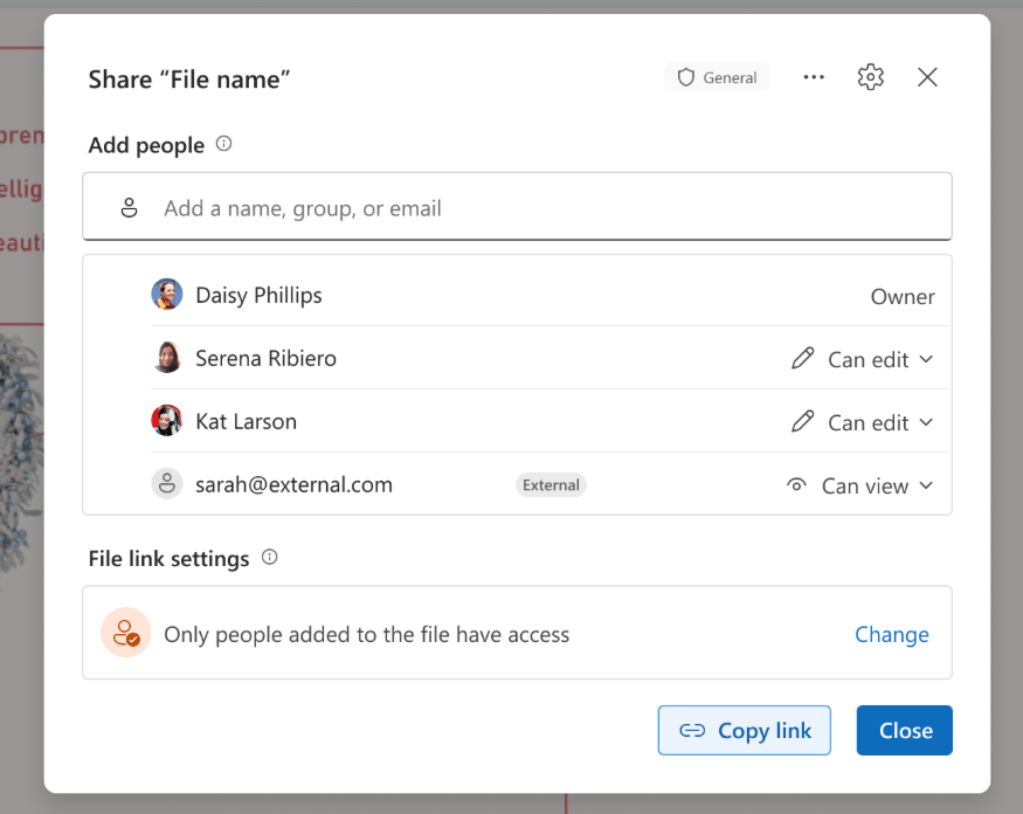
That is a useful change in the mental model: the address can stay the same while the audience changes. But a stable address is not a promise that everyone holding it has access, and it is not the only place where access can come from.
Four sharing decisions worth keeping separate
I would explain the experience to colleagues as four different decisions rather than one “share” button that magically does everything.
1. Copy the existing link. The primary link starts with Only people added and View permission. That starting audience does not itself grant new access. If you copy the link into a chat, do not assume the recipient has become authorised just because they now have the URL.
2. Add the people who need access. Directly adding people is unchanged and remains the simplest way to grant access to specific recipients, according to the notice. For a project document intended for named colleagues, I would start here instead of broadening the audience unnecessarily.
3. Change the audience when broader access is appropriate. The primary link’s audience may be broadened to the organisation or Anyone, if policy permits. Permission choices such as View, Edit or View without download depend on the available options. The URL stays the same, so you do not need to redistribute a replacement link just because its audience changes.
4. Review other access before assuming you have restricted the file. Existing links continue to work and appear under Other links. Effective access remains the most permissive access available through direct, inherited, group and link permissions. Reducing the primary link’s audience does not revoke those other grants.
That fourth point is the one I would make especially visible in training. Changing the hero link from a broad audience to named people is not the same as removing everyone else’s access to the file. Review the other routes as well.
For example, imagine a working document moving from a wider project discussion to a smaller review group. You can adjust the primary link without changing its address, but someone may still have access through a group, a parent folder or another link. The useful question is not only “Who is this link for?” It is also “Who can still access this file, and why?”
Rollout — use the revised October 7 window
The October 7 update to MC1454378 schedules GA rollout for Worldwide, GCC, GCC High and DoD from early October through the end of November 2026. That replaces the earlier mid-September–late-October window. Exact days and preview timing are not announced.
This is a rollout window, not a statement that every tenant has the new experience on October 8. The notice also describes a first-use tutorial, which should help people recognise the changed experience. I would still give colleagues the four-decision explanation above: a tutorial is useful, but access misunderstandings can outlive it.
There is no mandatory administrator action before rollout, according to the notice. A short review of user training, sharing defaults and site policy is still sensible. The notice says legacy default-link-expiration settings do not govern primary links; that specific limitation does not mean sharing policies as a whole stop mattering.
For me, the benefit is less link juggling. The responsibility remains the same: choose the audience deliberately, grant the access people need and check the other access paths before calling something restricted.
Connector administration — maintain the grounding, not just the connection
The October 6 release notes also document editing query strings and user identity-mapping rules after creating a Copilot connector. The management path is Settings > Search & intelligence > Data sources in the Microsoft 365 admin centre.
This matters because external systems do not stand still. Projects change scope. Teams reorganise. Identity attributes change. A connector that worked on the day it was configured can become a poor reflection of the organisation later.
Previously, the documented workflow could require support intervention to change these settings. Bringing them into administrator control reduces that maintenance friction.
For me, the bigger story is that grounding is an operational responsibility. It is not a one-time technical checkbox before the Copilot launch party.
Suppose a source-system filter is too broad. Editing the query can help correct the content scope. If identity mapping is wrong, a configuration change can help repair the relationship between a source identity and the Microsoft 365 user. Those are different problems; diagnose before changing either one.
Microsoft recommends confirming the change on the next crawl and spot-checking results for an affected user. I would include an expected result and a person responsible for checking it. Faster administration is useful only if the change produces the right access and content behaviour.
Availability: Documented GA in the October 6 batch, with Windows and web listed. Exact rollout dates are not announced. Check the settings supported by your connector rather than assuming every connector type works identically.
Brand kits — governance before more content
Brand kits are useful background for the presentation improvements above. Microsoft’s official Brand kit guide explains three categories: official, shared and personal.
That distinction is not cosmetic. Official kits are managed by designated brand managers and available through the organisation’s Brand kit experience. Shared kits are available to selected people according to their sharing permissions. Personal kits belong to their creator.
I like the idea of putting approved templates, colours, fonts and assets into the workflow instead of hoping everyone finds the latest brand folder. Multiple official kits can also represent different brands or product lines.
In PowerPoint, you can select a kit through the Copilot pane’s + > Select brand flow. That puts the brand choice into the presentation workflow, where people can actually use it.
But a Brand kit still needs an owner. Who approves it? Who updates assets? Who retires outdated material? Who checks the generated result? Without those answers, we risk moving brand inconsistency from manually copied slides into automated output.
Requirements: Microsoft states that the documented official-kit feature requires a Microsoft Copilot Premium licence. Editing, renaming and updating official kits is restricted to brand managers designated through the Enterprise Brand Manager policy; permissions can take up to 24 hours to apply. That licence statement is specific to the official-kit feature, not every personal or shared-kit operation.
Microsoft Foundry and Copilot Studio — connecting agent knowledge
Foundry IQ connection — preview context for agent builders
Microsoft documents a Foundry IQ connection for Copilot Studio agents. This is preview background, rather than a new GA announcement in this week’s roundup.
For people building agents, the useful point is the connection between an agent’s conversation and the knowledge capabilities behind it. The documented integration provides a way to connect those capabilities to a Copilot Studio agent.
That matters because a helpful agent needs more than good instructions: it needs the right information for the task. For example, an internal guidance agent is only useful when the knowledge it draws on matches the questions employees need answered.
I like seeing knowledge integration become part of the agent-building conversation. Treat the connection as part of the design: use Microsoft’s guide to check prerequisites and supported configuration, then evaluate the agent with questions that represent its intended work.
Availability: The connection is documented in preview. Exact preview rollout dates and GA timing are not confirmed in the cited material.
About this post
This post was generated automatically by Copilot Cowork. Vesku reviews, edits and approves the draft before it is published.


