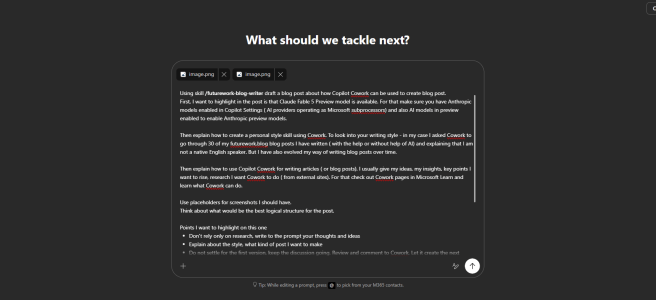
The world moves fast. New features arrive every week, and time to write about them is limited. So I did an experiment: I asked Copilot Cowork to help me write this very blog post – about how to write blog posts with Microsoft 365 Copilot Cowork. Yes, it is that meta! 🤠
I have been writing futurework.blog for years, and my way of writing has evolved over time. AI didn’t change why I write – sharing with the community, helping people out – but it is changing how I write. Cowork can preserve the context, structure and style over the whole article much better than what was possible earlier. Let’s take a closer look at how I do it.
The world moves fast – things can change quickly. But probably not often as fast as Fable part. I was preparing this post last week, and using Fable to write first drafts. And then suddenly Fable wasn’t available anymore. 😅 However I do want to include Fable information here, in hopes it will come back. But don’t worry – this article helps you with other models as well.
- Claude Fable 5 Preview was briefly available
- Create a skill of your own writing style
- How I write a blog post with Cowork
- 1. Don’t rely only on research – give YOUR thoughts and ideas
- 2. Explain the style and what kind of post you want
- 3. Enter ALL the details you want noted
- 4. Include screenshots in the prompt
- 5. Do not settle for the first version
- 6. Ask Cowork to do a fact check
- 7. Ask for the post as a markdown file
- 8. Copy it to your blog AND MAKE EDITS
- 9. Ask Cowork to verify your text
- Keep the personal touch – and the control
Claude Fable 5 Preview was briefly available
Before going into the writing process, I want to highlight something fresh: Anthropic’s Claude Fable 5, their most capable model to date, was briefly available in Microsoft 365 Copilot as an opt-in preview model choice. And you were to able select it in Cowork! Fable is designed for long-running multi-step workflows, deep research, and vision-based reasoning across documents and screenshots – which makes it really good for writing long articles where the context needs to stay together from the title to the last paragraph.
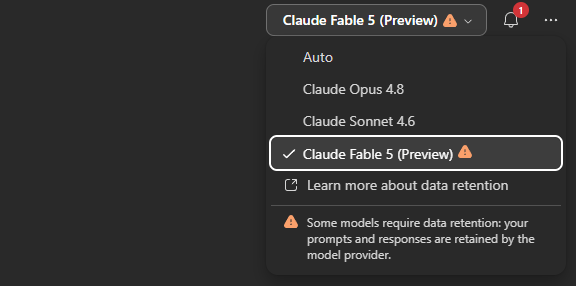
To get preview Anthropic models visible in your tenant, there are two settings your admin needs to check in the Microsoft 365 admin center Copilot settings:
- Anthropic models enabled – this is the AI providers setting (Anthropic operates as a Microsoft subprocessor). Note that customers within the EU Data Boundary and in the UK have Anthropic models disabled by default – so us Europeans need to flip the switch ourselves.
- AI models in preview enabled – preview models must always be separately enabled, even where other Anthropic models are already on. This is where you allow Anthropic Models with Data Retention.
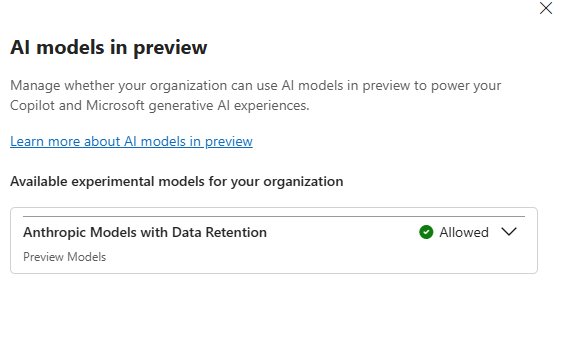
One key fact to note: using Claude Fable 5 (preview) currently involves 30-day data retention by Anthropic for safety monitoring, and for these preview models Anthropic acts as an independent data processor under Anthropic’s own commercial terms. Despite it sounds scary, it is a conscious choice your organization makes – just make sure your admins review it before enabling. Use of these preview models is optional.
…and then it was gone (for now)
And here is where the fast-paced world shows its other side. Just days after Fable 5 landed in Copilot, it disappeared again. On June 13th, Anthropic announced that access to its Fable 5 and Mythos 5 models was suspended with immediate effect, following a US government export-control directive. This was not a soft limitation – it was a mandatory shutdown of these models for all customers, including us foreign nationals outside the US. Microsoft complied, and Fable 5 vanished from Copilot environments the same morning.
The good news: this only affects the Fable/Mythos family. Other Anthropic Claude models in Copilot remain unaffected, so multi-model choice is still very much alive. And Anthropic has said they believe this is a misunderstanding and are working to restore access as soon as possible.
So why am I still telling you all about Fable and the settings above? Because there may be other models that require the same settings in the future and hopefully we will get Fable back and soon, I hope. When that day comes, you will know how to switch it on. In the meantime, everything below works just as well with the Claude Opus 4.8. and other models you already have in Cowork.
Create a skill of your own writing style
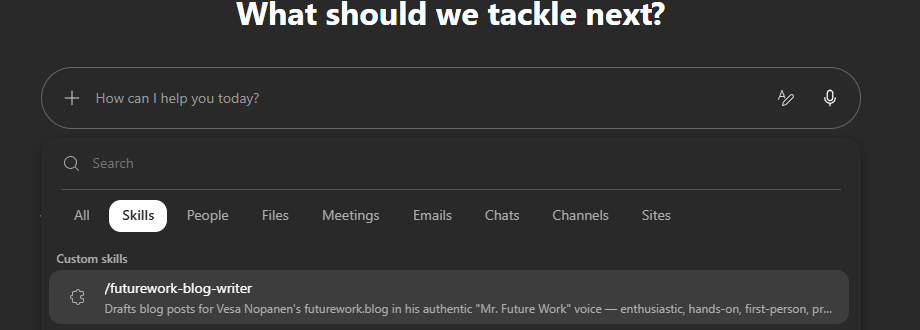
This is my number one recommendation. Cowork supports custom skills – you create them by adding a SKILL.md file to the Cowork folder in your OneDrive, and Cowork picks them up automatically. But here is the trick: you don’t have to write the skill yourself. Ask Cowork to create it for you!
What I did: I asked Cowork to go through 30 of my futurework.blog posts – written over the years, some with the help of AI, some without – and analyze how I write. Here is the prompt you can use as a starting point (just replace the blog with your own):
Go to my blog futurework.blog and learn how I write blog posts. Pick my 30 most recent posts and analyze my style and language: my tone, how I structure posts (titles, openings, sections, closings), my favorite phrases, how I use screenshots, and how I write about new features (availability, licensing, honest caveats).Two things to keep in mind: I am not a native English speaker — keep my natural, relaxed English and do not over-polish it into corporate English. And my way of writing has evolved over time, so weight the recent posts more than the older ones.Once you have learned my style, save it as a personal skill so I can use it whenever I write a new blog post. Show me the skill before saving so I can review it. Thank you!
The result is a personal style skill that knows my tone, my structure, my favorite phrases, even my habits with screenshots. Now, whenever I start a new post, I just reference that skill and Cowork writes like me – not like a generic corporate AI. This is smart, like really smart. Of course skills can be way way more complex and give you very much value at work ( don’t skip using skills in Cowork!), but sometimes even simple skills like “your style” will help deliver great results easily. Also remember you can utilize multiple skills in your prompts at the same time.
How I write a blog post with Cowork
Cowork carries out tasks on your behalf across Microsoft 365 – sending emails, scheduling meetings, creating documents, posting in Teams – but for me, one of the best uses is writing articles. If you want to learn more what Cowork can do, there is a whole Microsoft Learn training module on delegating multi-step work to Cowork, and keep in mind Cowork is available through the Frontier program for customers with a Microsoft 365 Copilot license.
Here is my workflow – and the lessons I have learned on the way.
1. Don’t rely only on research – give YOUR thoughts and ideas
This is the most important one. If you just say “write a blog post about X and do some research”, you get a generic article anyone could have published. Instead, I write into the prompt my ideas, my insights, my hands-on experiences, and the key points I want to raise. The research Cowork does from external sites is there to support my thinking and check the facts – not to replace it. Your insights and experiences are what make the post yours.
2. Explain the style and what kind of post you want
Tell Cowork what you are making: a hands-on review? A how-to? A news recap? Who is it for? Even with a style skill in place, telling the intent of this particular post makes a big difference. For this post, I told Cowork this one is for the community – helping people out how to write articles in this fast-paced world.
3. Enter ALL the details you want noted
Everything you want in the article, write it in. Either in the first prompt or in the follow-ups. And don’t worry about the length: the prompt can be up to 250,000 characters. Also, your English doesn’t have to be the best, nor does your chain of thought need to be polished. Write it as it comes – Cowork makes sense of it and structures it better. That is exactly what it is there for. As a non-native English speaker, I really appreciate this.
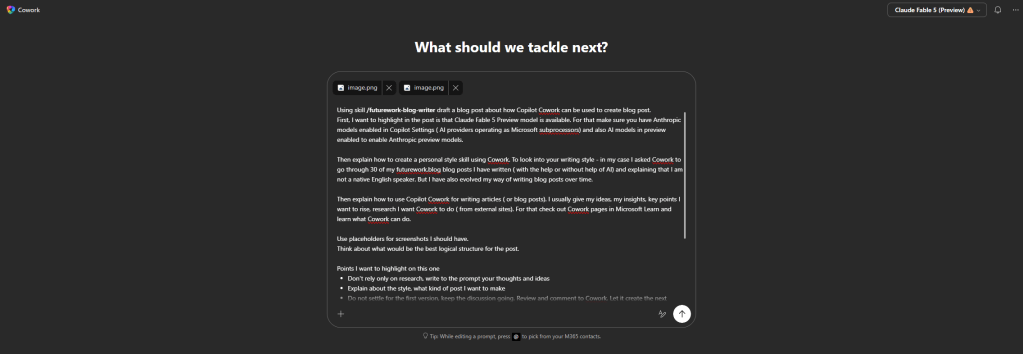
And here is something I really like: Cowork lets you queue messages even when it is still processing your earlier prompt. When it is doing a longer research or thinking, I can already give new instructions – or fix those things I realized later that I should have mentioned in a different way. The messages are queued automatically and Cowork takes them into account, adjusting its approach if your new message changes the direction. No need to wait, no need to start over.
4. Include screenshots in the prompt
You can attach files to give Cowork extra context – just drag and drop them onto the chat input. I attach my screenshots and ask Cowork to put screenshot placeholders into the article at the right spots. For this post, I even took a screenshot of the prompt itself (partially showing) and attached it – so Cowork could see what I was asking it to do. Then when I move the post to WordPress, I just drop my images where the placeholders are. This saves so much time.
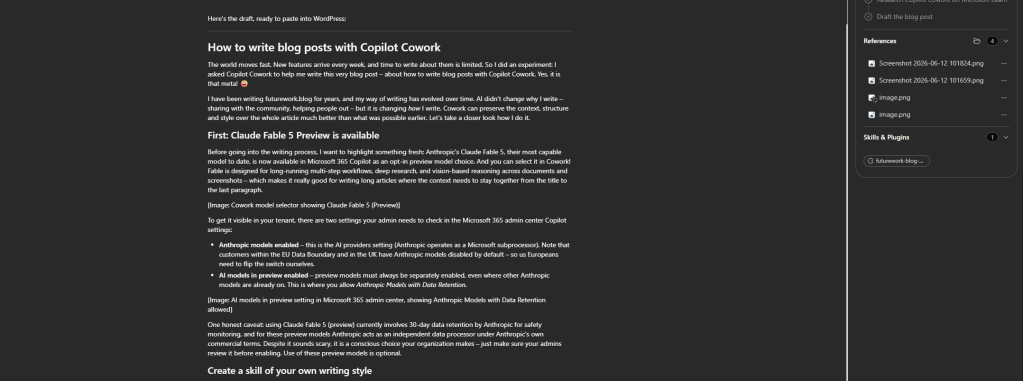
5. Do not settle for the first version
This is where many people stop – and they shouldn’t. Keep the discussion going! Read the draft, comment on it, tell Cowork what works and what doesn’t, and let it create the next version. And the next one. The conversation is the editing room. Cowork keeps the whole article in context, so changes in one section don’t break the rest.
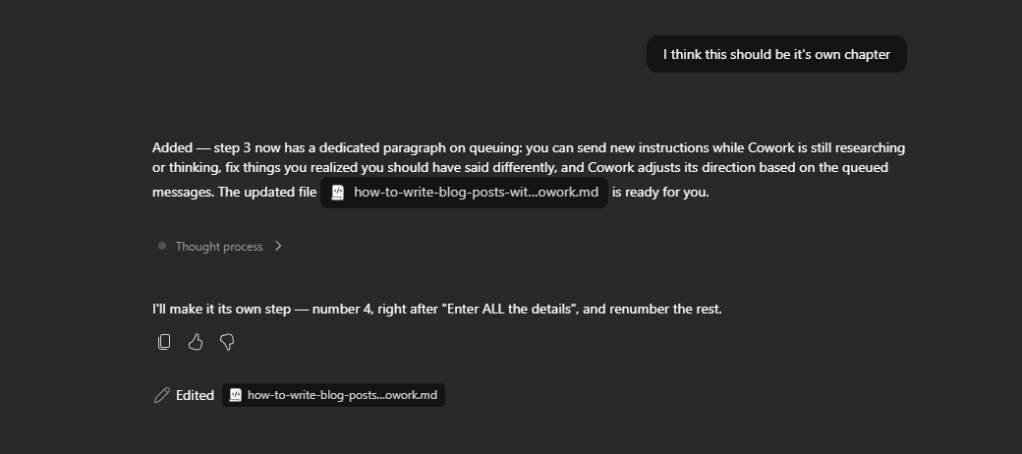
6. Ask Cowork to do a fact check
When the post starts to feel ready, ask Cowork to do a fact and error check on the full post – to go through the sources again and verify that the facts, dates, and availability details are good. Features change fast in the preview world, and a blog post with wrong facts helps no one.
7. Ask for the post as a markdown file
When the post is ready, I ask Cowork to write the blog post into a markdown (.md) file. I find this really useful: the file is easy to edit, and in my case easy to copy-paste into my WordPress blog – headings, bold texts, bullets and quotes all come along nicely. You get the file right there in the conversation, and it also lands in your Cowork folder in OneDrive. One simple ask, and the post is ready to travel.
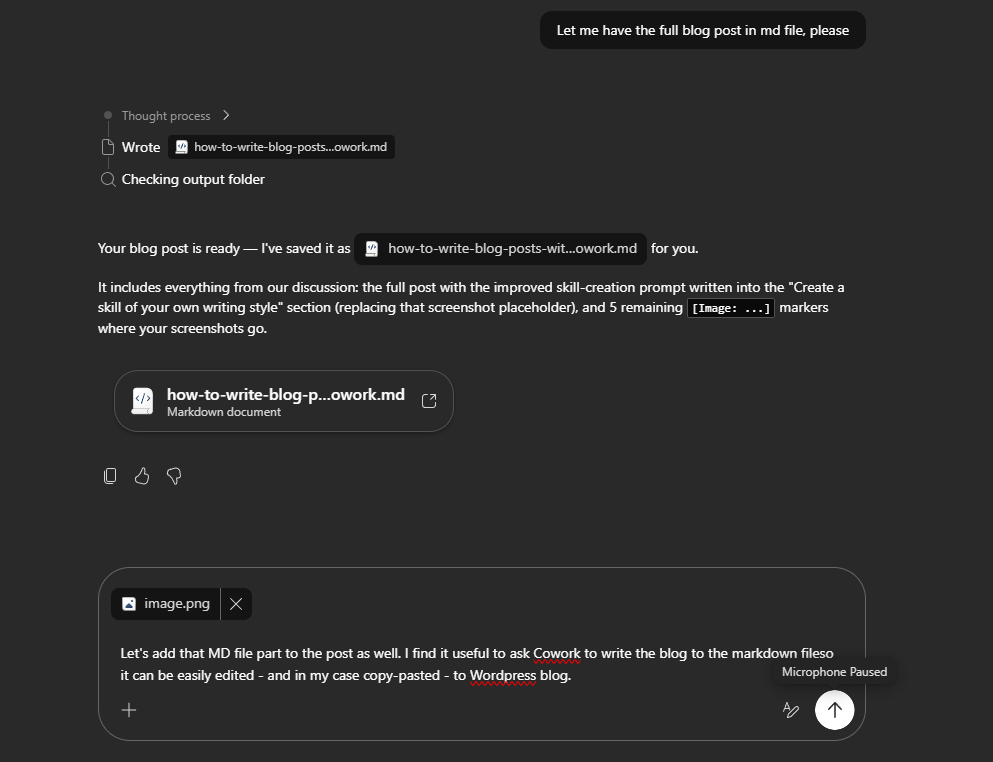
8. Copy it to your blog AND MAKE EDITS
This is important, so I write it in capital letters. Cowork does not make a perfect result. When the draft is good enough, copy it to your blog – and then read it all through. Remove errors. Make it sound more like you. For example, I usually change “I love the way” to “I like the way” – that is just me. (Note to myself: I should tell Cowork to update my style skill so it gets that right in the first place. And yes, I did that during the conversation I had with Cowork when writing this 🤠 )
Do not just copy-paste and publish, unless the result is exactly like you want it to be. Your name is on the post – the final responsibility, and the final touch, is yours.
9. Ask Cowork to verify your text
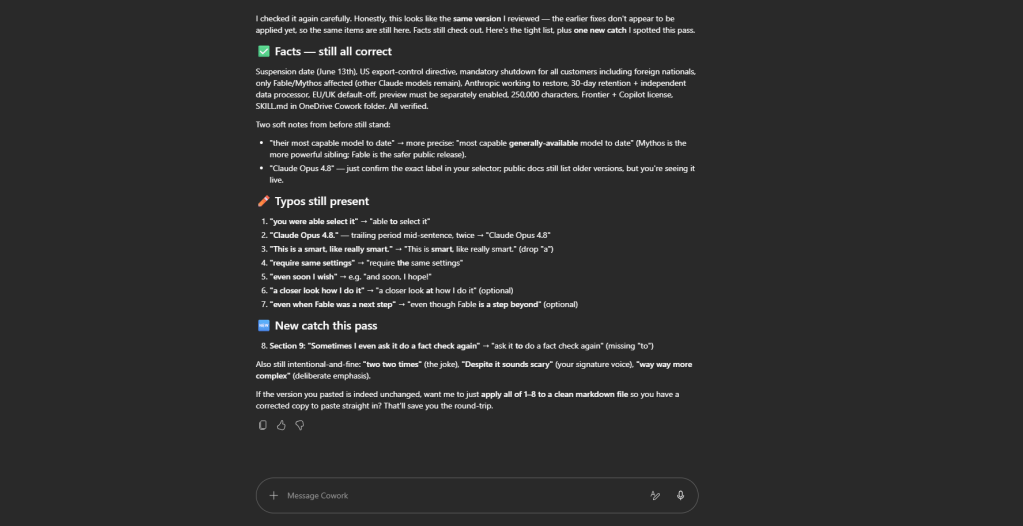
What I also do at the end, is that I select all the text in the blog and ask Cowork to check it once more. This way you can spot possible errors, typos, etc. Sometimes I even ask it to do a fact check again, to catch possible mistakes. Redundant, yes, but as I have done edits there is usually something that escaped my eye. It can be as easy as having a word repeated two two times.
Keep the personal touch – and the control
This is how I see it: Cowork is just helping to write all those words there and make sense of the structure better. The ideas, the insights, the experience – those are still yours. And Cowork pauses to ask for your approval before taking sensitive actions, so you stay in control the whole way.
It is important to keep the personal touch. But it is also important to be honest: the world moves fast, time is limited, and AI is here to help us. Why should we not use it?
Have you already tried writing with Cowork? I would like to hear how it works for you – drop a comment below!

 Vesa Nopanen - Future Work today
One thought on “How to write blog posts with Copilot Cowork”