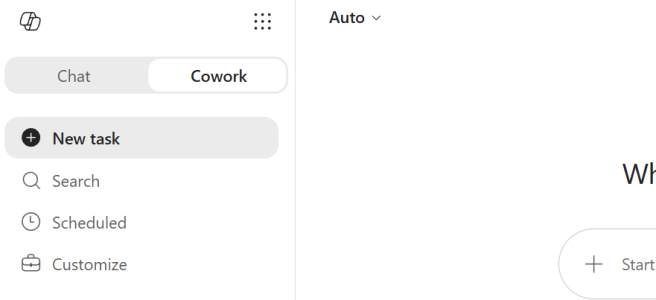
Have you noticed the new Cowork UI in the Microsoft 365 Copilot app? Overnight, the experience got a proper makeover in Frontier — and with it came a small skill that I think is going to matter a lot for everyone right now: /cost.
I of course tested it out first thing this morning. A few things moved around, one model finally showed up on my demo account, and there is a new way to see exactly how many Copilot Credits a task is eating. After last week’s posts on how to write blog posts with Cowork and Cowork hitting general availability, this one is a natural follow-up — and yes, I am going to keep the meta tradition alive and show you what it cost to write this very post. 🤠
Let’s take a closer look.
- Cowork is now its own mode – Chat or Cowork
- GPT-5.5 is in the list now
- Scheduled prompts moved to the left navigation
- Customization options
- The /cost skill – this is where it gets good
- But cost has to be governed – control, visibility, efficiency
- New: Cowork has its own section in the Microsoft 365 admin center
- So… what did this post cost?
- Closing thoughts
Cowork is now its own mode – Chat or Cowork
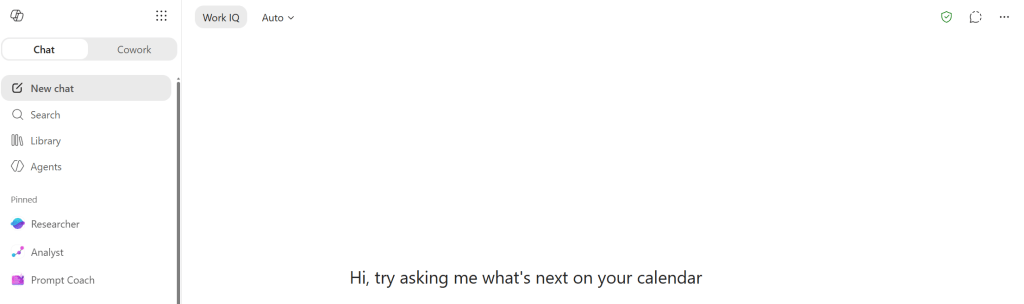
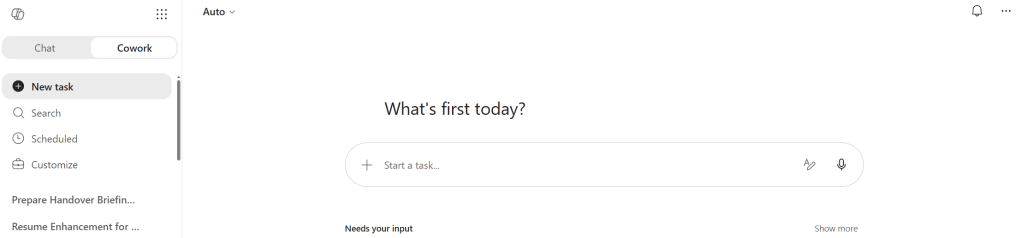
I have been writing about the Cowork in the Microsoft 365 Copilot app. Well, Cowork has been promoted. It is no longer just an agent you pick from a list — it is now its own mode, right next to Chat. At the top you simply choose Copilot Chat or Cowork, and you are in the full experience.
This is a small UI change with a big signal behind it. It tells you Cowork is not a side feature anymore — it is one of the two main ways you work with Copilot. Chat for the traditional chats you had with Copilot Chat, Cowork for the heavy, multi-step, do-the-actual-work tasks. I like the clarity of it.
Copilot Chat
Copilot Cowork
GPT-5.5 is in the list now
Remember in my GA post I said GPT-5.5 was part of the Frontier lineup but I did not see it on my demo account yet? This morning it was there. 😎
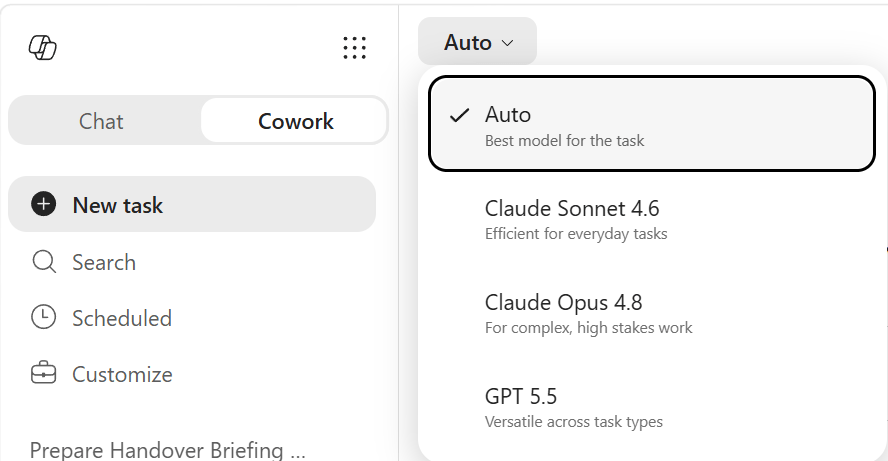
Open the model picker and you now get:
- Auto – best model for the task
- Claude Sonnet 4.6 – efficient for everyday tasks
- Claude Opus 4.8 – for complex, high-stakes work
- GPT 5.5 – versatile across task types
This is exactly the multi-model choice I keep going on about. You are not locked into one brain. Reach for the efficient model for everyday work, pick Opus 4.8 when the task is genuinely complex, try GPT-5.5 when you want it — and let Auto decide when you would rather not think about it. Model choice is also one of your levers for managing cost per task, which ties straight into the /cost story below.
Scheduled prompts moved to the left navigation
Scheduled prompts now live right in the left navigation — alongside New task and Search. No more digging for them. If you have set up recurring tasks (the “create a weekly status update from my emails every Monday morning” kind of thing), they are now one click away.
Small change, but this is the sort of thing that makes a tool feel like it respects your time. The features you use regularly should be where your eyes already are.
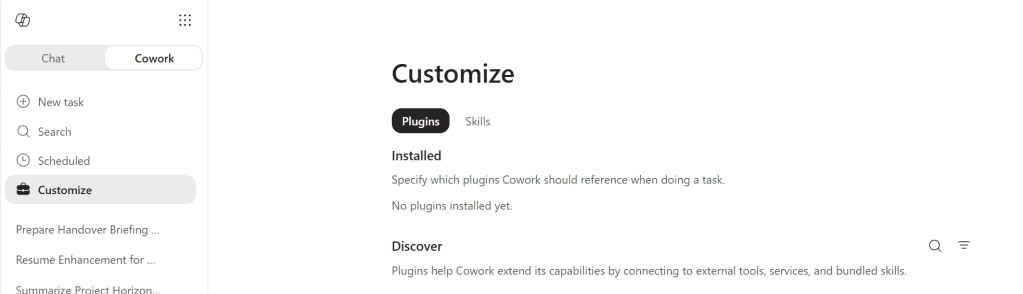
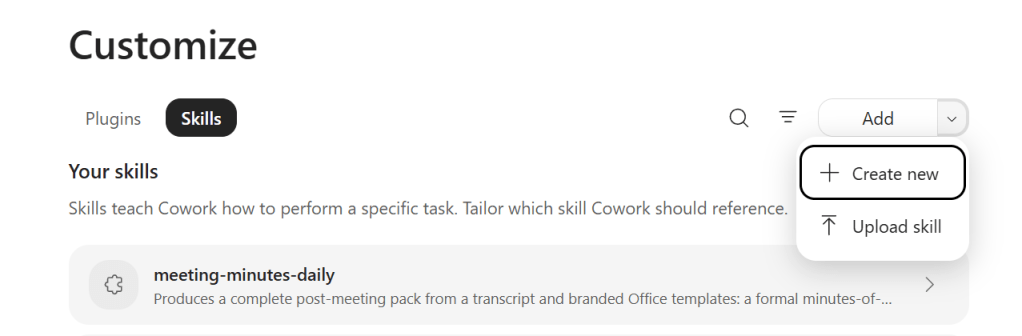
Customization options
There are also new options for plugins and skills under Customize in the navigation. With the partner plugins that landed at GA, being able to tune how they show up and behave is a welcome addition. This is also the place where you can manage your skills.
The /cost skill – this is where it gets good
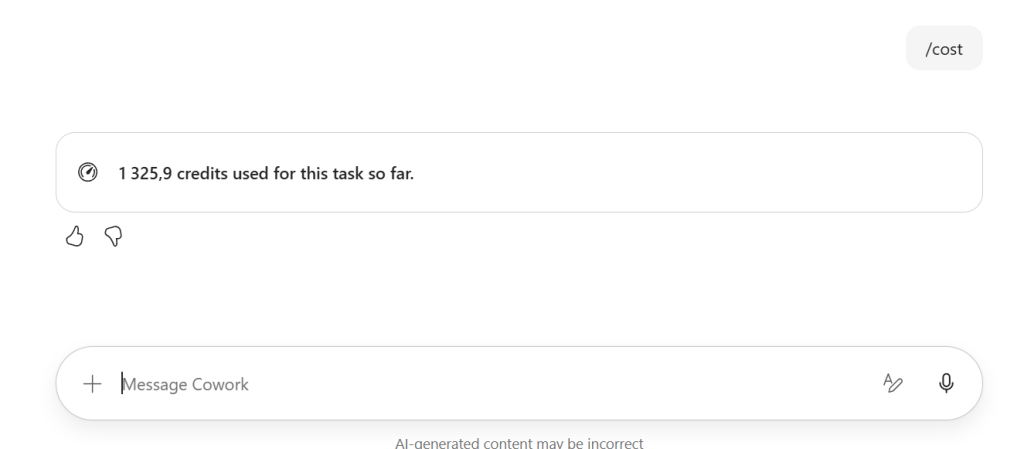
Now the part I am most excited about. There is a new /cost skill, and it does exactly what you hope: type /cost and Cowork tells you how many Copilot Credits your conversation (task) has used so far.
That sounds simple. It is actually one of the most useful things you can do right now — because the question I hear more than any other is “yes, but what does it cost?” And the honest answer is: it depends entirely on the job. So let’s make it concrete.
Here is a real example. I gave Cowork a genuinely complex task — the kind I would normally never hand to a single tool. It:
- analyzed an Excel data set and created an Excel KPI summary,
- built a PowerPoint presentation, a Word document, and an HTML dashboard from that KPI summary,
- re-styled the PowerPoint with a new template,
- drafted several emails,
- and posted a couple of messages to Teams.
One prompt-driven task, six-plus outputs, across Excel, PowerPoint, Word, HTML, Outlook and Teams. This is a textbook heavy task. Running on Claude Opus 4.8, /cost told me it used over 1,300 credits — about $13 on PayGo at $0.01 per credit.
Now read that next to the value: How long would it take you to analyze that data, build the Excel summary, make the PowerPoint, write the Word document, design an HTML dashboard, then draft the stakeholder emails and Teams messages? An afternoon? A whole day? As I put it in the GA post: work that took a week now collapses into a morning. A light task is the price of a coffee; a heavy multi-output analysis like this one is the price of a nice lunch — for work that used to take a person an hour to a day. And all that is left for you to do is check the results and edit the drafts before sending them. That is the trade I will take every time.
That is the real story of Cowork’s cost: it is not an expense you weigh on its own, it is a number you put next to the hours — and the kind of work — it just gave back to you. This is AI that actually does the work, end to end, not AI that drafts a suggestion and hands it back to you. And while Cowork is working, you are free to do other work. You don’t have to stare at Cowork and wait – and you should not do that! Instead make use the time – do other work or have a short break you didn’t have time to do before.
But cost has to be governed – control, visibility, efficiency
Here is the other half, and it is just as important: usage-based pricing only works if you govern it. You do not get to enjoy “the price of a nice lunch” if nobody is watching the tab. The good news is Microsoft built the guardrails right into GA, around three themes — and /cost is your front-row seat to one of them.
Visibility is where /cost lives. For the first time you can see, per conversation (task), what a task actually cost — instead of guessing. So here is my tip, and it is the single most useful thing you can do this week: go back through your existing Cowork conversations and run /cost on the kinds of tasks you really do. That turns “I have no idea what this will cost” into a grounded number you can plan around — for yourself, your team, and your whole organization. At the org level this is backed by usage reporting broken down by user, group, and feature, so there is real accountability.
Control is the admin side, and it is off by default — Cowork does not spend a credit until you turn it on. It now has its own section in the Microsoft 365 admin center, where admins create spending policies at company and group level (per-user is coming) to cap spend, alongside scoped billing and usage alerts. And when a user genuinely needs more, they can request additional credits from inside Cowork. Turn it on, set the policy, stay in control.
Efficiency is the lever you pull on every single task: PayGo or P3, and model choice in the picker. Those 1,300 credits ran on Opus 4.8 because the task deserved a frontier model — but a lighter job does not need one. Match the model to the work, and commit to P3 if you already know Cowork is going to be core to how your team works, and the same output costs you less.
Put those three together and the message is simple: the cost is knowable, cappable, and tunable. That is what lets you say yes to usage-based pricing with confidence.
New: Cowork has its own section in the Microsoft 365 admin center
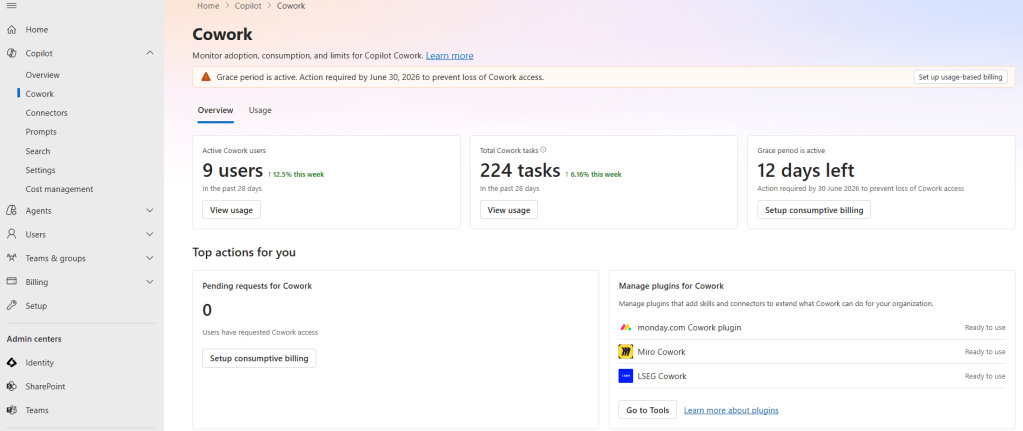
This is fresh, and it directly updates what I showed you in the GA post. Cowork now has its own section in the Microsoft 365 admin center — and it is where governance actually happens. You can see your Cowork usage there, and the cost management area has been reworked.
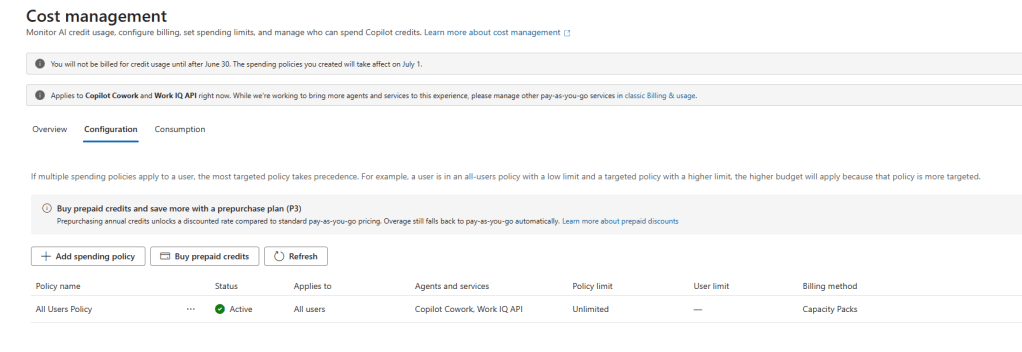
Here is the change: instead of the budget tab I walked through last time, you now create a spending policy. And it is a proper guided wizard with five steps. Let me walk you through it, because this is exactly what your admins should set up before July 1.
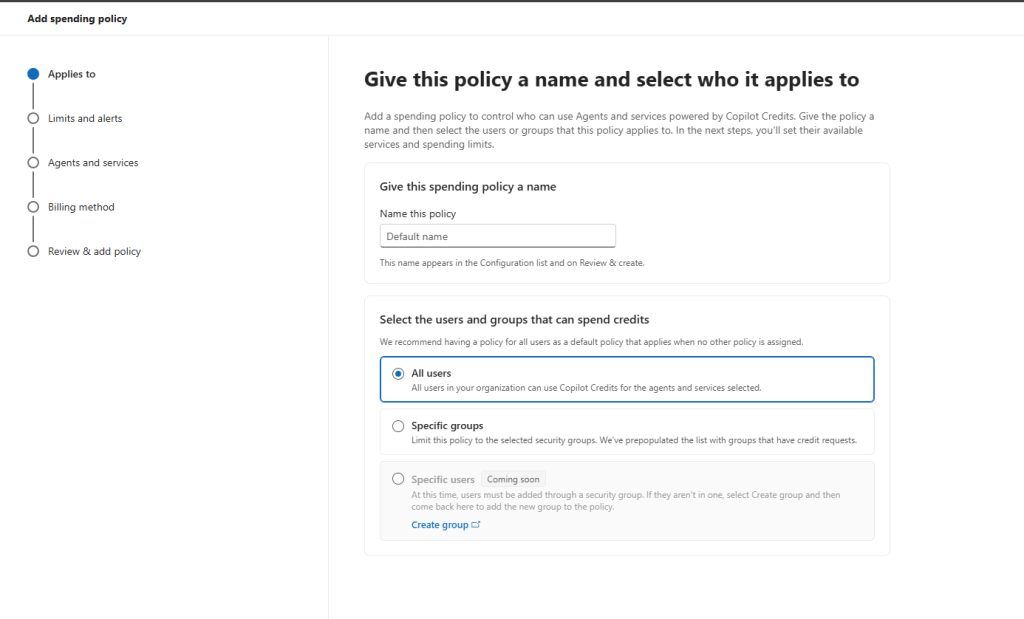
1. Applies to – name it and choose who it covers. Give the policy a name, then pick the scope. You can apply it to All users (Microsoft recommends having an all-users policy as your default, for when no other policy applies), to Specific groups (security groups — and helpfully, the list is pre-populated with groups that have credit requests), and Specific users is coming soon. So today you govern at company and group level; per-user is on the way — exactly the layered control orgs need.
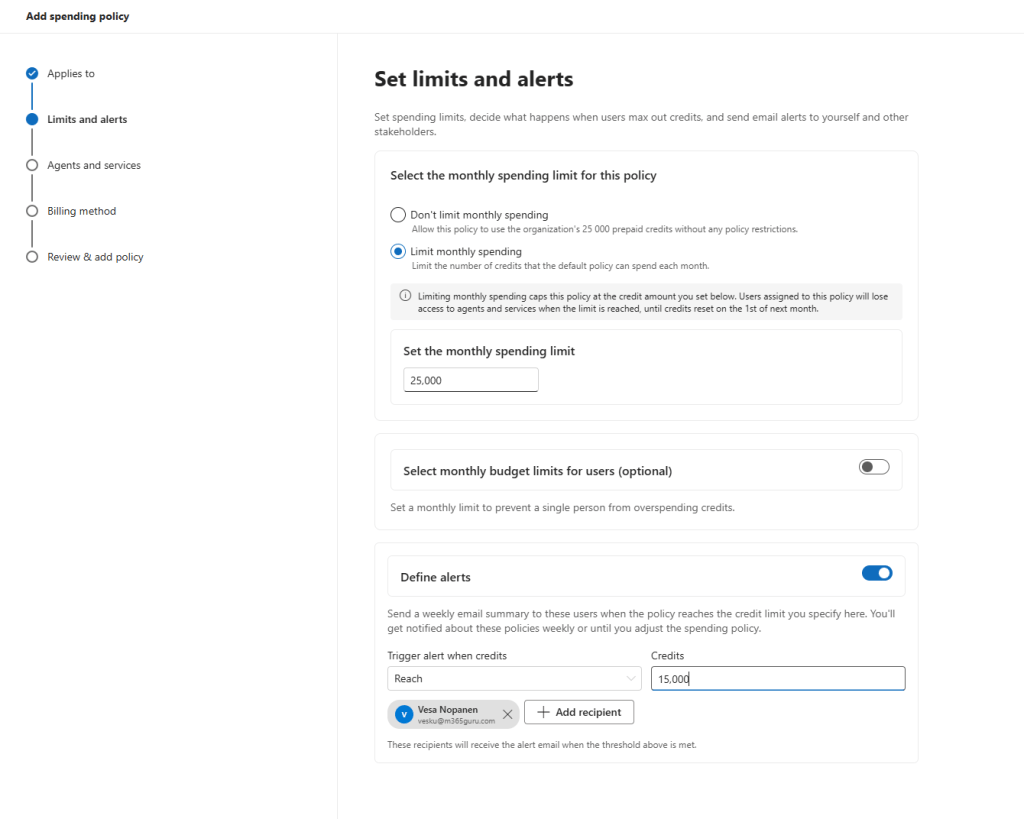
2. Limits and alerts – cap the spend and get warned early. Choose Don’t limit monthly spending or Limit monthly spending, and set the monthly credit cap. Be clear-eyed about what the cap does: when a policy hits its limit, users assigned to it lose access to agents and services until credits reset on the 1st of next month. There is also an optional per-user monthly budget limit so one person can’t burn the whole pool, and a Define alerts toggle that emails a weekly summary to the recipients you choose when the policy reaches a credit threshold you set. I added myself as the alert recipient — set this up, you will want the heads-up.
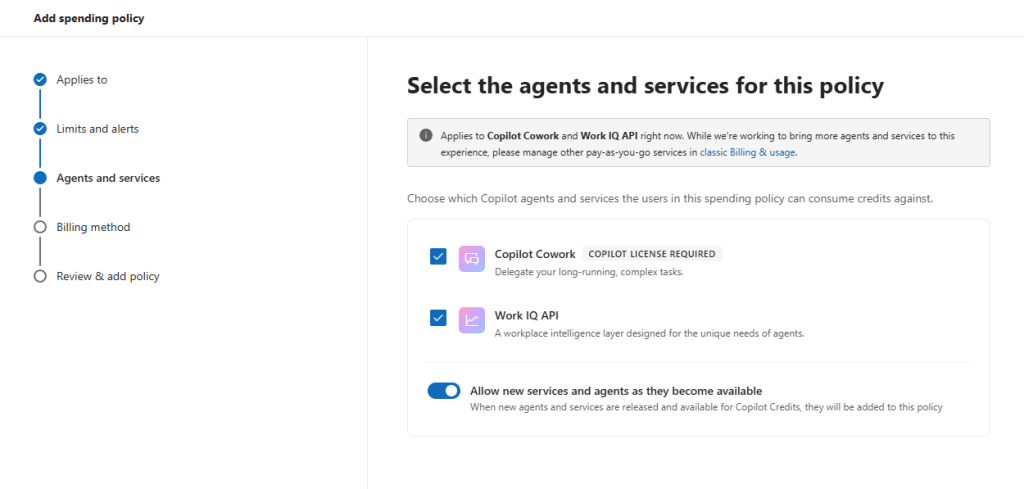
3. Agents and services – what the policy governs. Right now the policy applies to Copilot Cowork (Copilot license required) and the Work IQ API. There is also an Allow new services and agents as they become available toggle, so the policy automatically extends to future agents instead of leaving a gap. Other pay-as-you-go services are still managed in classic Billing & usage for now.
4. Billing method – where the credits come from. Credits are billed to the subscription you select; new policies use your organization default by default, and when credits run out, billing switches to pay-as-you-go.
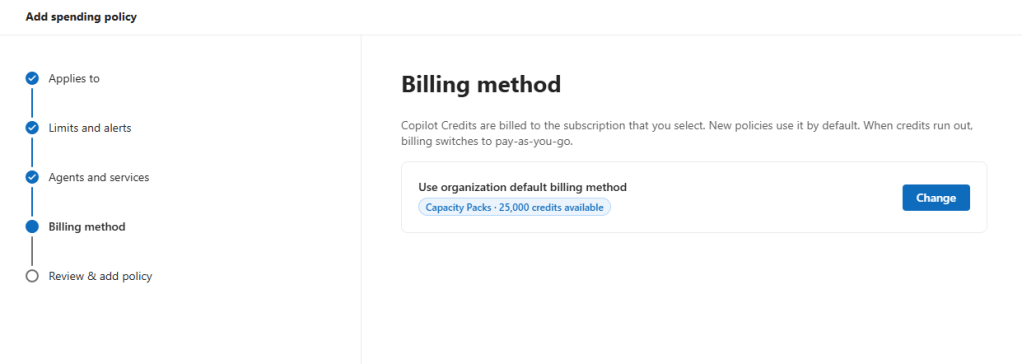
5. Review & create. A clean summary of scope, services, billing method, and your limits and alerts before you commit. Review, create, done.
My tip: do this now, before July 1. Start with an All users policy as your safety net, then layer group-level policies on the teams you expect to lean on Cowork hardest, and turn on alerts so nothing creeps up on you. This is the guardrail that lets you say yes to usage-based pricing with confidence — set the spending policy, and stay in control.
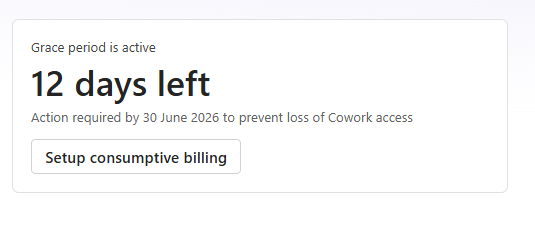
And the clock matters here. Starting July 1, 2026, you need Copilot Credits available to keep using Copilot Cowork (for tenants on the grace period).
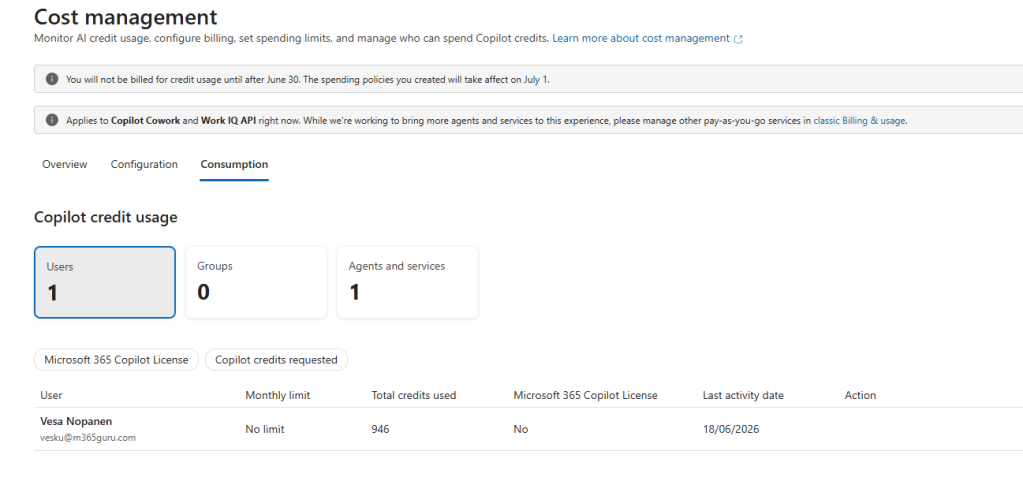
This is how it looks, when you go to Consumption page. Tasks run before yesterday are not included, as that number looks roughly like the total I have done only today.
So… what did this post cost?
Keeping the meta tradition going — because the last writing post was “that meta” too 🤠 — I asked /cost what it took to write this article. Research across my own earlier posts, drafting, screenshot placement, the lot.
The answer for the initial draft: 60,8 credits — about $0,61 on PayGo at $0.01 per credit. At the end of writing the blog post I had spent 310,4 credits. Which is about $3,1 on Pay-as-you-Go (PayGo). This included looking up more information, sharing and analyzing screenshots of Admin center, and adding up more text to cost chapters.
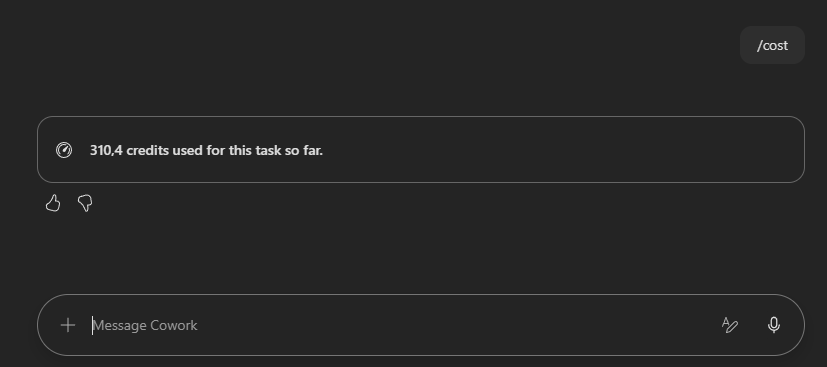
Sit that next to the heavy task above: a six-output, cross-app monster ran over 1,300 credits (~$13), while drafting a full blog post came in at around three euros. That is the whole point of paying attention to /cost — tasks are not all priced the same, and once you can see the numbers, you can match the model and the effort to the job. A blog post is a light task. A leadership-ready, multi-format analysis is not.
A blog post written with Cowork, reporting its own cost, in a post about the cost skill. I do like when it loops around like that.🤠
Closing thoughts
Together Cowork as its own mode, GPT-5.5 in the picker, scheduled prompts and plugin & skills customization where you can actually find them, /cost, and a real spending-policy wizard in the admin center — they tell you the experience is maturing fast, and maturing in the right direction: more capable, and more transparent and governable about what it costs you.
Turn on /cost, look back at your real conversations, set your spending policies, and walk into July 1 knowing your numbers instead of guessing them.
Work is changing. Keep an eye on the costs, but don’t block the use: instead apply cost control and governance that fits your organization needs.

 Vesa Nopanen - Future Work today