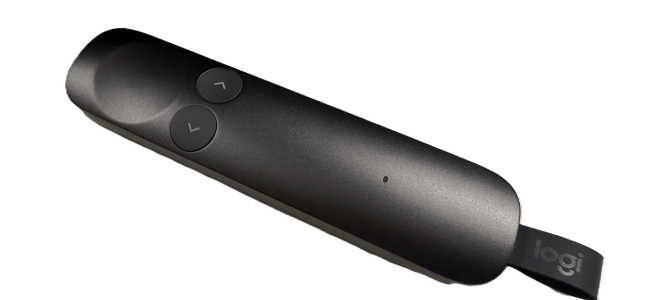
Presenting is a big part of my work and community activities- either in-person or online. I am doing presentations to customers, leading workshops, on stage at conferences, in community events, and of course in countless Teams meetings. For in-person events a good presentation clicker is one of those tools you should to have with you, especially if you do more presentations,. To the point that you don’t think about too much until you notice you forgot it home ( never again!). I have also borrowed mine to fellow presenters quite a many times. The original MVP-branded Logitech Spotlight has been my trusted companion for years. It has nice features, such as the spotlight.
Now there is a new one: Logitech Spotlight 2, announced early June 2026 – that is this week. And this is not just a refresh: the new clicker ( the correct term by Logitech is Advanced presenter with haptics) gives you haptic feedback you can feel in your hand, one pressure-sensitive button that is both pointer and spotlight (no more choosing between them!), a real laser, a timer that vibrates when your time is running out, long battery life, a USB-C dongle at last — and even a built-in breathing exercise designed to help you focus and feel more confident before stepping on stage.
I was lucky to get to test it already — thank you Logitech! Let’s take a closer look.
- Design – familiar, but looking more business
- Setup – could not be easier
- The Highlight button – this is where it gets good
- The classic clicker features are all included
- Timer alerts and a breathing exercise?
- Materials and sustainability
- Verdict
Design – familiar, but looking more business
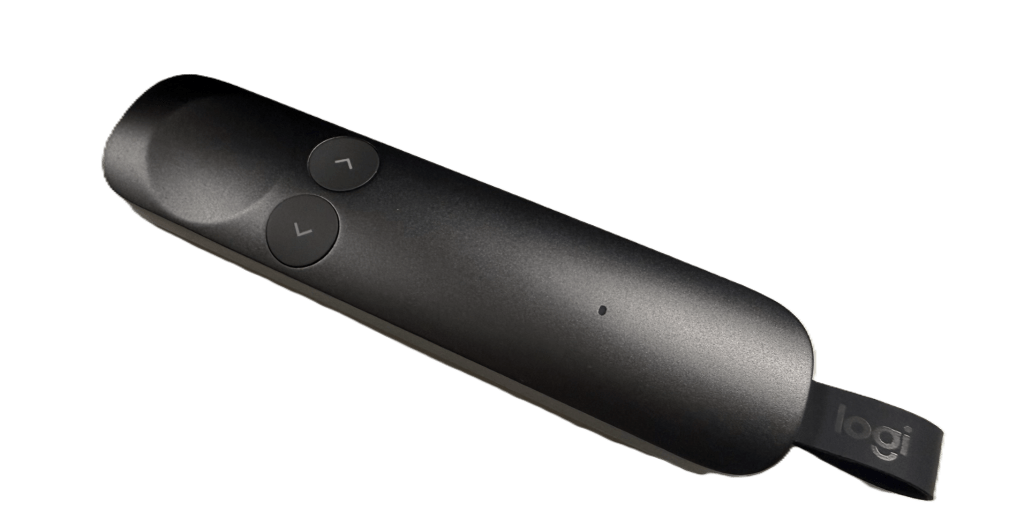
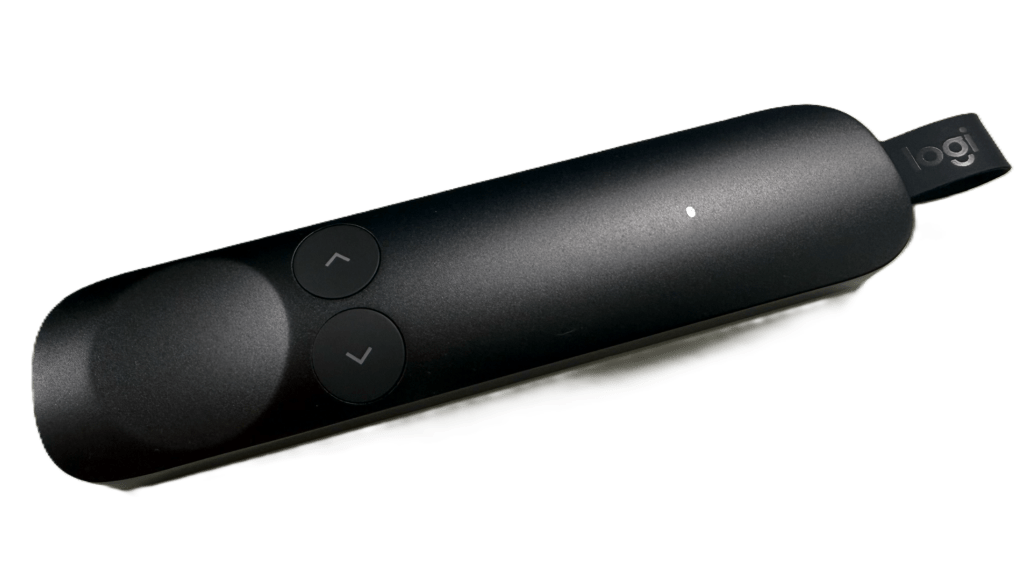
When you put Spotlight 2 next to the original Spotlight, the length doesn’t differ much — the new one is actually slightly shorter (125 mm vs 131.3 mm, based on launch specs). The bigger difference is that Spotlight 2 is thicker (13.5 mm vs 12.1 mm) and a bit wider, and that is a good thing: it has a really nice feel and fits the hand well. And it looks really good and is more business-style than my golden Spotlight 1.
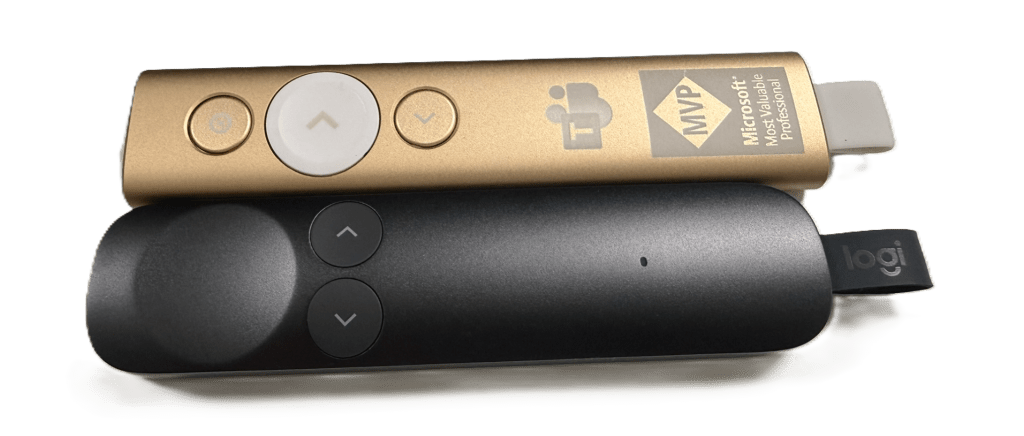
They share the familiar idea: the dongle is detachable from the remote itself. But here is the great part — Spotlight 2 has a USB-C dongle (Logi Bolt receiver)! No more hunting for a USB-A port on a modern laptop. You can also connect over Bluetooth, and charging is USB-C too.
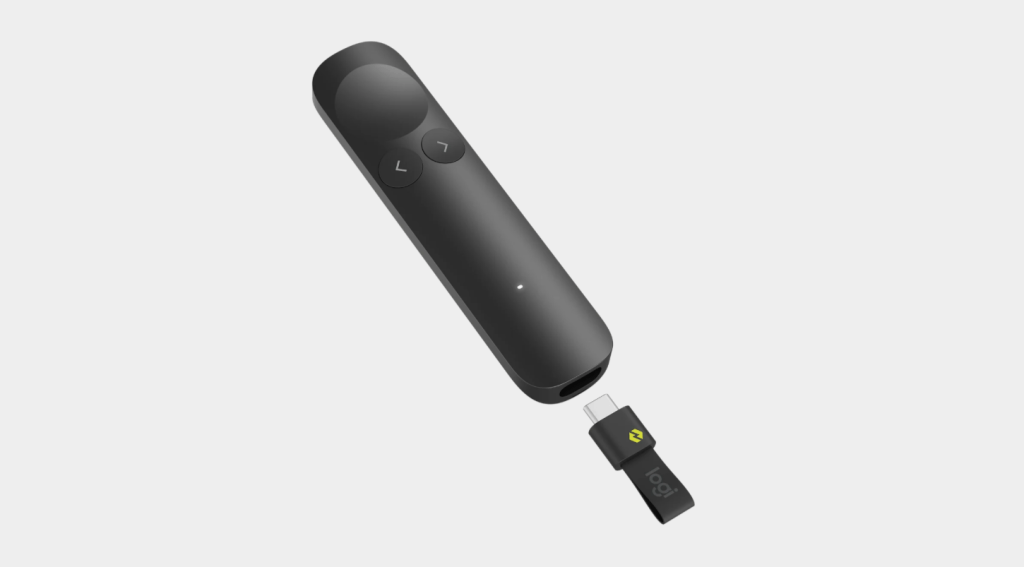
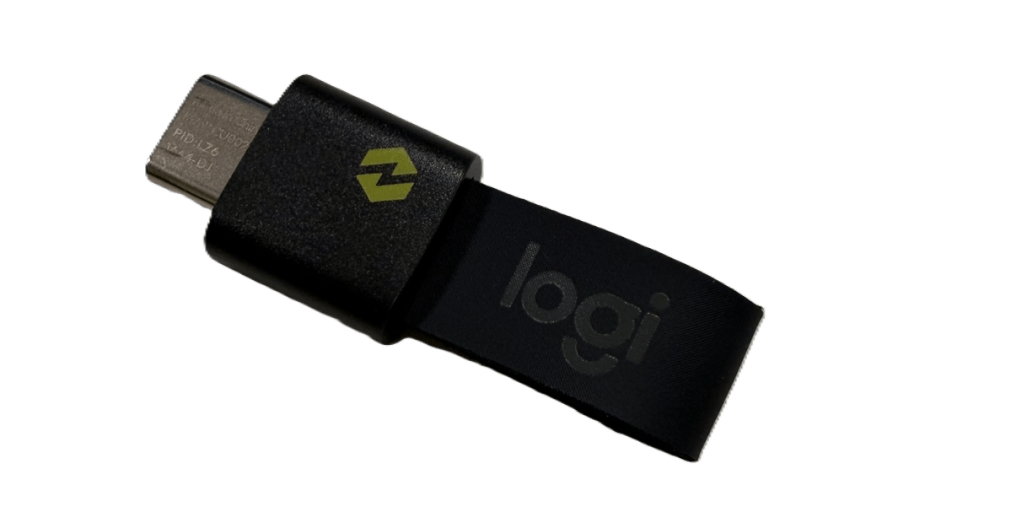
And I do like the battery life: a full charge should last up to three months and one minute of charging should give you three hours of presenting. I especially like this fast charging option, because you might forget to charge it as the battery life is so good. However, I would point out: charge Spotlight 2, just like Spotlight 1, regularly even when you are not using it. I have heard Spotlight 1 brick after not being used for year or longer time, as they could not be charged in normal way again. I am not sure if this will happen with Spotlight 2, but I would not risk it. And we know – clickers love when they are used, so let’s go on and do presentations using them!
One thing I do miss: Spotlight 2 doesn’t come with a storage sleeve like the original did. Of course, as it is thicker, a sleeve would not be so elegant with it — but I got used to having one as it was holding space for clicker in my bag.
Setup – could not be easier
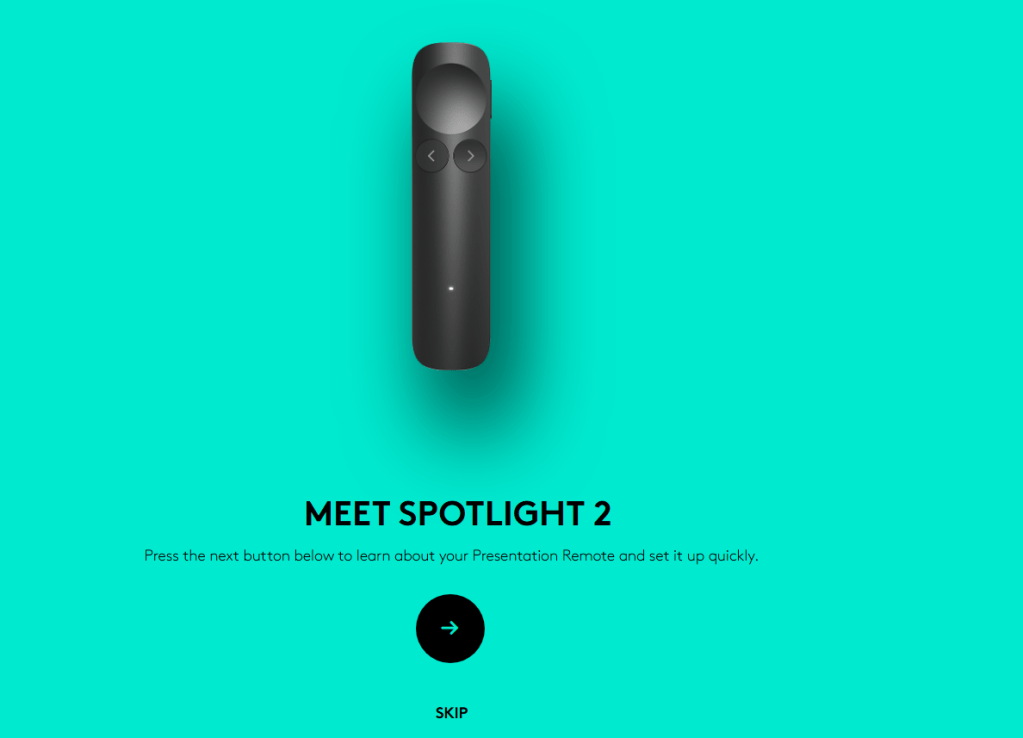
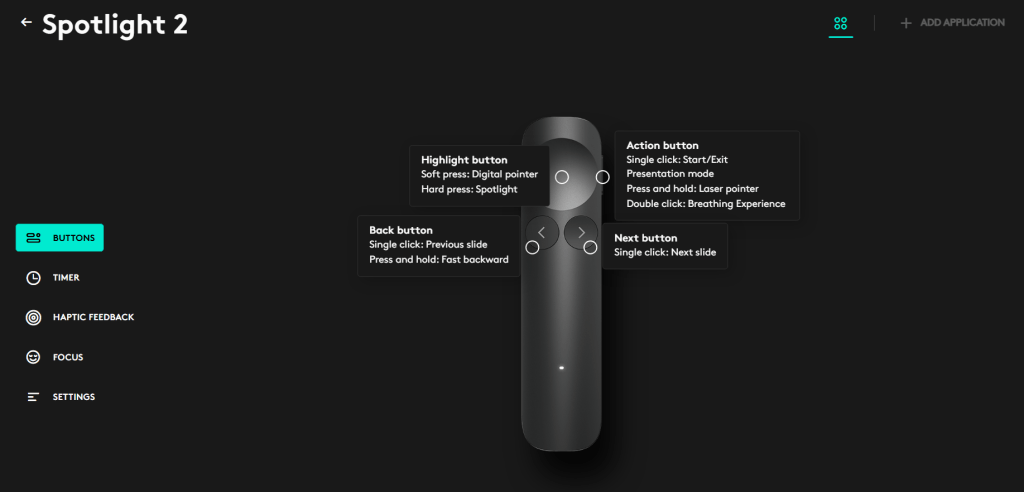
Setup is really easy. Windows automatically tries to connect the Spotlight 2 when it is taken to use. If you have Logi Options+ installed, you just go there and can change settings and customize your Spotlight 2. Options+ also walks you through a nice onboarding that shows what every button does. Make sure you install Logi Options+!
The Highlight button – this is where it gets good
The large touch area on top — the Highlight button — is the heart of Spotlight 2, and what I like is the haptic feedback when using it. There are two press levels, and they are intuitive:
- Soft press (half-press) shows the digital pointer on the slide
- Hard press (full press) triggers the highlight effect — by default the classic Spotlight effect that dims the slide and puts a bright circle where you point
This is a real upgrade: with the original Spotlight you had to choose between the pointer and the highlight effect. Now you get both, on the same button, just with different pressure. Different press levels even give different haptic feedback, so you always know which one you activated.
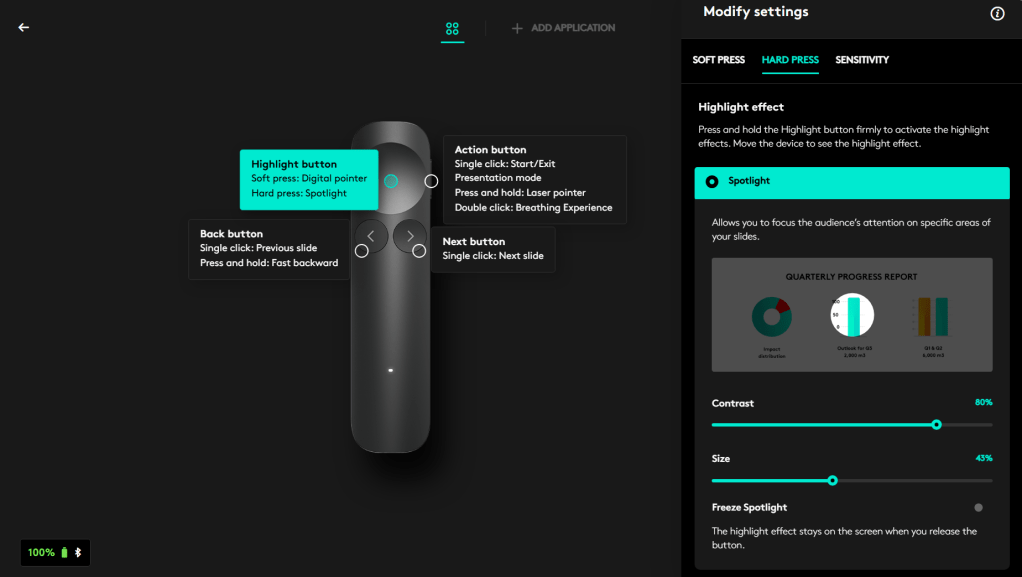
The hard press effect is configurable in Options+ to other effects too: Squarelight, Magnify (the good old magnifier!), or Annotate for drawing on slides. I use the highlight in my presentations — it is good for doing exactly what the name says: highlighting content on the slide.
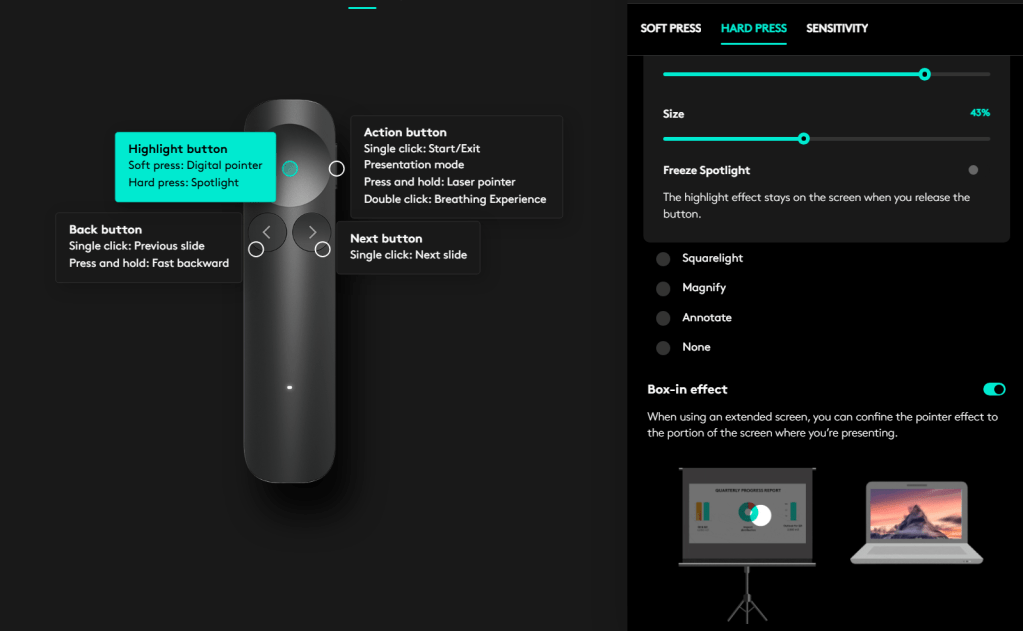
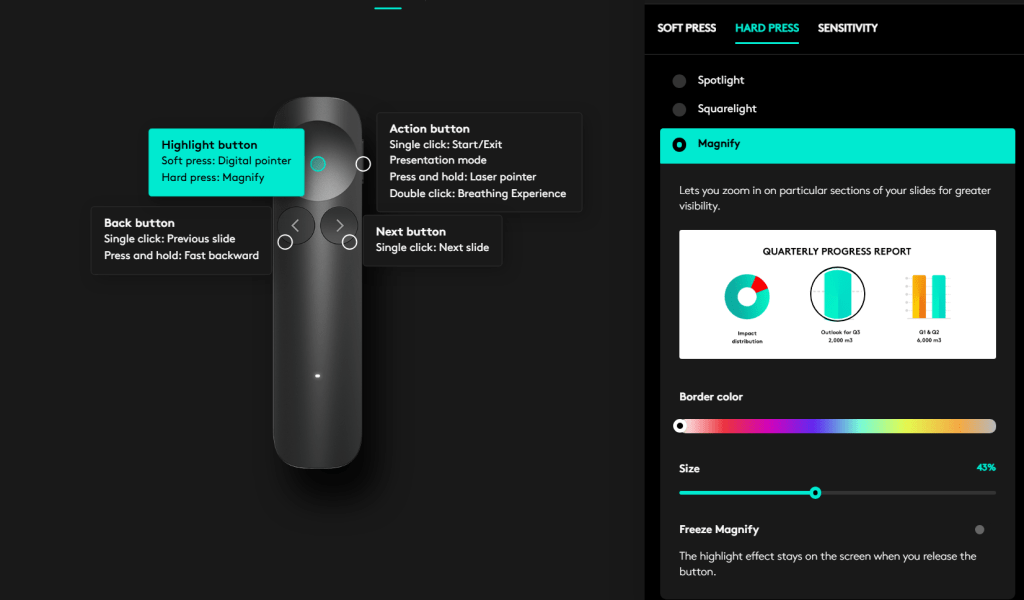
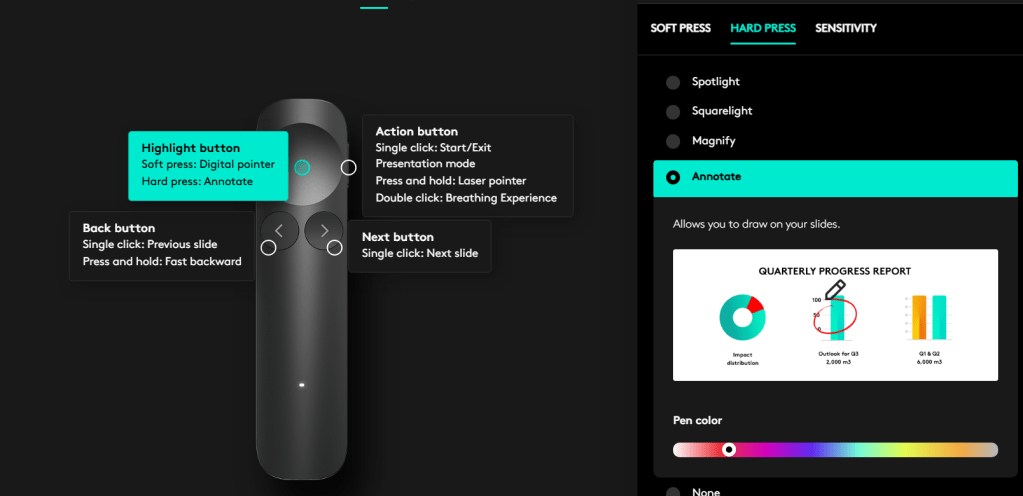
With soft press you can enable cursor control, which lets you interact with videos and links during the presentation. When you soft press the highlight-button, you see the digital pointer. Proceed to short hard press when you are on the link. Then you will do a short hard press again to open the link.
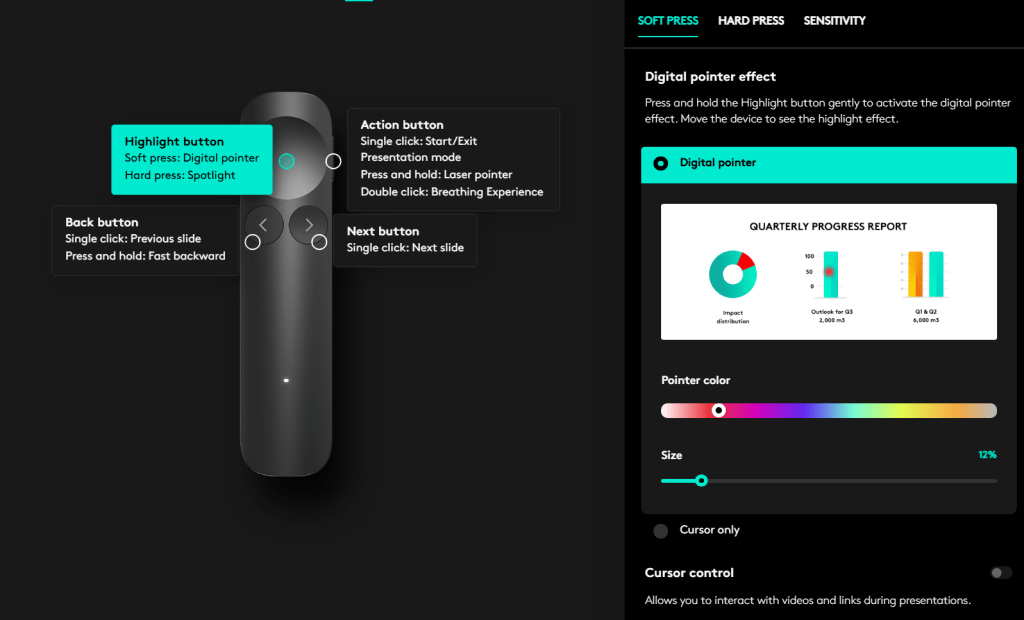
I do have gotten used to spotlight effect, so that will be my default on. What I do find to be a missed opportunity is that Logitech could have added a switch to Spotlight 2 to switch between different Hard press modes, so I could select which modes would have been in the “loop”. I would have loved to be able to switch between spotlight, magnify and annotate.
As a tip for Logitech, it would be great if the side button double-click would be configurable in the future. Now it is fixed for Breathing Experience, but someone like me would love to reconfigure it to switch between hard press highlight modes. Of course, as the Breathing Experience is one of key highlights ( pun intended!) of Spotlight 2, I don’t think that will happen but we can always give feedback and hope for the best!
The classic clicker features are all included
- Press and hold action button for Laser pointer! A real, physical Class 1 laser — long press the side Action button.
- Back and forward buttons work really well in PowerPoint of course. Buttons also work in Microsoft Teams meetings when using Teams PowerPoint Live — BUT you have to have the focus on the slide area for this to work. Once the focus is there, you can use the clicker in Teams meetings too – handy when presenting standing. But remember: it is all about the focus on this one!
- You can go forward with presentation with a short hard press using highlight button, so no need to use forward button as the highlight button is larger and your thumb is on it naturally when presenting. Just like with Spotlight 1. However – this also requires that the focus is on presentation area so it is more reliable to use forward button than this.
- Start and end presentation with a single click of the side button. Although I do feel the end presentation can be risky — one accidental click and your slideshow is gone. The good is that you can get back to presenting quickly by pressing it again.
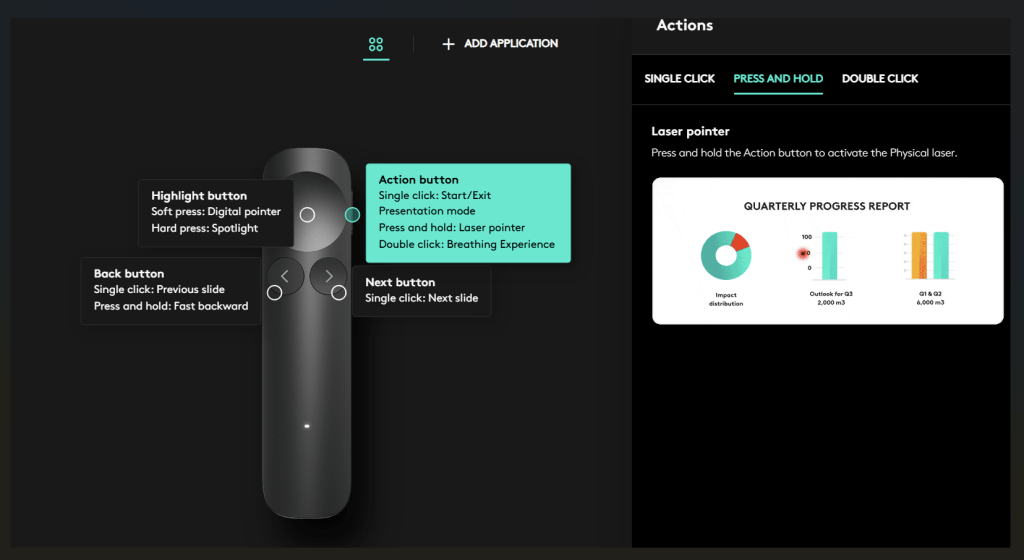
Of course you can configure the action button to do other actions than starting and ending presentation.
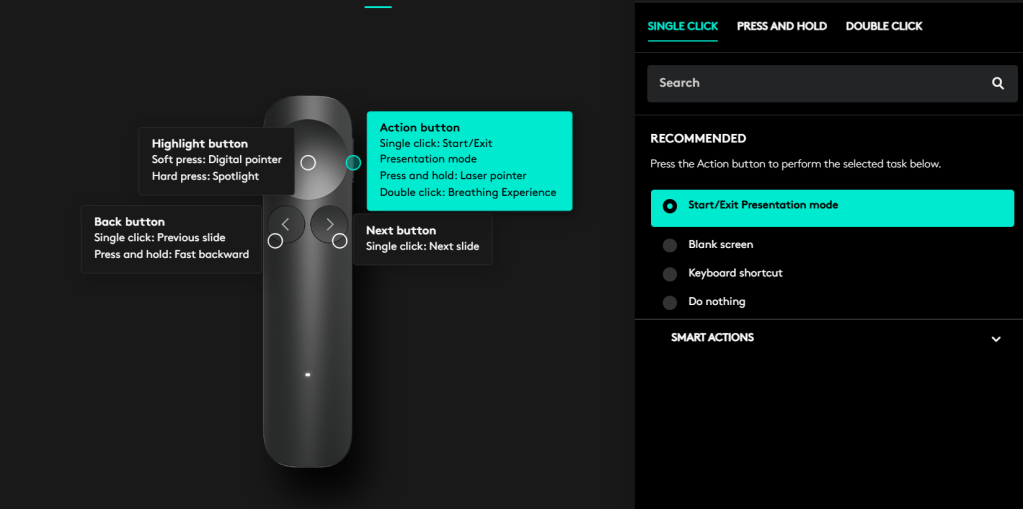
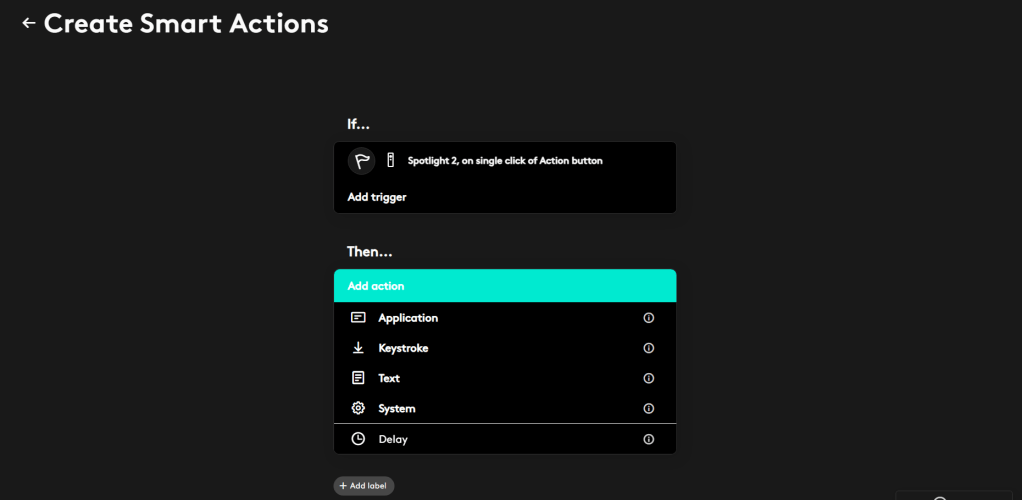
I didn’t configure Smart actions to it yet, but these open neat options how to customize the Spotlight 2 better for personal use. Personally, I think I will keep it on starting and ending presentation, or change it to Do nothing.
Timer alerts and a breathing exercise?
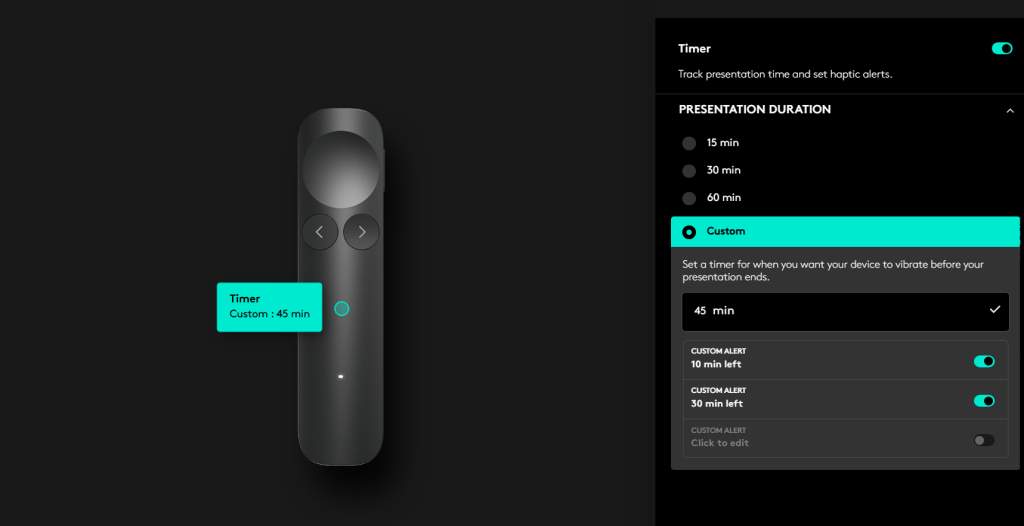
Spotlight 2 also has a presentation timer with haptic alerts: set your presentation duration in Options+ and the remote vibrates in your hand when you have 5 minutes left, 1 minute left, or whatever alerts you configure. No more glancing at the clock when you are doing just a presentation.
What I notice I am missing here, is the ability to reset the timer. I usually open and thus start the presentation before the session begins, so getting this to be exactly the time would require starting the presentation just on time. A button to start or reset the timer would have been a nice addition ( wink at Logitech).
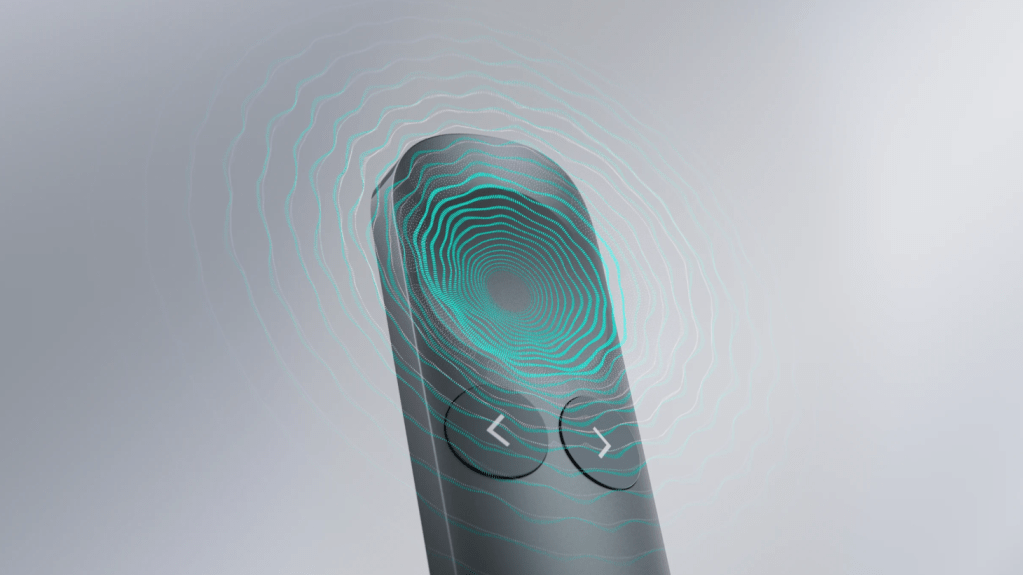
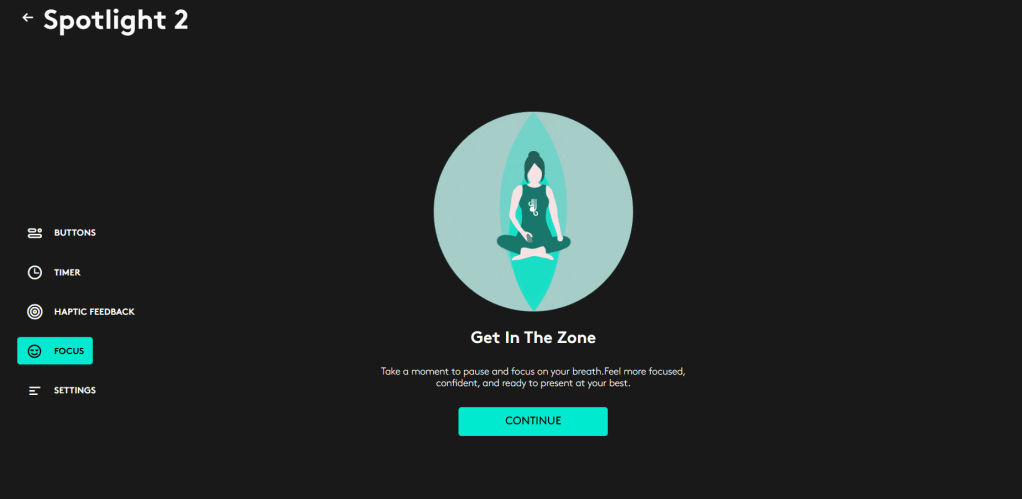
And then something I did not expect from a clicker: a Breathing Experience. Double-click the Action button and Spotlight 2 guides you through a calming breathing exercise with haptic pulses and visual cues in Options+, to help you focus before your big presentation. Logitech says 64% of people admit to feeling incredibly nervous before a presentation, so I understand why this exists. I didn’t try it yet — what I do when I present at events is speak and chat with the audience members beforehand to make the feeling relaxed. But if breathing exercises are your thing, your remote now does that too!
Materials and sustainability
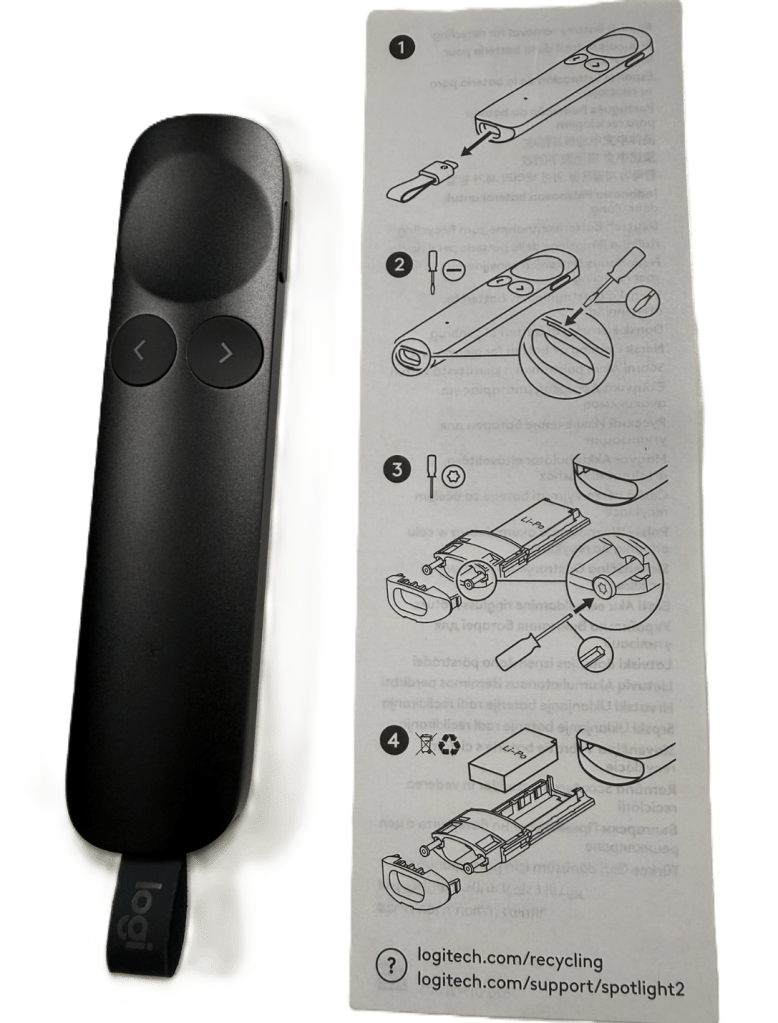
One more thing that deserves its own chapter: how Spotlight 2 is made. Logitech says sustainability has been a key criterion throughout every stage of the product development — and it shows in the materials. The housing is made with low-carbon aluminum produced using renewable energy, and the plastic parts contain 43% certified post-consumer recycled plastic. In other words, this is not a device made of virgin materials: a big part of it already had a previous life, and the materials were chosen so they can have one again. Even the packaging is FSC-certified paper instead of plastic.
I really like that thinking like this happens already on the drawing board, with the whole lifecycle of the device in mind — not only the years it spends in your hand. A presentation remote is something you keep for a long time, so it feels right and when its day finally comes, Logitech guides you to recycle the battery properly — more at logitech.com/recycling.
Verdict
Spotlight 2 is a worthy successor: USB-C, pointer and highlight on one intuitive button, haptic feedback, all the classic features still there — and made in a responsible way on top of it. Spotlight 2 is available now from Logitech. Also check for more specs in Logitech site.
I have to say Spotlight 2 has already won me over, already even with a short time I had it. I can’t wait to take it on stage in front of a live audience!
Of course I will be keeping my old Spotlight as well — it has the MVP branding on it! But it will be the new Spotlight 2 that goes into my bag when I head out to present live next time.
Thank you Logitech for letting me test Spotlight 2 — this is exactly the kind of light the Luminaries community is all about. #LogiLumi

 Vesa Nopanen - Future Work today