Every team has one. The person who knows.
They know why the customer contract has that odd clause, which version of the spec is the real one, and what was decided in the meeting nobody wrote minutes for. When they are on holiday, work slows down. When they leave, part of the team’s memory leaves with them.
Now picture a new kind of teammate: an agent that joins the project on Monday. It can read everything it has access to – but reading 3,000 files, 40 email threads and six months of channel messages every time it needs to answer a question is slow, expensive and error-prone. What it really needs is what a new human colleague needs: a well-kept briefing on what matters.
That is exactly what Microsoft announced yesterday for SharePoint: a team knowledge base, curated by Copilot and agents. It also fits directly into the story of the previous post, From Answers to Actions with Work IQ.
Let’s take a look.
What is new – a knowledge base for the team, kept by Copilot
In Frontier preview, Copilot and agents in the new Copilot app, Teams and SharePoint can create, contribute to, curate and reference a team’s knowledge base in SharePoint.
That sentence sounds abstract, so it is worth unpacking.
What that knowledge base actually is
Think of it as a collection of the team’s information, knowledge and memories – organized, linked and kept up to date by Copilot. It isn’t a new app or a new place to go. It is a special library on a SharePoint site you already have – including the sites behind Teams channels and Microsoft 365 Groups.
Inside that library are pages written by Copilot: an overview of the project, how the team works, the product specs, what customers have said, meeting outcomes, the roadmap. Technically they are interlinked markdown files built by Work IQ’s knowledge compilation engine, but for a person they are simply readable pages. For an agent, they are a ready-made briefing.
The key difference to a normal document library: nobody has to write and maintain these pages by hand. The team points Copilot at what matters, and Copilot does the summarizing, organizing and linking.
How it works – create, contribute, use
Creating a knowledge base
There is no separate admin setup screen in the demos – the knowledge base is created by asking Copilot. Microsoft’s demo video shows the flow:
1. Open the team’s SharePoint site and open Copilot in SharePoint. Any site can get a knowledge base, including the sites behind Teams channels and Microsoft 365 Groups.
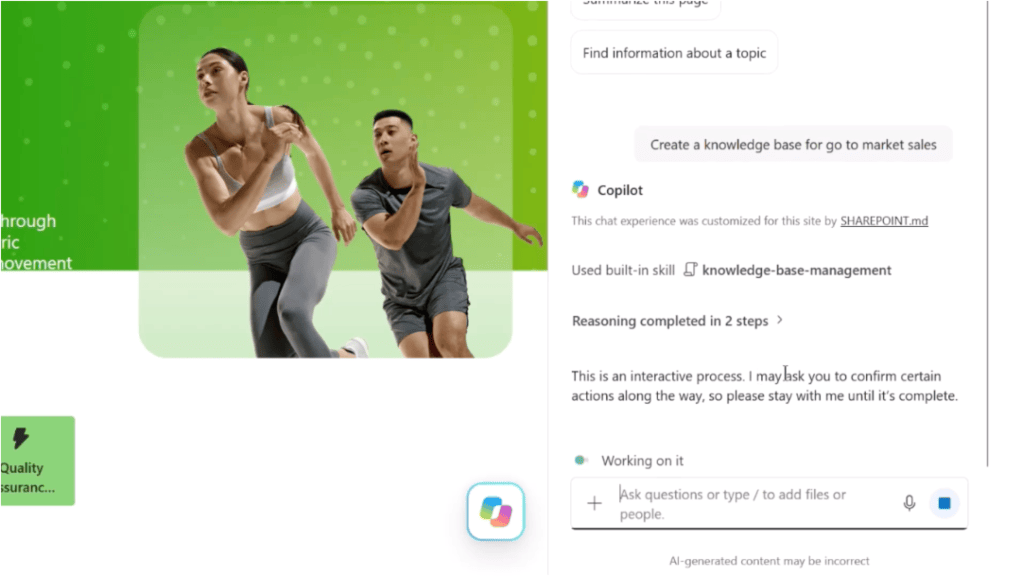
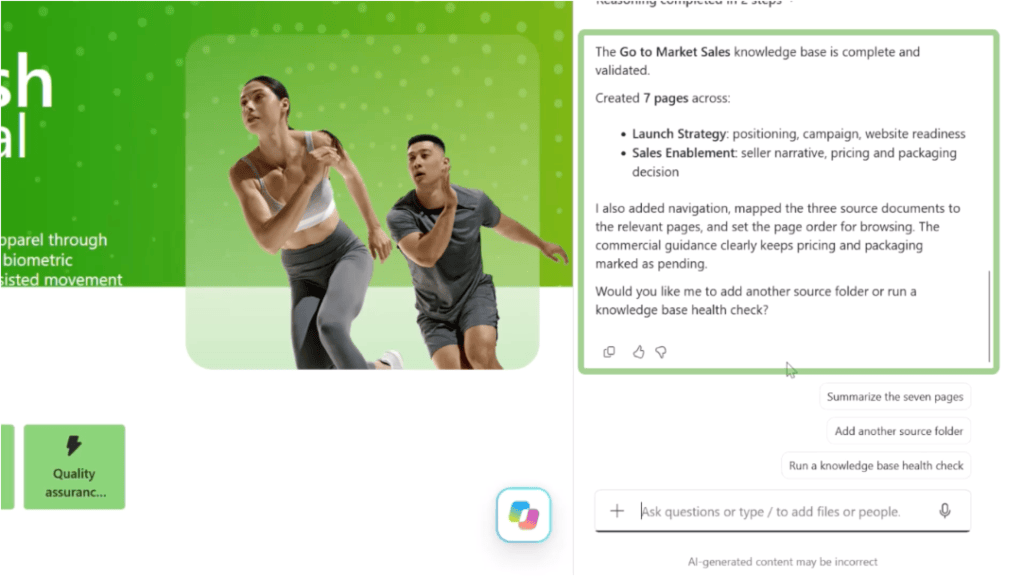
2. Ask for it. The user types “Create a knowledge base for go to market sales”. Copilot tells her this is an interactive process and that it may ask her to confirm actions along the way.
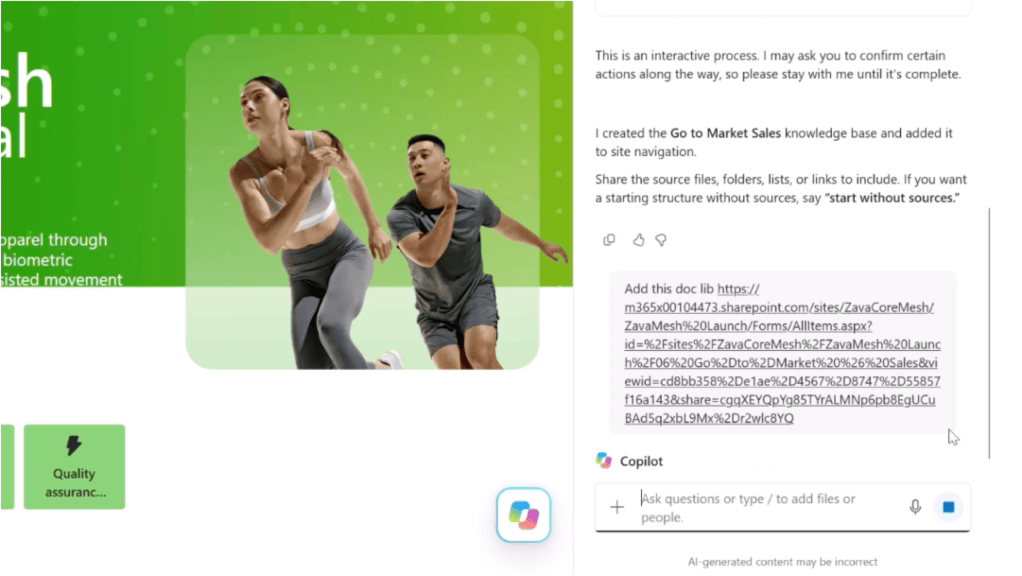
3. Copilot creates the library. It creates the Go to Market Sales knowledge base and adds it to the site navigation.
4. Give it sources – or start empty. Copilot asks: “Share the source files, folders, lists, or links to include. If you want a starting structure without sources, say ‘start without sources.'” The user pastes a link to an existing document library and writes “Add this doc lib”.
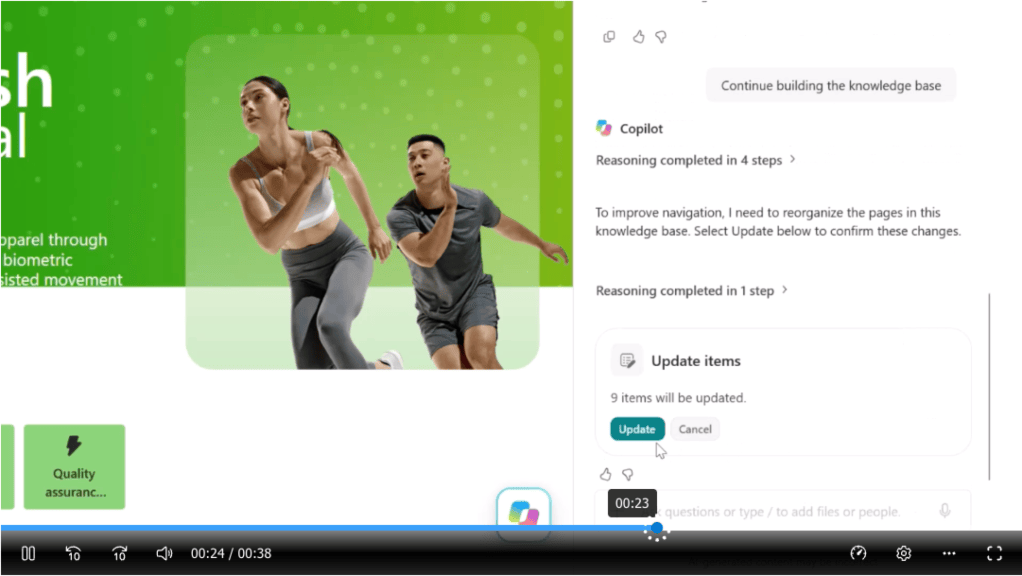
5. Confirm the structure. When Copilot wants to reorganize pages to improve navigation, it asks first, with a card saying “9 items will be updated” and Update and Cancel buttons. That is the “human confirms before AI changes things” pattern from the previous post, in a real product.
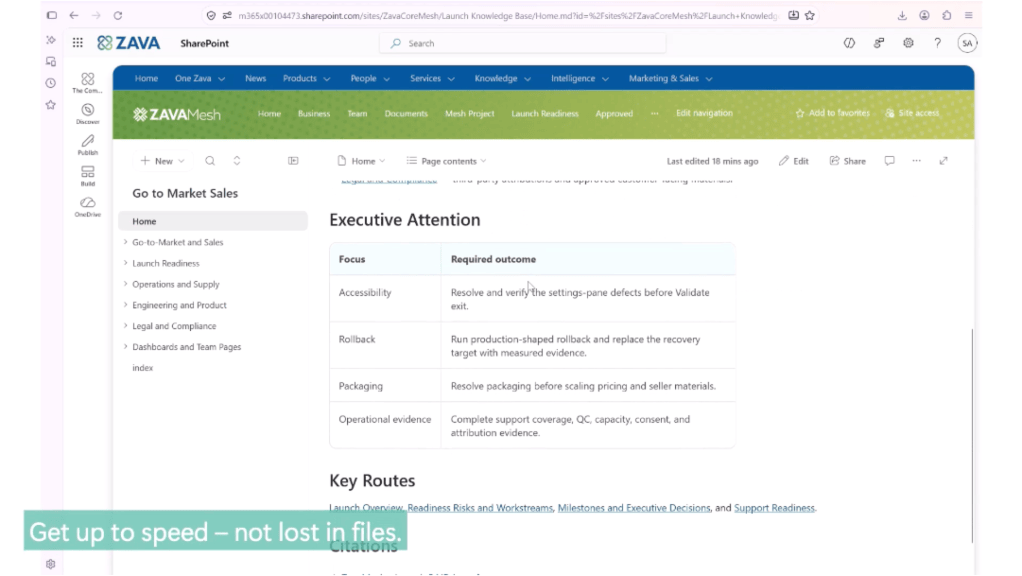
The result is a set of markdown pages in SharePoint: a home page with a short status and a source reference, a Start Here list linking to topic pages, and an Executive Attention table. On the left are sections such as Go-to-Market and Sales, Launch Readiness, Engineering and Product and Legal and Compliance. The pages have the normal Edit button, so people can still correct what Copilot wrote.
A few practical prerequisites from Microsoft’s announcement: it is Frontier preview, and right now it works only for users who are enabled for usage-based billing (Copilot Credits). More on cost later.
Tip – check that you got a real knowledge base. A prompt like “create a knowledge base for…” doesn’t guarantee the new feature runs. If the knowledge base isn’t active for the user yet, Copilot in SharePoint can respond by creating a regular SharePoint page (.aspx) instead. A real knowledge base looks different: Copilot describes the work as an interactive process, asks for sources (or offers to “start without sources”), and the result is knowledge base made of linked markdown (.md) pages. If a regular page appears the feature might not have rolled in to your tenant yet – that is the case at the moment in mine.
Using and feeding the knowledge base
Once the knowledge base exists, Microsoft’s three demo videos show three different ways of working with it. The first two are available in the Frontier preview today; the third shows a capability Microsoft lists as coming soon.
1. Read it. People simply open the pages. A new team member reads Launch Readiness or Support Readiness instead of digging through folders. Microsoft’s own caption for this is “Get up to speed – not lost in files.”
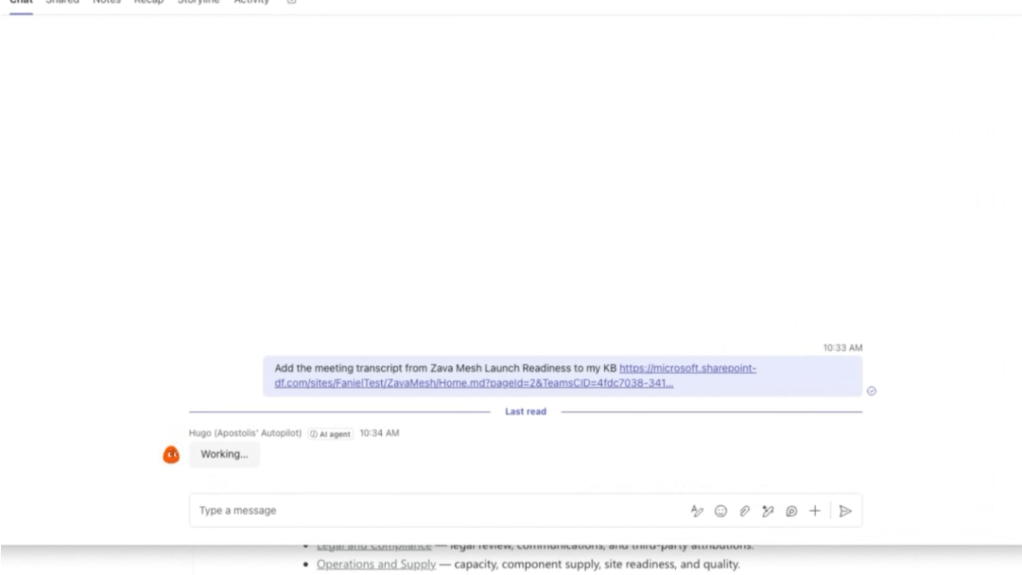
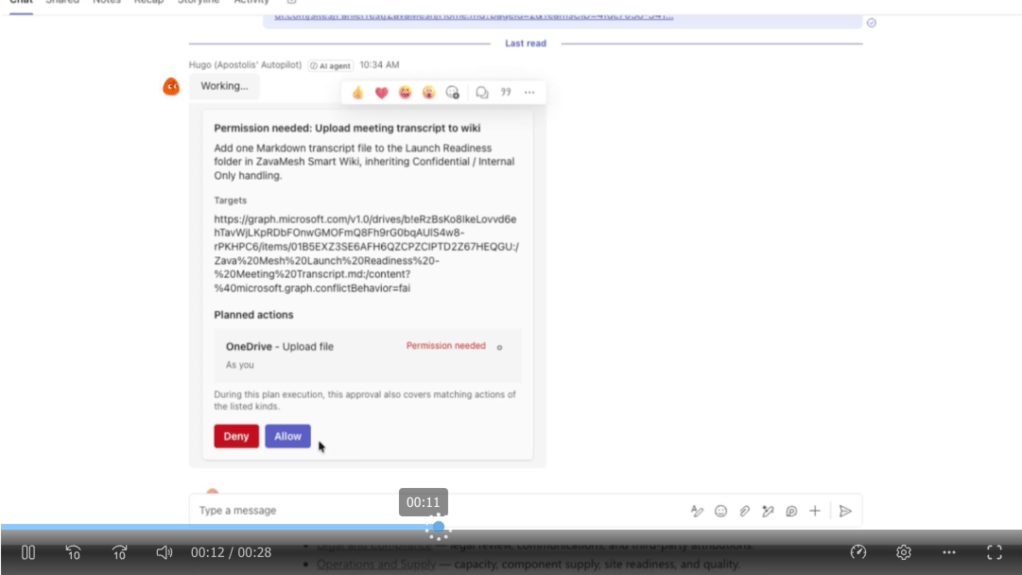
2. Feed it from Teams with Autopilot. In the second video, the team’s meeting has just ended. A user opens a Teams chat with their Autopilot – a personal agent shown in Teams as an AI agent – and writes: “Add the meeting transcript from Zava Mesh Launch Readiness to my KB”, with a link to the knowledge base. Autopilot builds a plan: “Upload meeting transcript to wiki”, adding one markdown file to the Launch Readiness folder. The planned action says “OneDrive – Upload file – As you – Permission needed”. The user approves, and Autopilot confirms that the transcript was added, verified as readable, and that it retains the conversation’s “Confidential \ Internal Only” handling.
That screen captures the whole idea of the previous post: an agent writing to a shared repository, as the user, after explicit approval, while keeping the sensitivity label. Microsoft’s caption: “Meeting decisions become shared knowledge.”
3. Build on it with Cowork (coming soon). Knowledge base tools in Cowork are on Microsoft’s roadmap, not yet available. The third video shows what that will look like: Cowork is asked to create an HTML status slide from the knowledge base, with citation links. Cowork reads the launch-readiness, product, compliance, supply and sales pages and produces a one-page status slide: the launch date, three open owner actions and a checkpoint, with clickable citations back to the knowledge base pages.
The most telling detail across the three videos: Cowork also flagged a “KB inconsistency”. The home page still said the product was in “Validate”, while newer pages said the launch was already approved. The agent noticed the knowledge base contradicting itself and told the user, instead of quietly picking one version. That detail matters for governance, as discussed below.
An example – a sales account team
Microsoft mentions three kinds of teams it is working with: legal teams collecting knowledge scattered across emails, files and personal notes so agents can use it when drafting agreements; engineering teams combining specs, user feedback, market research and product history to give coding agents project context and help onboard new engineers; and sales teams organizing account knowledge so agents can suggest next steps or give a quick account snapshot.
Here is how the sales case could look in practice.
An account team looks after one big customer. Over six months the real knowledge about that customer has ended up everywhere: a pricing discussion in an email thread, an escalation in a Teams chat, a key decision in a meeting nobody wrote up, and a proposal deck in SharePoint.
The account manager adds a knowledge base to the account team’s site and contributes the important pieces: the pricing thread, the escalation chat, the quarterly business review meeting and the latest proposal. Copilot organizes them into pages such as Account overview, Commercial terms, Open issues and Key contacts and decisions.
Three weeks later:
- A new team member joins and reads the account overview instead of booking six catch-up calls.
- A seller asks an agent for an account snapshot before a customer meeting. The agent doesn’t dig through 400 emails – it starts from the knowledge base.
- After the next customer meeting, the outcome is added to the knowledge base, so the next answer already reflects it.
That last step is the important one. The knowledge base isn’t a one-off summary. It grows as the team works.
What’s coming soon
Microsoft lists these as next on its roadmap:
- Knowledge bases in more places – tools in Cowork and Copilot in Teams, and custom agents built in Copilot Studio.
- Deeper integration with Microsoft 365 Groups – making it easier to start a knowledge base from existing sources such as channels and email.
- Automated, ongoing curation – Copilot Studio agent flows that keep knowledge bases up to date as the organization’s content changes.
- Greater content scaling – support for larger volumes of content with higher quality at a lower cost.
- Integration with command-line tools and coding agents via Work IQ – so a broader range of agents can contribute to and work with a knowledge base.
That’s the news. The more interesting part is what it means.
Work IQ is now writing, not just reading
The previous post described four steps: Understand → Reason → Act → Change the state of the business. It also argued that the moment AI-generated content is saved into Microsoft 365, it stops being a chat answer and becomes organizational information.
The SharePoint knowledge base is that idea.
Copilot isn’t just answering a question about your team’s content. It is producing a new, persistent layer of team knowledge – synthesized, structured, interlinked – and storing it in SharePoint, where the next person and the next agent will rely on it.
Microsoft describes the outcome nicely: with a knowledge base, a SharePoint site evolves from a content source into the context layer for a team. More precisely, it becomes a context layer that AI helps write and maintain.
That is a significant shift. For twenty years, SharePoint has been where humans put content. Now it is also where AI puts understanding.
Work IQ is quietly becoming the engine of everything
The other thing worth noticing is how often “Work IQ” appears in the announcement. The knowledge base is built on Work IQ’s knowledge compilation engine. SharePoint tools in Work IQ are coming soon – Microsoft announced last month that SharePoint tools are coming to the new Copilot app through Work IQ. That means working with sites, lists, libraries and files becomes something Copilot and agents can do through the same Work IQ layer, not only inside the SharePoint user interface. And the roadmap includes integration with CLIs and coding agents via Work IQ, so a broader range of agents can contribute to and use a team’s knowledge base.
Put that next to what we saw a couple of weeks ago – Work IQ reaching into Dynamics 365 and Power Apps business records, agents editing documents and uploading files – and the pattern is clear. Work IQ isn’t one feature. It is turning into the shared layer where AI goes to understand your organization, and increasingly to change it.
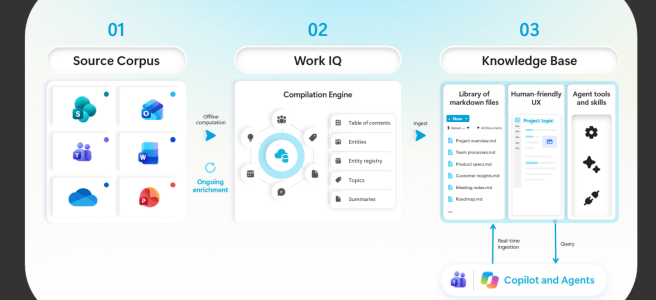
Microsoft’s own picture of the knowledge base pipeline shows this really well:
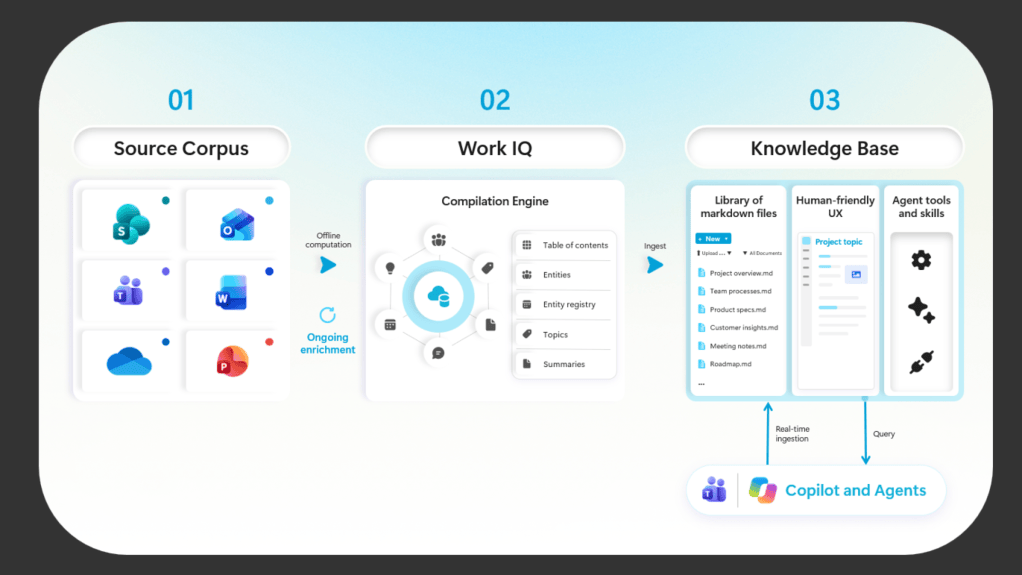
Look at where Work IQ sits: right in the middle. Content from SharePoint, Outlook, Teams, Word, OneDrive and PowerPoint goes in on the left. Work IQ’s compilation engine turns it into tables of contents, entities, topics and summaries. Out comes a knowledge base that is readable for people and usable by agents.
And look at the two arrows at the bottom. Copilot and agents don’t only query the knowledge base – they also feed it through real-time ingestion. Read and write, in one picture. That is exactly the shift from answers to actions described in the previous post.
Why a knowledge base and not just “search everything”?
Copilot can already search across SharePoint, so why build a separate knowledge layer?
Because finding information and understanding it are different jobs. Raw content is messy: duplicates, outdated versions, decisions buried in email threads. Every time an agent starts from raw content, it repeats the same expensive work of reading, filtering and connecting the dots.
A curated knowledge base does that work once and keeps it up to date. Microsoft says that in its early internal testing, agents answered up to 4x faster and were 30% more token-efficient with the knowledge base when retrieving content and performing team tasks. Microsoft also points to a public research paper where agents connecting information across many documents did better on both cost and quality when working from enriched knowledge rather than the original documents. Those are Microsoft’s own internal and synthetic-test results, so treat them as direction rather than a promise for your tenant – but the logic makes a lot of sense.
And here is a business angle that is easy to miss: fewer tokens means fewer Copilot Credits. In a world where advanced agent work is billed by usage, well-curated knowledge isn’t only a quality topic. It is a cost topic.
The new governance question – who owns AI-curated knowledge?
In the previous post the central question was: what is AI allowed to change? The knowledge base adds a very practical twist to it:
When AI writes down what the team “knows”, who is responsible for it being right?
Think about how this plays out:
- An agent summarizes a long email thread into a knowledge page: “Customer agreed to Q2 delivery.”
- Another agent reads that page next week and uses it to draft a customer update.
- A third agent uses it in an account snapshot for sales leadership.
If the first summary was slightly wrong, the error doesn’t stay in one chat. It becomes the team’s truth – and spreads. Curated knowledge is powerful precisely because everyone trusts it. That is also why it needs care.
Microsoft’s own demo of the coming Cowork capability shows that this isn’t theoretical. The knowledge base’s home page and its newer pages disagreed about the launch status, and it took an agent to notice. Good that it did – but in a busy team, would a person have caught it?
None of this is a reason to avoid the feature. It is a reason to treat a knowledge base like what it is: a team asset that needs an owner. Some questions worth agreeing on before you roll it out:
- Who owns each knowledge base? A team lead, a knowledge manager, a site owner?
- What goes in, and what stays out? Contributing an email thread or a meeting to a shared knowledge base makes it visible to everyone who can read that site. Sensitive content needs a conscious decision.
- How do people spot AI-curated content and check it? Can team members see where a statement came from?
- How does knowledge stay fresh? Microsoft is planning automated, ongoing curation with Copilot Studio agent flows. Automation helps – but someone still needs to notice when the business reality changes.
- Which agents may contribute, and which may only read? This is exactly the “permission to know is not permission to change” principle again, now applied to team knowledge.
The good news: Microsoft is also investing in governing the content that powers AI. In the same announcement it highlights the SharePoint Admin Agent, catalog management for large tenants, permission reports and insights on which agents are reaching SharePoint and OneDrive content. That last one is going to be important once many agents start reading and writing team knowledge.
What does it cost? Work IQ in Copilot vs. Work IQ through APIs
The knowledge base itself: right now it is available only to users enabled for usage-based billing – meaning they consume Copilot Credits. Admins manage access and spending in the Microsoft 365 admin center. Because the feature is in preview, Microsoft notes that billing terms may change before general availability.
Does this mean Work IQ now costs extra in normal Copilot use? No – and this is an important distinction.
According to Microsoft’s Copilot Credits Guide (October 2026), Copilot is natively built on Work IQ, and there are no incremental charges for Work IQ when you use it in Copilot experiences: Copilot Chat, Copilot in Word, Excel and PowerPoint, or agents included in Copilot such as Researcher, Analyst and Facilitator. Work IQ grounding across mail, calendar, files, people and organizational context is listed as part of the Copilot license.
Work IQ usage charges apply when Work IQ is accessed through the Work IQ APIs – for example, from custom or third-party agents built in Copilot Studio, Microsoft Foundry or elsewhere. There, Microsoft bills a variable charge for chat- and context-style queries, and 0.1 Copilot Credits per call for tools and actions.
So the cost isn’t “Work IQ”. The cost is the kind of work you ask for. Microsoft’s Message Center post MC1479276 (“Evolving the Copilot pricing model and new FinOps capabilities for AI”) puts it simply: everyday AI stays covered by the per-user Copilot license, while advanced AI – including newer frontier models – moves to usage-based billing with Copilot Credits, rolling out in Copilot in Q4 2026 and already part of the Frontier preview. Microsoft splits the work into two categories:
| Everyday AI – included in the Copilot license | Advanced AI – Copilot Credits (usage-based) | |
|---|---|---|
| What it is | Everyday productivity for the whole workforce | Long-running, large-scale or agentic work you hand off |
| Examples in SharePoint | Ask questions and catch up, create Word/Excel/PowerPoint/HTML files, create and edit pages, lists and libraries, simple rules and approvals, Autofill metadata | Work across large or unbounded content sets, create whole sites, edit content at scale, multistep scheduled AI workflows, real-time Advanced Autofill, image generation, site analytics |
| Other examples | Copilot Chat, Copilot in Office apps, Researcher, Analyst, Facilitator | Cowork, Code, Autopilot, newer frontier models, Work IQ APIs from custom agents, and – for now – the knowledge base |
To make it concrete, Microsoft’s own SharePoint examples go roughly like this: “Does this contract have a termination clause?” is everyday work and included. “Summarize the termination terms of the contracts in this folder” – when the folder has 1,000 files – is medium work and needs credits. “Find all contracts with a termination clause” across a 10,000-file library is heavy work.
A few practical details in how this is handled:
- Users are asked before credits are used. When a SharePoint prompt crosses into advanced work, Copilot asks the user to approve credit use first.
- Users can see what they spent. Typing /cost shows how many credits a task used and what is left of the monthly limit.
- No credits, no surprise. Users without credits get a clear explanation of what Copilot can’t complete.
The most important control sits with the admin. According to MC1479276, usage-based capabilities are visible to users by default, but in enterprise tenants they don’t work and don’t consume anything until an admin creates a spending policy in the Microsoft 365 admin center. Nobody starts spending credits by accident.
One thing to watch for, though: MC1479276 also says users may later meet usage-based billing when they hit a limit in their license, with an option to continue using Copilot Credits. Microsoft Learn marks that part as coming soon. So the line between “included” and “paid” isn’t only about the feature – over time it can also be about how much you use it.
And a practical tip for organizations that already have a spending policy: policies have an “Auto-apply new services” option that is on by default. That means new Copilot services and agents – like this knowledge base, or advanced work in SharePoint – can be added to an existing policy automatically. That may be exactly what you want. But make it a conscious decision, not a surprise on next month’s invoice.
What this means
Knowledge is becoming infrastructure. A team’s knowledge base is no longer “nice documentation”. It is what agents stand on. Better-curated knowledge means better answers, faster agents and lower AI costs.
AI-written knowledge needs human ownership. The more agents rely on curated knowledge, the more important it is that someone owns it, checks it and keeps it current. Plan ownership the same way you plan site ownership today.
Work IQ is the common thread. Business records, documents, uploads, connectors – and now team knowledge. Watching where Work IQ shows up is the best way to understand where Microsoft’s AI platform is heading.
Cost follows the work, not the brand name. Everyday Copilot use, including its Work IQ grounding, stays in the license. Large-scale, autonomous and advanced work – including the knowledge base during preview – uses Copilot Credits. Budget for outcomes, not for features.
Start small and deliberate. Pick one team with a real knowledge problem – onboarding, a key account, a complex project – give the knowledge base an owner, enable credits for a defined group, and learn before you scale.
From reading the team’s content to writing the team’s memory
The previous post argued that Work IQ started by helping AI understand work, and is becoming part of how AI changes work.
The SharePoint knowledge base adds a new chapter to that story. AI isn’t only updating records or editing documents anymore. It is helping to write down what a team knows – and then building on it.
That is an exciting step. Teams that get this right will onboard people and agents faster, repeat less work, and stop losing knowledge every time someone goes on holiday. Teams that skip the ownership part may end up with a very confident, very fast way to spread yesterday’s mistakes.
Permission to know is not permission to change – and permission to change what the team believes deserves the most care of all.
Are you already trying the knowledge base in Frontier?
Sources and further reading
Status as of October 15, 2026. The knowledge base is in Frontier preview; features, billing and timelines can change. At the time of writing there was no separate Message Center post for the knowledge base itself.
- MC1479276 – Microsoft Copilot: Evolving the Copilot pricing model and new FinOps capabilities for AI (Message Center, September 25, 2026)
- MC1479277 – Microsoft Copilot: New ways to work across Microsoft Copilot and Microsoft 365 (Message Center, updated October 12, 2026) – Copilot in SharePoint GA, advanced SharePoint work with usage-based billing, Business Applications in Work IQ
- Introducing a team knowledge base, curated by Copilot and agents – Microsoft SharePoint Blog, October 14, 2026
- Get started with Copilot in SharePoint – Microsoft Learn
- Understanding the user subscription license (USL) and usage-based billing (UBB) – Microsoft Learn
- Usage-based billing and cost management for Copilot Credits – Microsoft Learn
- Managing AI experiences enabled by usage-based billing – Microsoft Learn
- Copilot Credits Guide (October 2026) – Microsoft
- Copilot in SharePoint general availability announcement – Microsoft SharePoint Blog, September 2026
- Work IQ overview – Microsoft Learn
- From Answers to Actions with Work IQ – previous post on futurework.blog


