Hat on, roadmap rolling. ✨
I follow the Microsoft Admin Center (MAC) Message Center all the time — or to be precise, my AI teammate follows it for me and sends me daily news about the key updates landing there. Recently news have been packed with new and upcoming changes. And just yesterday, May 28, Microsoft also dropped a new one: a brand-new design for the Microsoft 365 Copilot app, built around a task-aware prompt surface, progressive disclosure, and a single connected experience across Word, Excel, PowerPoint and Outlook. I’ll cover that in its own chapter below.
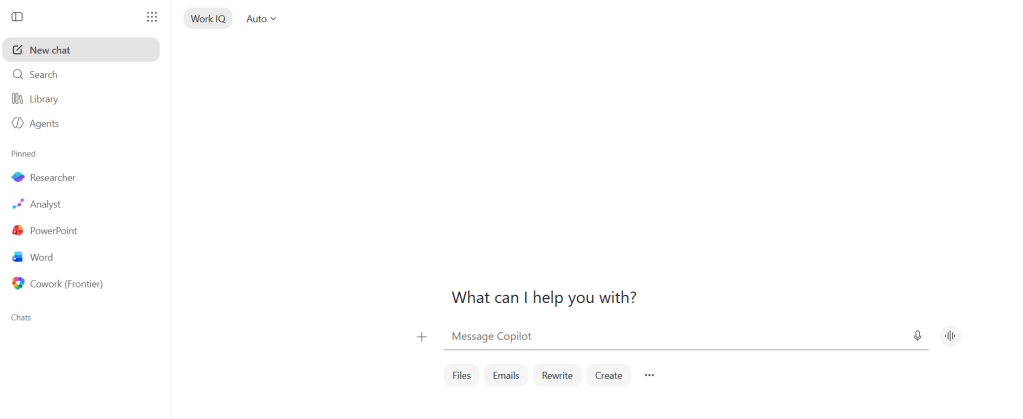
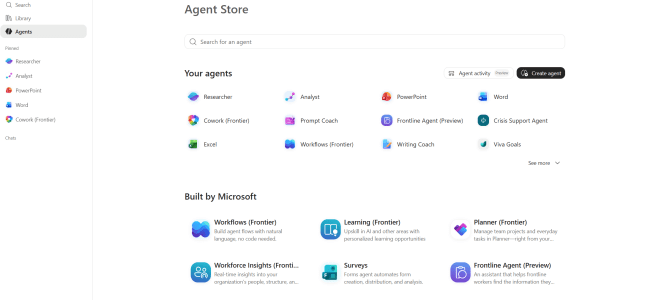
Beyond the redesign, Power BI is finally landing inside Microsoft 365 Copilot, the Planner agent is going GA, real-time screen sharing is coming to M365 Copilot with voice, Teams meeting controls are getting a long-overdue cleanup, and recap sharing is opening up so meeting content actually travels to the people who need it.
In this post I’ll walk through some new and upcoming features, with the Roadmap IDs and Message Center IDs you can use to dig deeper. Grab your favorite beverage— there’s a lot to unpack.
- A new design for the Microsoft 365 Copilot app
- Microsoft 365 Copilot — what else is coming
- Microsoft Teams
- A refreshed in-meeting experience — simpler controls + smarter share panel
- Sharing Recap access
- Meeting AI in-meeting toggle
- Secure Reliable Transport (SRT) for Teams town halls and live events
- Slash commands for apps in chats and channels
- Teams Rooms on Android — chat panel opens by default in Gallery view
- Profanity filter disabled by default for live captions
- Efficiency Mode — better performance on constrained devices
- Guest invitation emails from the inviter’s address
- PowerPoint & Copilot in PowerPoint
- Copilot Studio — Mistral Medium 3.5
- What else caught my eye
- Closing
A new design for the Microsoft 365 Copilot app
This is the headline change. On May 28, Microsoft’s Chief Design Officer Jon Friedman announced a redesigned Microsoft 365 Copilot app — and the thinking behind it is just as important as the pixels.
“Work rarely happens in neat lines. It moves across apps, tasks, teams, and the shifting realities of the day. We’ve redesigned the Copilot app and how Copilot shows up across Microsoft 365 apps to better move with it: cleaner, faster, and in the flow of your work.” — Jon Friedman
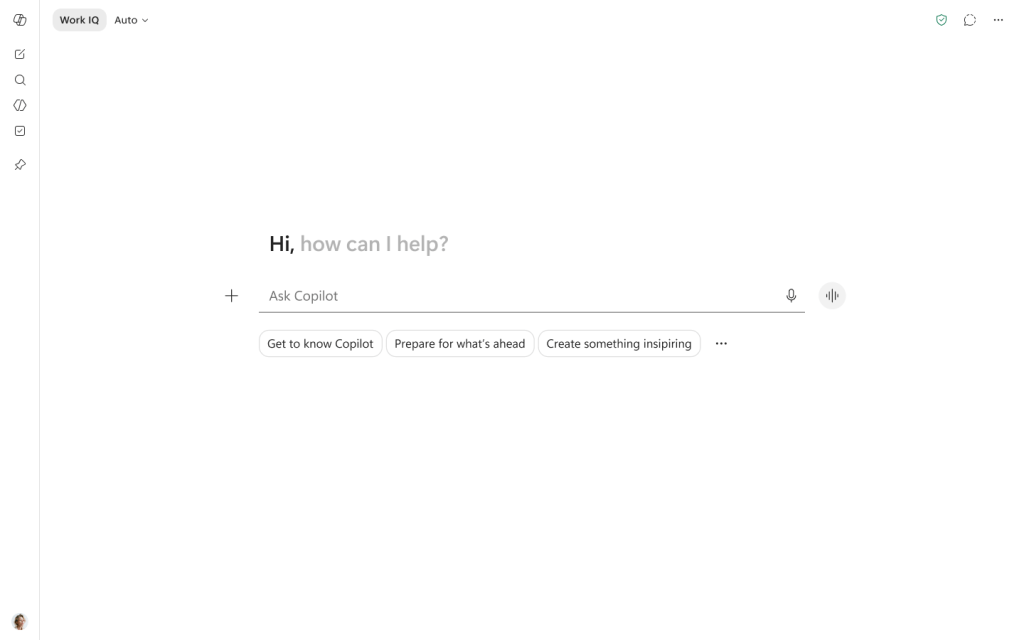
The goal isn’t to layer AI onto familiar tools. It’s to help you move more directly from intention to outcome. The once-static prompt line becomes a task-aware workspace — bigger, smarter, and aware of what you’re trying to do.
Why this is happening (Microsoft’s own framing)
- Progressive disclosure. Start with a clean, focused interface — reveal more capability as you need it. The left navigation pane expands and contracts. Pinning is shared across the app. The prompt surface itself can expand to fill the experience for deeper work.
- Output is the real UI. In the AI era, the most important experience to shape isn’t the interface — it’s the output. Tone, structure, readability, usefulness and trustworthiness of Copilot’s responses determine whether your work actually moves forward.
- Work IQ as a visible intelligence layer. Drawing on your emails, files, chats and meetings, Work IQ adapts to the depth your work requires — quick responses for fast tasks, deeper reasoning (with model choice) when it matters. You can see when it’s active and turn it off.
- Speed matters as much as design. The Copilot app now loads over 50% faster, and complex chat response times have improved by about 10% (at the 95th percentile). A beautiful UI that doesn’t keep pace with you, breaks the moment.
- From individual features to connected experiences. This is the bigger shift: from adding capabilities to shaping outcomes, from asking people to adapt to technology, to shaping technology around how people actually work.
Microsoft also shared early usage signals after rolling out the new in-app experiences across Microsoft 365 apps: +27% Copilot usage in Word, +33% in Excel, +43% in PowerPoint, and +30% in Outlook. That tells me the design choices are landing.
What’s actually changing in the Copilot app
This information is from the Message Center MC1325422, rolling out from late May to mid-July 2026.
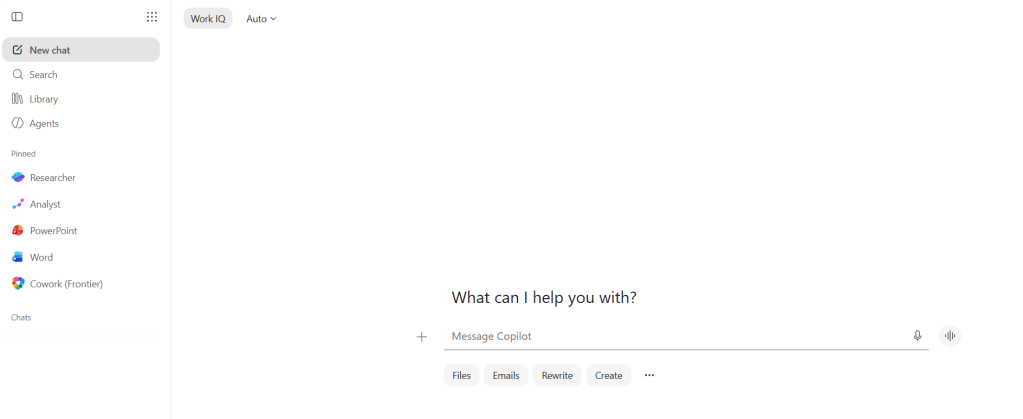
I can already see the new UI in my public Frontier demo account
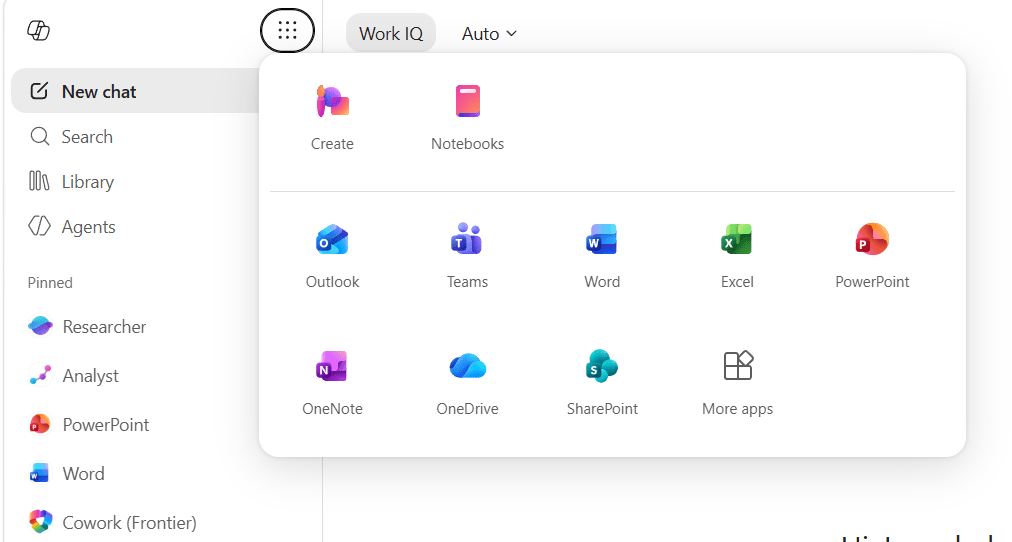
Streamlined navigation
- A new pinned section in the navigation pane for your favorite agents, apps and Copilot experiences (Notebooks, M365 apps, chat conversations, etc.).
- The app launcher moves to the waffle menu in the top-right of the expanded navigation pane.
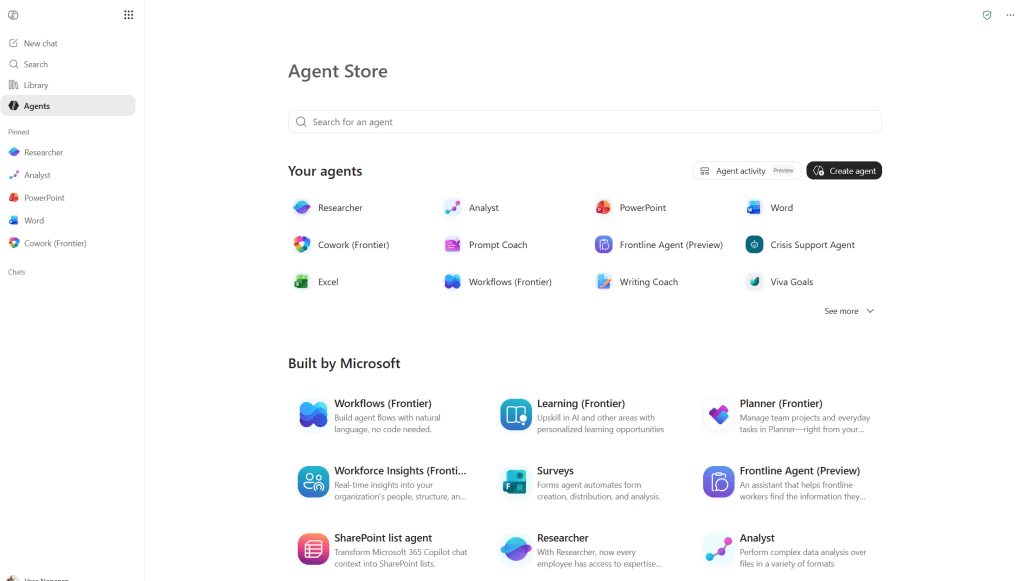
- The agents section becomes a simpler flyout — hover to see pinned and recent agents, or jump straight to Agent Store and Agent Builder.
- A brand-new Tasks tab opens a consolidated view of your long-running Copilot activity — scheduled chats and agent activity — so autonomous Copilot tasks are easy to track.
- The navigation pane is collapsible from the top-left icon.
Chat updates
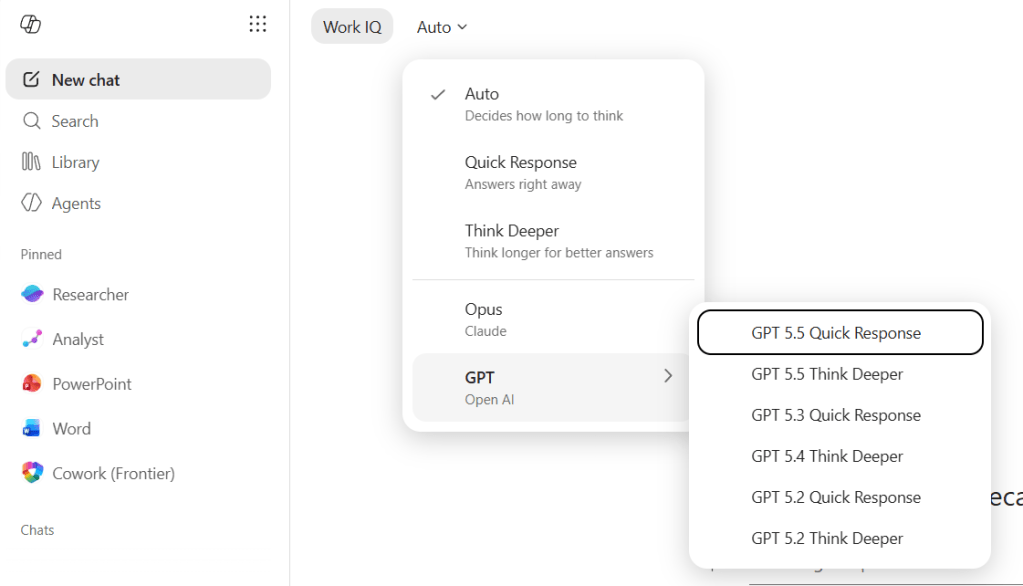
- Work and web grounding are consolidated into a single Work IQ toggle in the upper-left of the chat screen. On by default, and easy to turn off.
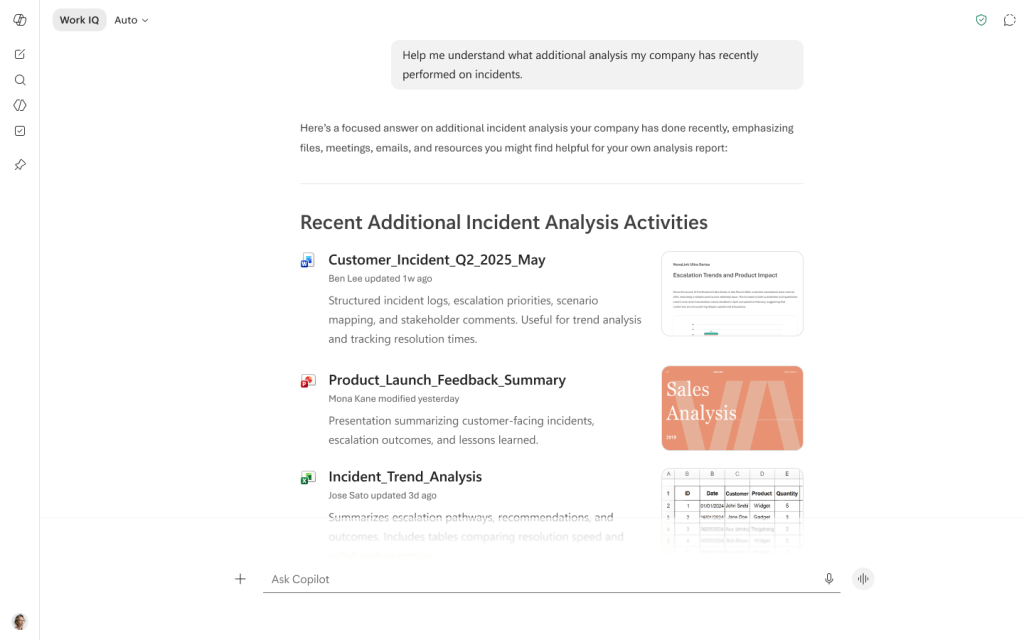
- A rich prompting canvas that preserves formatting when you paste content, refreshed prompt suggestions, and a streamlined menu for adding content, agents and images.
- Cleaner response structure — more scannable information, clearer citations, more relevant suggested actions.
Agent updates
- When you open an agent, the home screen now shows who made it, with a profile card for the agent maker and tooltips beside the org name. The ghost text in the agent chat input now includes the agent’s name so you always know who you’re talking to.
Rollout timeline
These updates will roll out to all Microsoft 365 users with access to the Copilot app.
- Now: Frontier users — new experience as default.
- June 2026: Worldwide — available via opt-in toggle, disabled by default
- July 2026: Worldwide — default for everyone, opt-in toggle removed
- MC ID: MC1325422
- Read more: Introducing a new design for Microsoft 365 Copilot — Microsoft 365 Blog
My take: this is one of those updates that quietly reshapes how the next year of work feels. Faster app, clearer outputs, one connected experience across the M365 surface — and Work IQ stepping forward as a thing you can see and control. Worth a read in full and prepare your users for upcoming change. Keep an eye on when Microsoft M365 Copilot App support documentation is updated ( https://support.microsoft.com/Microsoft-365-Copilot/what-is-the-microsoft-365-copilot-app ) with the new experience in June (aligned to when the updates roll out to general audiences) and prepare your own materials and announcements based on this blog post, Message Center and that support article.
Microsoft 365 Copilot — what else is coming
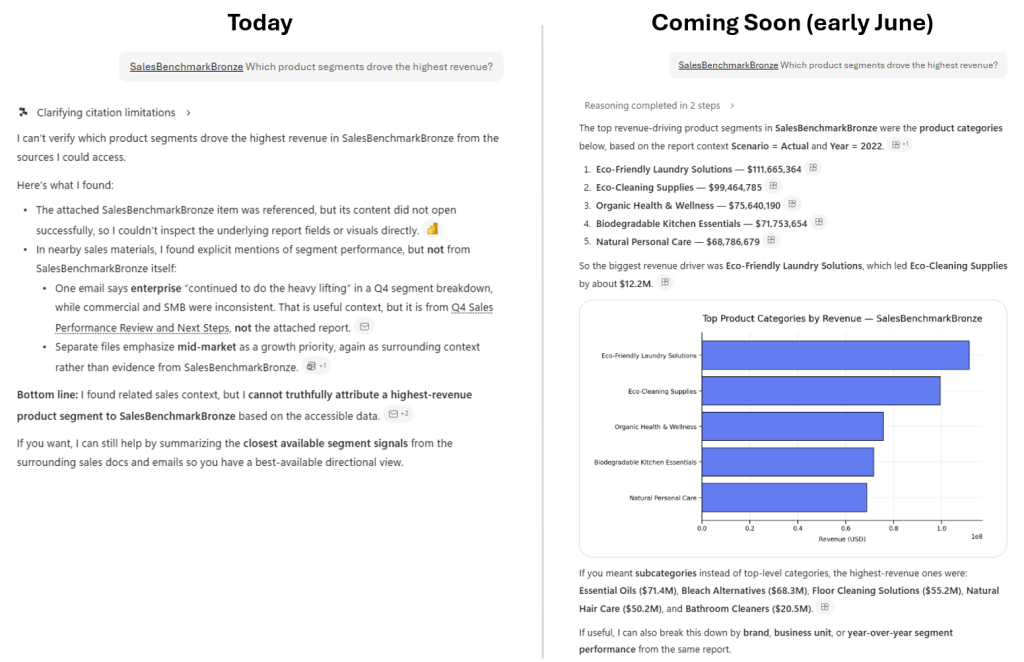
Power BI integration with Microsoft 365 Copilot!
This is the one I’ve been waiting for. Microsoft 365 Copilot will be able to answer user questions using Power BI reports and semantic models for customers enrolled in the Frontier program. Responses are grounded directly in Power BI data, which means Copilot answers stop being generic and start being your numbers. Query data flows from Copilot to Fabric, the feature is on by default, and admins can disable it from the Microsoft 365 admin center.
- MC ID: MC1323266
- Why it matters: This is one of those “the worlds bridge” moments. Business Intelligence and Productivity finally meet inside the same chat. For executives, analysts, and frankly anyone who has ever said “let me ask the data” — this changes the conversation.
Real-time screen and camera sharing in Copilot voice — Vision
Microsoft 365 Copilot is getting Vision in voice sessions. You’ll be able to share your desktop screen or mobile camera and ask Copilot questions about what you’re seeing. Copilot analyzes the visual content in real time and responds grounded in both what’s on screen and your work data. Today you can utilize Copilot app in Windows with voice.
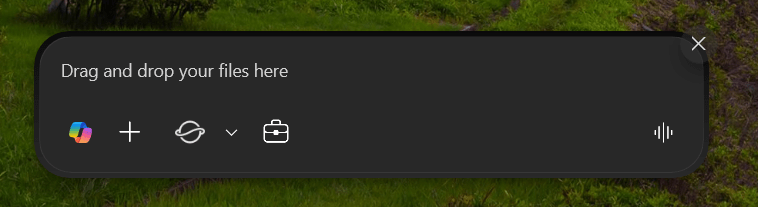
- Available from the Copilot Chat input box, the Copilot key / Win+C shortcut on Windows, and the camera button in the Microsoft 365 Copilot mobile app.
- User-initiated and session-bound — Copilot only processes what’s shared during the active session.
- Audio and video data is deleted after 48 hours (longer only if feedback is enabled).
- On by default; admins can disable it under Copilot > Settings > Copilot Actions > Screen and camera sharing.
- Disabling Vision does not disable voice.
- MC ID: MC1325421
- Rollout: Late June to late July 2026 worldwide
- Why it matters: This is multimodal Copilot in everyday flow. Stuck on a chart, a setting, an error message, or a physical document on your desk? Show it. Ask. Move on. Real-time vision turns Copilot from “I’ll describe it” to “I’ll show it.”. This brings vision capabilities that have been in consumer Copilot for some time to M365 Copilot. When Copilot Sees Your Screen: Copilot Vision
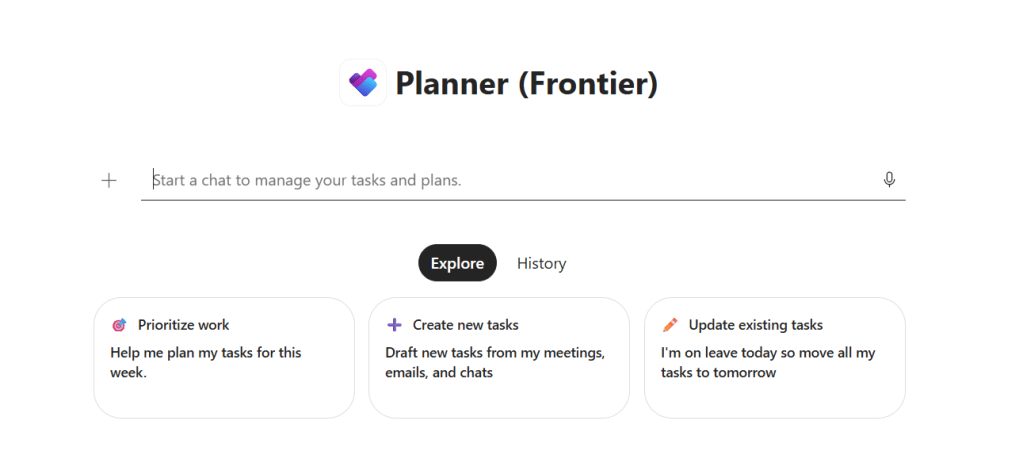
Planner agent in Microsoft 365 Copilot — General Availability
The Planner agent is going GA. Licensed users will be able to create, update, and manage personal tasks and shared basic plans directly inside Copilot — no context switching back to Planner. There’s a nice review-and-confirm task card before changes are applied, which keeps a human in the loop.
- MC ID: MC1323264
- Rollout begins in mid-June 2026 and is expected to complete by late June 2026.
- Why it matters: Task management is one of those things that always loses to the next meeting. Bringing Planner inline with Copilot — and surfacing it in Outlook on the web, the new Outlook for Windows, and the Microsoft 365 Copilot app — means tasks finally meet you where the work happens.
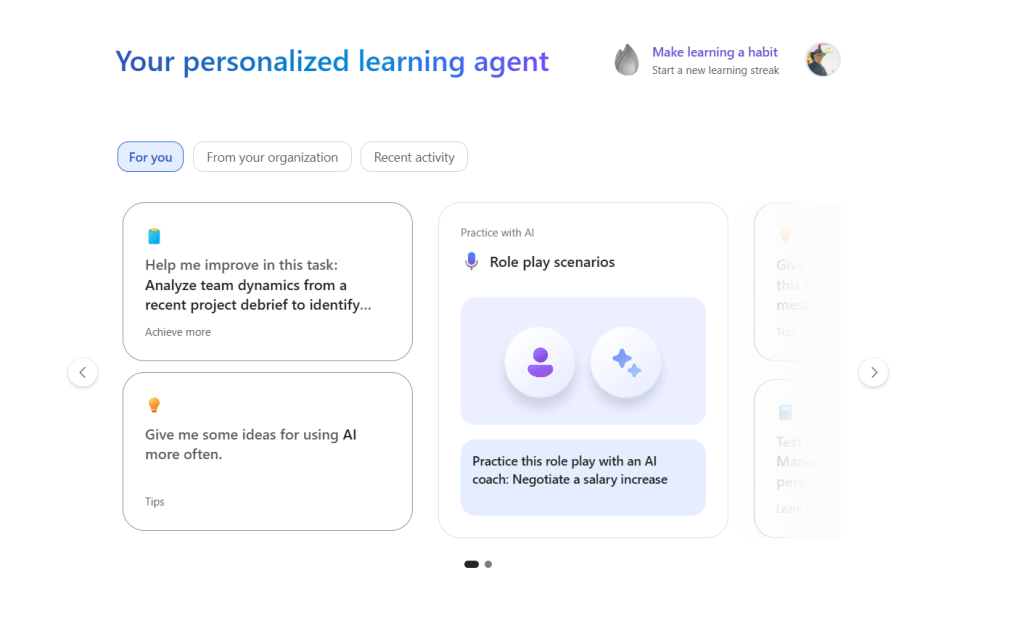
Learning Agent in Microsoft 365 Copilot — General Availability
The Learning Agent is becoming generally available, with deeper integration across Microsoft 365 experiences plus admin controls and reporting. Heads up: there are licensing dependencies across Microsoft 365 Copilot, Viva Learning, LinkedIn Learning, and Skillsoft for specific capabilities — worth a check before you roll it out broadly.
GA rolling out in early June 2026 and expect to complete by early June 2026.
Microsoft Teams
A refreshed in-meeting experience — simpler controls + smarter share panel
Microsoft is center-aligning meeting controls, grouping mic/camera/share together, and separating the Leave button to reduce accidental exits. Less-used actions move into a reorganized More menu, and you can pin, unpin and drag-and-drop your favorite controls.
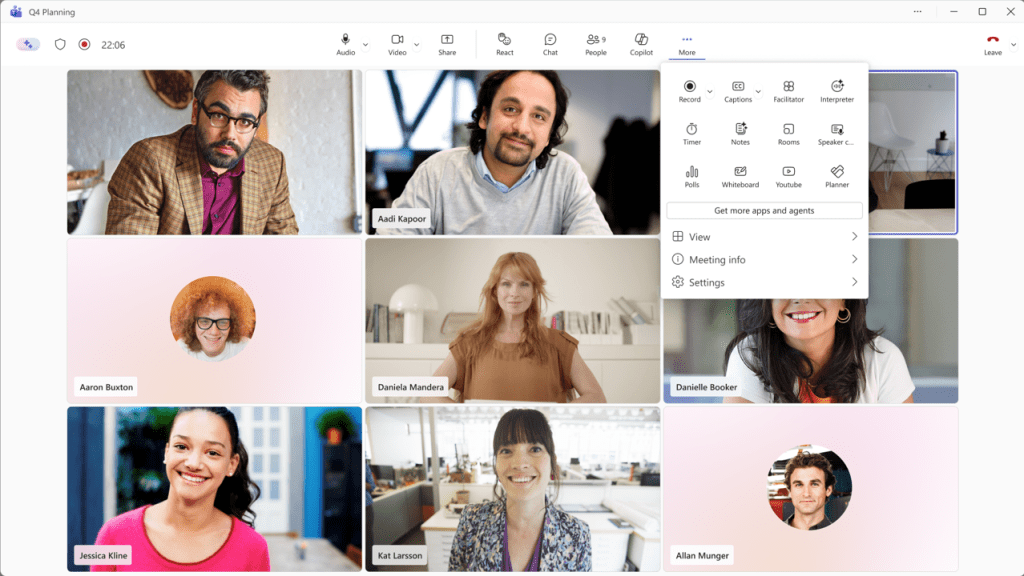
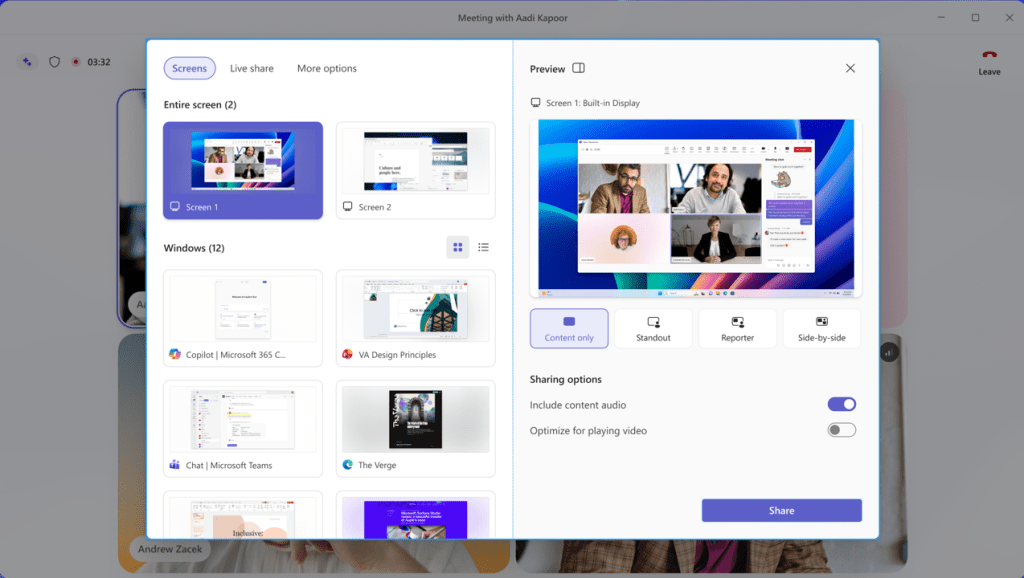
The share panel is getting a real upgrade too:
- Live previews of screens and windows
- A tabbed layout (Screens & Apps, Interactive Files, More options)
- A two-step share confirmation to reduce accidental sharing — bye-bye “wait, that’s the wrong window”
- Roadmap IDs: 560321, 502520
- MC ID: MC1317197
- Rollout: Targeted Release early July 2026, GA worldwide August 2026
- Why it matters: This is a major update flagged with no tenant-level disable. Plan your communications, your champions, and your training materials now. Existing meeting app pinning policies still apply, but the new limit is two pinned apps on the main toolbar — review your policies before rollout.
Take time to plan and inform your users – I have seen experienced Teams champions been a bit lost when they faced this the first time.
Sharing Recap access
This one is small but mighty. Meeting organizers can now grant access to recordings, transcripts, AI-generated summaries and notes when copying or sharing a recap link. Today recap content lives mostly with the people who attended — soon it can travel cleanly to the people who should have attended.
- Roadmap ID: 559606
- MC ID: MC1289724
- Rollout: Targeted Release late May 2026, GA following
- Why it matters: Recap is one of the most valuable AI outputs in Teams. Letting organizers share it intentionally — instead of forwarding screenshots — is exactly the kind of friction-removal that drives adoption.
Meeting AI in-meeting toggle
A practical control I really like: licensed organizers and presenters will be able to turn Meeting AI on or off during a live meeting — including Copilot, Facilitator, and meeting recap. Existing tenant policies and compliance controls are still respected.
- Targeted Release: Early June 2026 – Mid-June 2026
- General Availability (Worldwide): Mid-June 2026 – End of June 2026
- MC ID: MC1319216
- Why it matters: Sensitive discussions happen on the fly. Being able to flip AI off for a moment — without scheduling a separate meeting — is a small but very real win for trust.
Secure Reliable Transport (SRT) for Teams town halls and live events
Teams town halls and live events will support SRT alongside RTMP for inbound streaming. Backup streams with automatic failover are included, and the feature is available by default with no admin policy change required.
- MC ID: MC1323270
- Why it matters: If you run external-encoder events, this is the kind of “the stream stayed up” change you only notice when it saves the keynote.
Slash commands for apps in chats and channels
Users will be able to invoke supported app functionality directly from the compose box with slash commands and receive inline responses. There’s also a new targeted-messaging pattern visible only to the user who invoked the command.
- MC ID: MC1319214
- Targeted Release (Worldwide): Will begin rolling out in early July 2026 (previously late May) and expect to complete by early July 2026 (previously late June).
- General Availability (Worldwide): Will begin rolling out in early July 2026 and expect to complete by late July 2026.
Why it matters: Less context switching, less app-picker hunting. This is one of those quiet productivity wins.
Teams Rooms on Android — chat panel opens by default in Gallery view
Teams Rooms on Android will open the meeting chat panel by default in Gallery view, so in-room participants immediately see what’s happening in chat.
- MC ID: MC1323268
Profanity filter disabled by default for live captions
The profanity filter for Teams live captions will be Off by default for newly initialized users from mid-June 2026. Users who have already configured the setting are unaffected, and anyone can turn it back on any time in Teams settings. This change aligns captions more accurately with what’s actually said and supports regional accessibility regulations including the EU.
- Roadmap ID: 560323
- MC ID: MC1324286
- Rollout: Mid-June 2026 worldwide
- Why it matters: Accessibility and accuracy first. Worth a heads-up to your support teams so they’re not surprised.
Efficiency Mode — better performance on constrained devices
Teams is introducing Efficiency Mode for hardware-constrained devices on Windows and Mac. When enabled, video resolution sent from your camera is dynamically adjusted, the app launches without a pre-selected chat, and a small Efficiency Mode indicator appears in the Teams title bar. It’s on by default on eligible devices, and users can opt out in Settings > General > “Never use efficiency mode.” For VDI users, the “Optimized” pill is replaced by a new standardized icon.
- Roadmap ID: 560055
- MC ID: MC1287373
- Rollout: Late May 2026 worldwide
- Why it matters: Not every laptop in your org is a high-end machine. This is a smart adaptive change that keeps meetings running smoothly on the devices people actually use.
Guest invitation emails from the inviter’s address
A small but very human change: Teams guest invitation emails will be sent from the inviter’s email address instead of a Microsoft no-reply address. Recipients can recognize who invited them and even reply directly.
- MC ID: MC1325416
- Rollout: Late June to late July 2026 worldwide
- Why it matters: External collaboration starts with trust. “Did this actually come from Vesku, or is it a phishing attempt?” gets a much clearer answer when the email visibly comes from me.
PowerPoint & Copilot in PowerPoint
PowerPoint Live in Microsoft Teams meetings — reload your deck mid-meeting
Presenters will get a one-click refresh during a PowerPoint Live session to load the latest saved version of the deck — no need to stop and restart sharing. Last-minute edits finally fit into a live meeting flow.
- MC ID: MC1324281
- Rollout: Targeted Release late May 2026, GA mid-June 2026
- Why it matters: Anyone who has ever fixed a typo seconds before going live knows the pain. This kills the “stop sharing, reload, start sharing again” dance.
Copilot in PowerPoint — “Prepare for Questions”, “Review this presentation”, and “Visualize this slide”
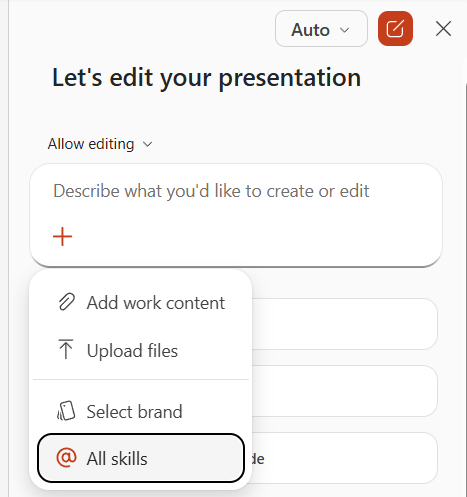
New Copilot skills that analyzes and review your presentation to identify potential weak points and anticipate audience questions. Currently powered by the Anthropic model; GPT-5.5 support is coming. The Review this presentation skill analyzes your slides and gives detailed recommendations for structure, clarity and storytelling. Suggestions are for review only — Copilot doesn’t apply changes automatically. These skills are already generally available.
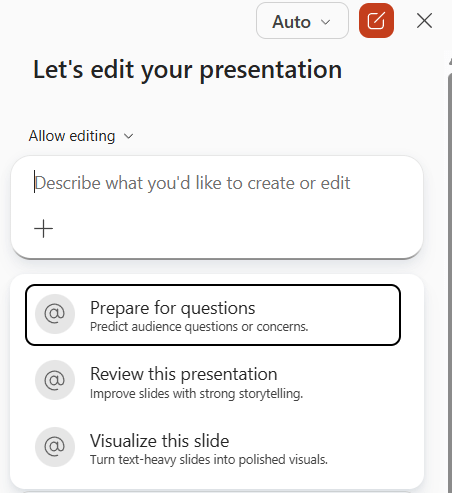
You can find these skills by slicking + in Copilot in PowerPoint and choosing skills
Copilot Studio — Mistral Medium 3.5
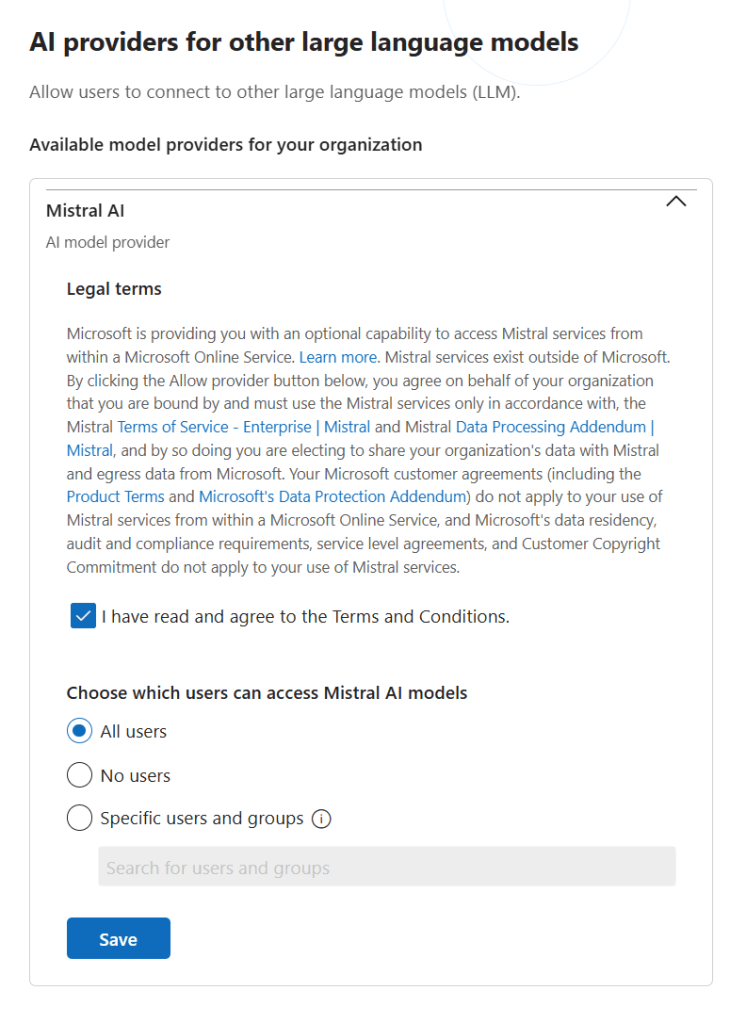
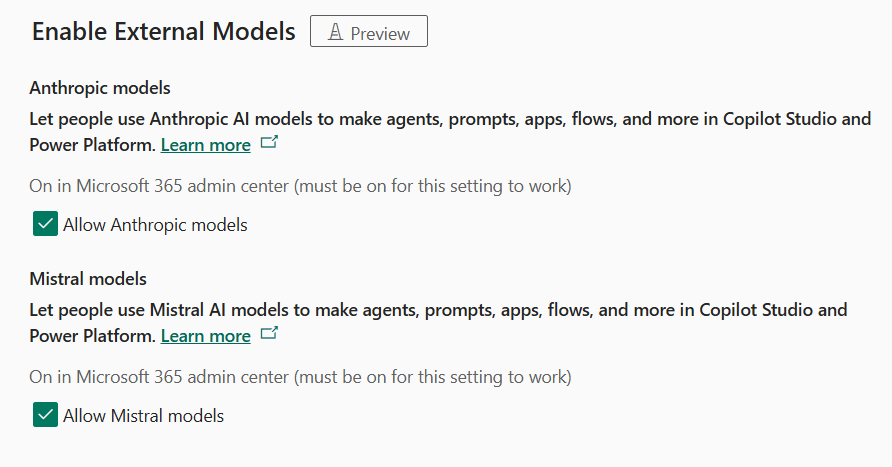
Copilot Studio is adding Mistral Medium 3.5 as a selectable model for agent orchestration and generative scenarios. As with other external models, it’s disabled by default — admins enable it at the tenant level in the Microsoft admin center and configure governance in the Power Platform admin center. Existing policies and controls continue to apply.
First you need to enable Mistral in Microsoft 365 Admin Center
And then make sure it is enabled in Power Platform Admin Center for environments needing it.
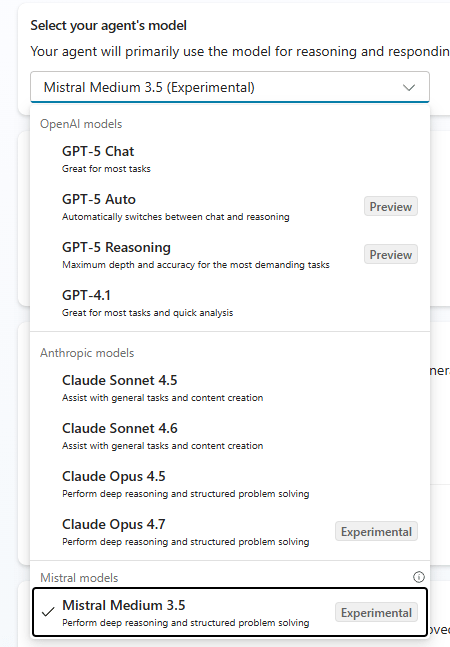
- MC ID: MC1325410
- Rollout: Currently in Public Preview
- Why it matters: Multi-model flexibility keeps growing. Different agents, different jobs, different models — and Copilot Studio is becoming the orchestration hub where you choose what fits.
What else caught my eye
A few quick mentions that didn’t get their own section but deserve a footnote:
- Microsoft Purview eDiscovery is adding an HTML conversion option for Loop and Copilot Pages during export or review set processing — making cloud-native
.loopand.pagefiles actually usable in legal review (MC1323262). - Surveys Agent in Forms is coming to Copilot-connected experiences.
- Outlook Inbox Rules will support the External email tag as a rule condition — better organization of mail from outside your org.
- Copilot in SharePoint moves to opt-out preview starting mid-June 2026 — licensed users will see Copilot capabilities across sites, pages, libraries, lists and chat unless explicitly opted out.
- Teams Rooms (Windows and Android) are getting AI-powered meeting notes via Facilitator — even for unscheduled, in-room sessions.
Closing
The redesigned Copilot app shifts the experience from a feature list into a connected, task-aware workspace where Work IQ becomes a visible partner. Power BI grounding makes Copilot’s answers trustworthy. Vision in voice unlocks the multimodal future right in your flow. Planner GA makes follow-through automatic. The refreshed Teams meeting experience makes daily collaboration safer and calmer. Recap sharing makes meeting knowledge travel. PowerPoint Live reload + Prepare for Questions + Review this presentation turn slide prep into a true human-AI loop.
If you want to track the details yourself, look up each Roadmap ID at the Microsoft 365 Roadmap and the MC IDs in your Message Center. And if you have a favorite from this list — or one I missed — drop me a note. I love hearing what the field is excited about.
See you in the next one. Hat on!


