
Microsoft 365 Copilot has already transformed how we work. Its newest step in the AI-evolution—Researcher with Computer Use—takes things to a completely new level. This capability, available now through the Frontier program, enables Copilot’s Researcher agent to go beyond reading and reasoning. It can actually use a computer. That means navigating websites, interacting with online forms, signing into gated services, and performing multi-step actions to complete your request. If that sounds like science fiction, that’s because it almost is—except it’s real, secure, and working right now in Microsoft 365.

- What Is “Computer Use”?
- Why Computer Use Matters
- How to Use Researcher with Computer Use
- What Admins Should Know
- Real-World Impact
- Final Thoughts
What Is “Computer Use”?
Microsoft describes it simply:
“With Computer Use, the Researcher agent can securely interact with public, gated, and interactive web content through a virtual computer—enabling users to uncover deeper insights, take action, and generate richer reports grounded in both their work data and the web.”
In practice, it means that when Researcher determines your task requires hands-on work—like collecting information from sites behind logins—it spins up a secure, isolated virtual machine in Microsoft’s cloud.
Inside that environment, the agent can:
- Browse and interact with websites.
- Log in to authenticated services (with your consent / you doing the authentication).
- Read and extract relevant information.
- Create deliverables such as documents, spreadsheets, or presentations.
The virtual machine is temporary—deleted once the task is complete—and it’s isolated from your device and organizational network. This is a huge step forward. Instead of being limited to what’s exposed through connectors or APIs, Researcher can now operate like a true assistant that gets things done.
Why Computer Use Matters
Computer Use represents a major leap in capability for Microsoft 365 Copilot.
- From reading to doing
Copilot has been able to analyze data and draft content. With Computer Use, it can also act—performing the clicks, navigation, and steps you’d normally do yourself. - Bridging the integration gap
Not every site or tool has an API. With this feature, Researcher can still interact with them, expanding what’s possible without additional development. - Productivity that feels magical
Instead of gathering data manually, you can ask Researcher to do the full workflow—collect, analyze, and summarize—in one flow. - Transparency and control
Every step is visible, consent-based, and governed by admin policies. You always stay in control of what happens.
How to Use Researcher with Computer Use
Using Researcher with Computer Use in Microsoft 365 Copilot is familiar—but what happens behind the scenes is entirely new. It blends the reasoning of an AI agent with the ability to act through a secure, cloud-hosted virtual computer.
Here’s how it works, according to Microsoft’s official documentation.
1. Open Researcher in Copilot
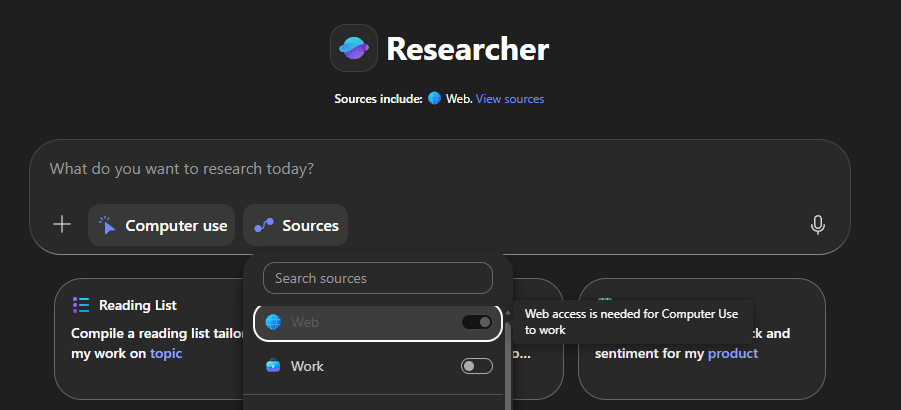
In Microsoft 365 Copilot, select the Researcher agent. When your admin has enabled the feature, you’ll see Computer Use listed among the available data sources alongside Work and Web.

2. Select your sources
Before you begin, choose what Researcher can access:
- Computer Use for tasks that require interacting with websites, forms, or gated online services.
You can toggle these sources on or off to control the scope of the research. - Web for publicly available content.
- Work for your organization’s internal data (if allowed by admin).

You can also fine-tune Work-source, to include only certain data sources – such as Teams Meetings and Chats. You can also choose to use only specific sites in SharePoint, instead of all SharePoint content where you have access to.
3. Stay in control
Before Researcher begins using the virtual computer, it first confirms with you that it is ok.
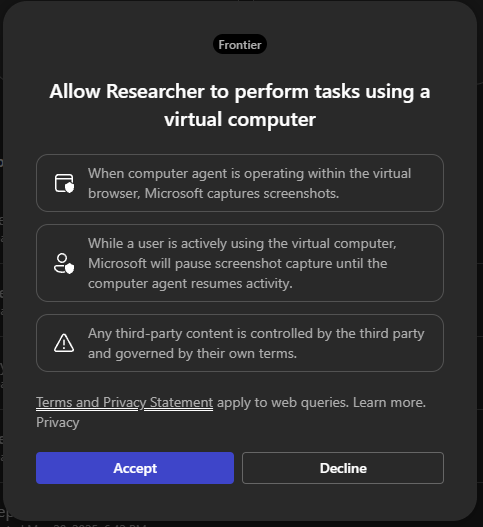
Whenever authentication or consent is needed, Researcher pauses and asks you to confirm. You’ll always see a visible indication that Computer Use is active. The environment runs separately from your device and organization network, and it’s automatically deleted after the session ends.
Note that when you have Computer Use selected, web source is forced to be on.
4. Describe what you need
Enter your goal in natural language. Researcher decides whether Computer Use is needed to complete the task. When it does, Copilot clearly notifies you that it’s starting a secure Computer Use session.
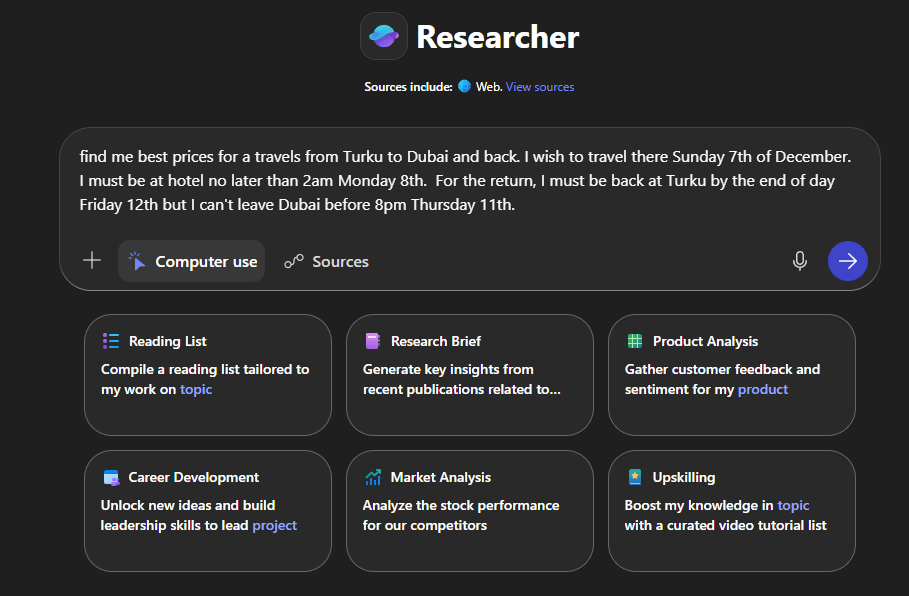
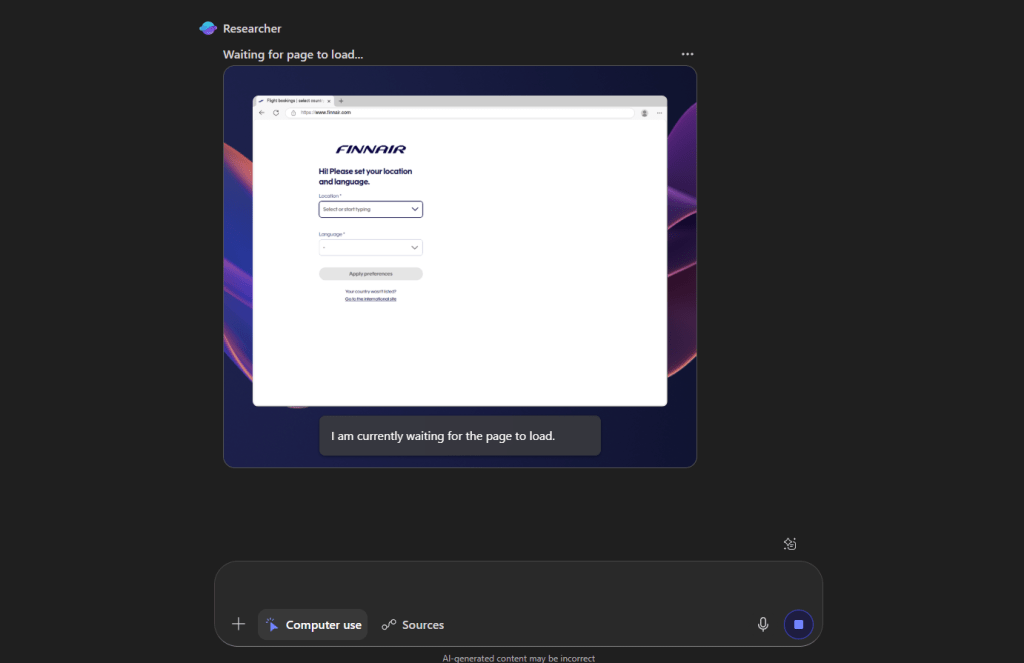
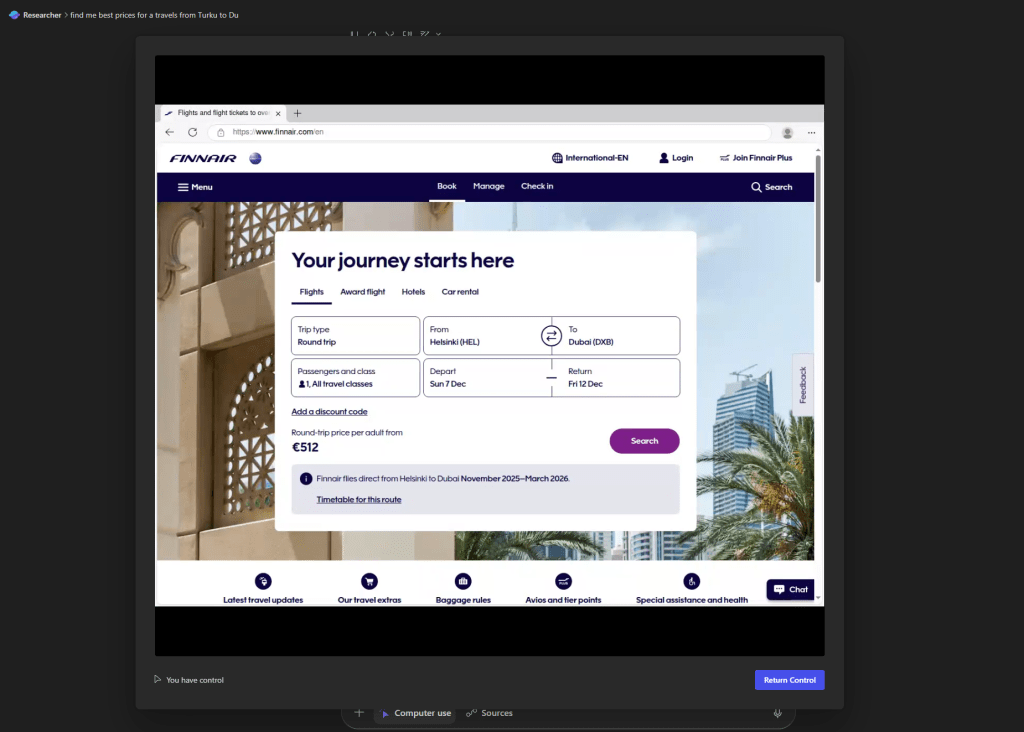
In my own test, I used Researcher to plan an upcoming December trip. Instead of just listing search results, the agent launched a secure computer environment, navigated multiple airline and booking sites, compared options, and summarized the results—all without me opening a browser manually.
Researcher started the process and began collecting information from the web.

Eventually it had results for me
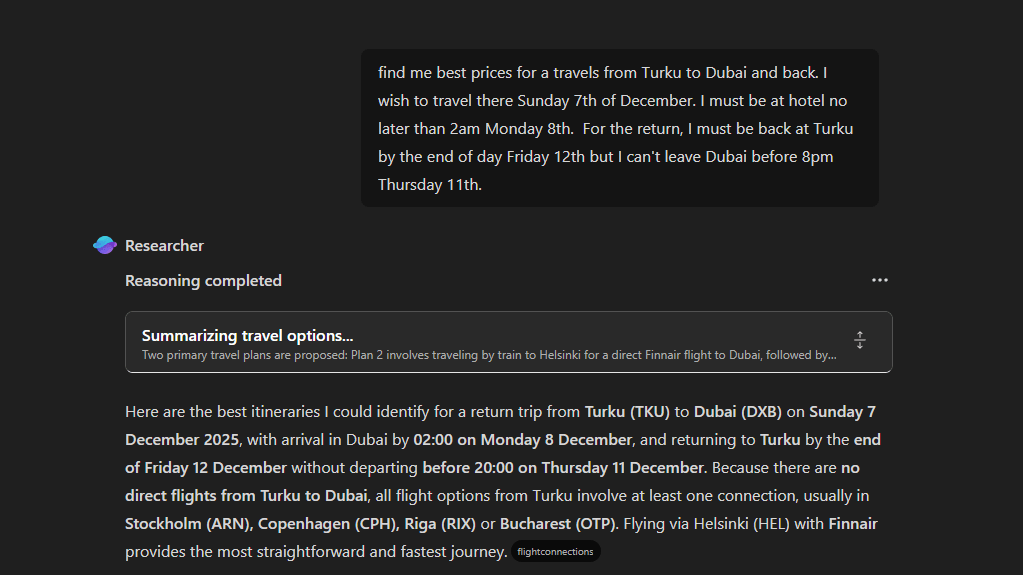

However, I wanted it to check out for more details.
5. Computer Using Agent
At this point the Researcher had determined that it needs some help from user as it browser through searching for information. Anything that is on the screen of that virtual machine, will be captured when the agent is in control, but when user is in control the agent doesn’t monitor ( ie: screenshots are not being taken when user is using the virtual machine). Once control has been returned to the agent, it again takes regular screenshots so it can understand what’s on the screen and what it should be trying out.
6. Review the results
Once finished, Researcher summarizes the outcome—for example, presenting the best options, timeframes, or comparisons—and provides clear reasoning steps. You can ask it to refine the results, adjust criteria, or continue with a follow-up actions.
This example , the one I used in the blog post, didn’t end well – not because of Researcher Agent but because Finnair site stopped discovering flights for a certain date when using the virtual machine. However, all the process I monitored and used the Computer Use capability in the Researcher Agent was really powerful. This is extremely useful for businesses, as you can log in to a backend system and use Researcher to collect information for analysis and reporting. And yes, Researcher will be the one doing the analysis and reporting – you will get the results.
7. Privacy, transparency, and control
Microsoft emphasizes that Computer Use operates within a sandboxed virtual machine in the Microsoft Cloud:
“The Computer Use environment is isolated from your device and organization network. Data is not stored, and actions are logged for transparency.”
Administrators manage who can use this capability, whether the Work data source can be combined with it, and what websites or domains are permitted.
What Admins Should Know
According to Microsoft Learn, admins have full control over how this capability is used.
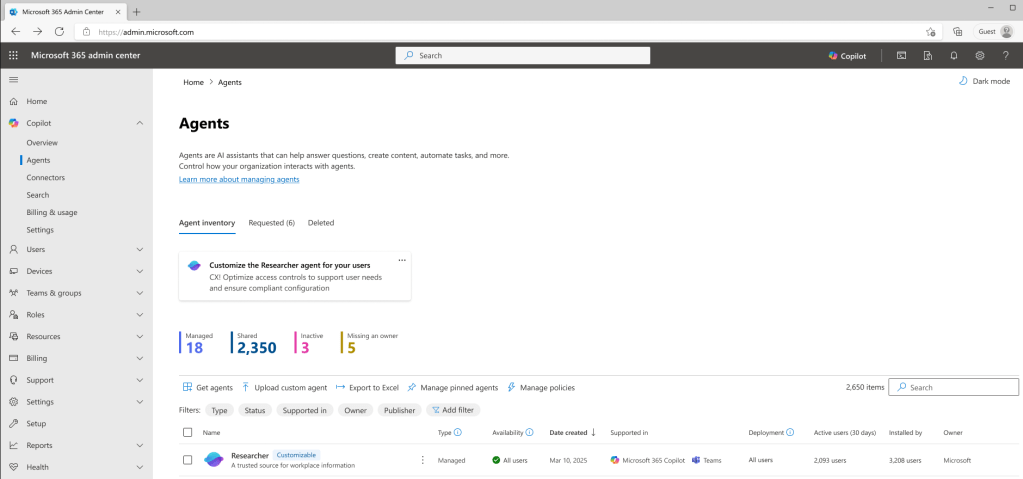
1. Enabling or disabling Computer Use
In the Microsoft 365 Admin Center or Copilot Admin Portal:
- Go to Agents → Researcher → Computer Use.
- Choose to allow, restrict to specific users/groups, or disable the feature.
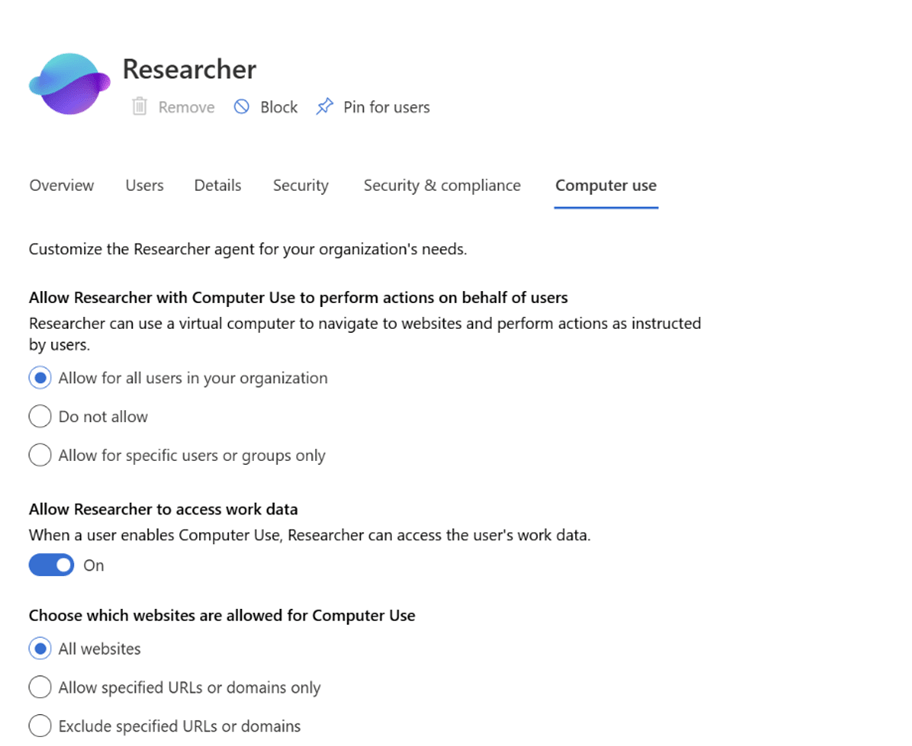
Admins can also manage whether users may combine Work data with Computer Use. When disabled, that toggle appears greyed out in the Researcher interface. It is also possible to restrict which sites the agent can visit, allowing only approved domains or blocking specific URLs as needed.
Security and compliance
Every Computer Use session runs in a Microsoft-hosted, temporary, isolated environment. No data or credentials are stored. Audit logs record the agent’s actions, supporting compliance and transparency.
Real-World Impact
Computer Use blurs the line between assistance and action. It opens possibilities for:
- Researching complex topics that require navigating multiple sources.
- Gathering data from subscription, industry-specific sites or legacy systems without an API
- Preparing meeting briefings, reports, or even travel plans—end-to-end.
It’s early days, but even now this feels like the beginning of agentic work in Microsoft 365—where your AI doesn’t just help you think, but helps you do.
Final Thoughts
With Researcher’s new Computer Use capability, Copilot crosses a threshold: from conversational AI to actionable AI. This also aligns with my previous blog post Introducing Copilot Vision: seeing is an ability, a sense, that Copilot and AI will be using much more than before. The technology has reached the point when it is beginning to be more and more usable, and there are endless amount of use cases where AI vision will be helping us at work and life.
For those of us testing it through the Frontier program, it already feels like a glimpse into the AI-native future of work—one where your digital coworker can research, act, and deliver on your behalf, safely and transparently.
It’s no longer science fiction. It’s here—and it’s redefining what it means to get work done.

 Vesa Nopanen - Future Work today