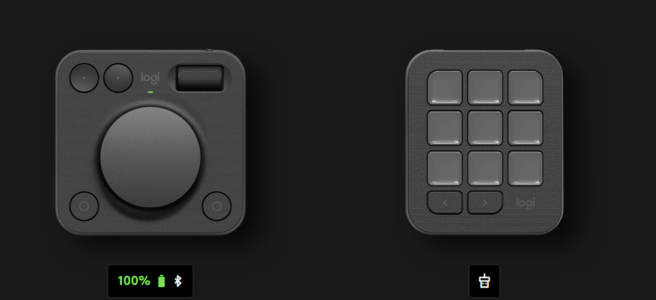
Logitech’s new device on productivity desktop tools is the MX Creative Console: a modular two-piece setup consisting of a nine-key LCD Keypad and a wireless Dialpad. It is designed to keep you “in flow” by detecting the active application and showing only the controls that matter. Unlike single-purpose devices, this console tries to be equal parts productivity booster and creative instrument. Logitech also leans on its MX heritage—high-quality materials, gadget-nerd attention to detail, and a sustainability.

Logitech kindly provided me the MX Creative Console for testing. The thoughts in this article capture my genuine impressions after using it.
In short, the MX Creative Console is Logitech’s new device to anyone who has outgrown the binary on/off feel of hotkeys and wants context-aware control (some even without cluttering the desk). In my case, this meant one more device more to the desk – I already had Stream Deck, so I have included some comparison between these two. Will I get rid of one of these later? Yes and no. I have 2-3 computers on my desk, so I will probably just connect Stream Deck to another one. Creative console does Dialpad has option to switch to different devices easily (just like MX mouse can be connected to several computers) but the Keypad would require reattaching the USB.
- Unboxing & First Touch
- Quick Setup
- Application Aware Profiles
- Creative Console vs. Elgato Stream Deck vs Surface Dial
- Customizing Everything
- Conclusion
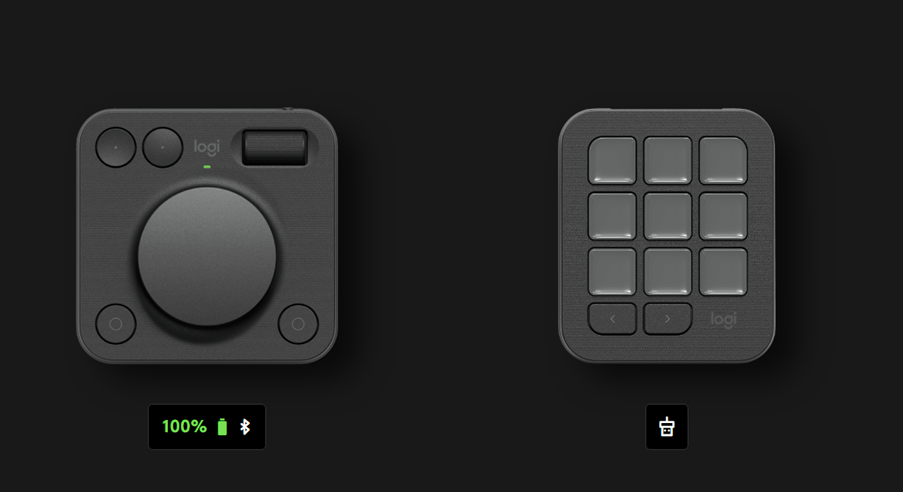
Unboxing & First Touch
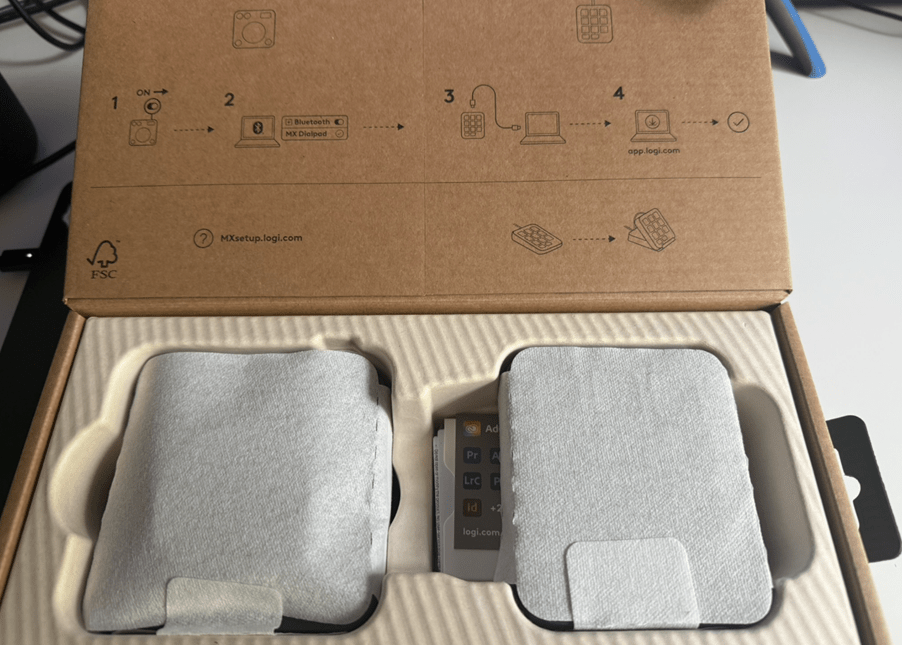
The box meets Logitech’s sustainability claims: cardboard instead of plastique. Inside, the Keypad and Dialpad sit in separate paper trays, each wrapped in a thin tissue-like sleeve that feels more like gift wrapping than e-waste. I like how Logitech is putting effort for sustainability, and resulting in a way that it feels very natural and also very stylish telling about the upper quality. The price-tag for Creative Console is $199 USD, which is significantly higher than Stream Deck Mk 2, but as you read on only common things these two has are keys and marketplace. Console is much more, which is a good thing as it opens more options where and how to use it.
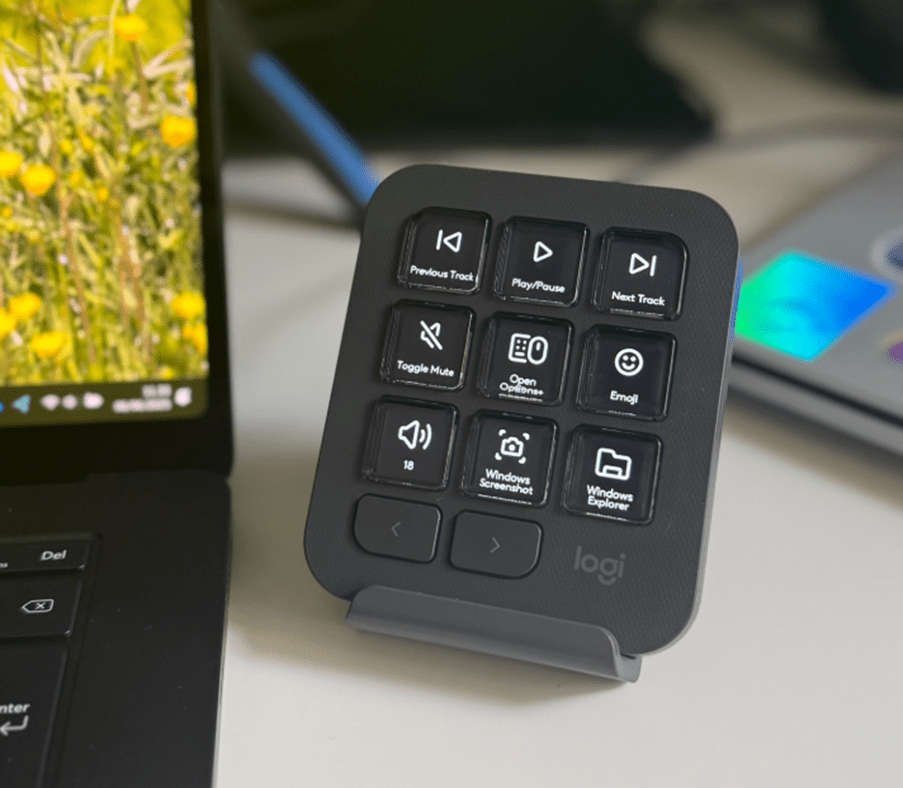
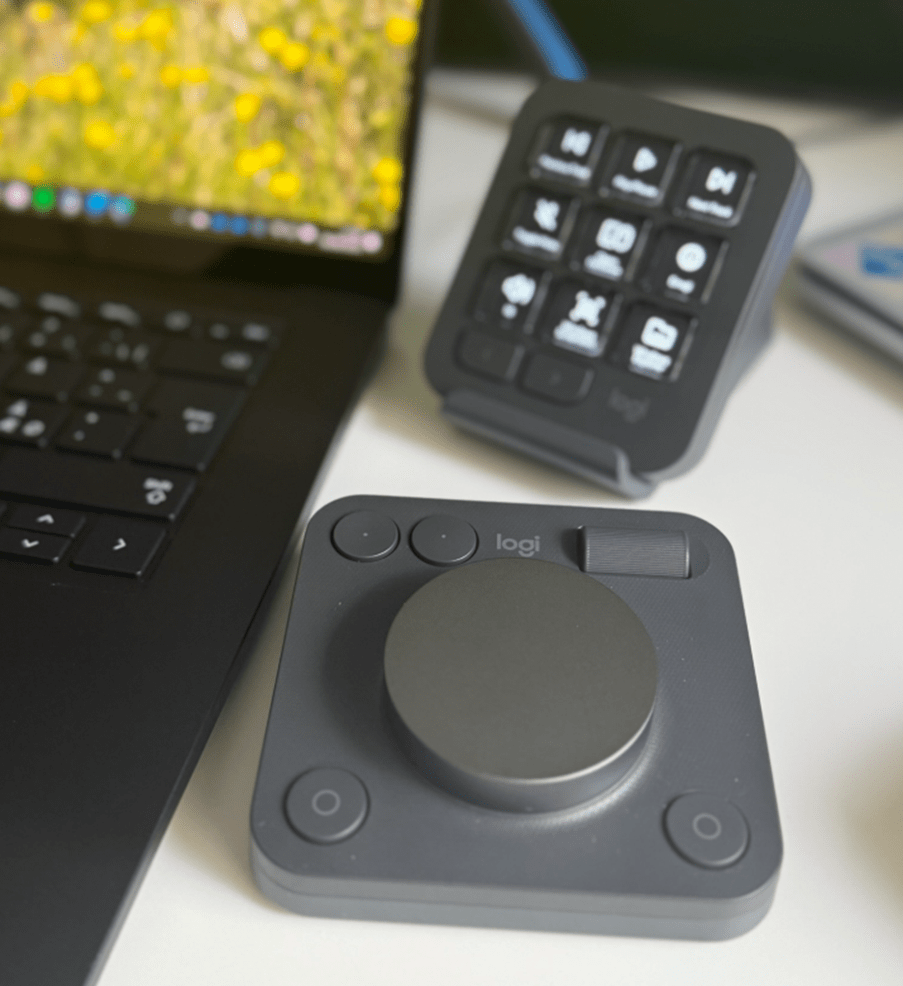
First contact with the hardware is reassuring. The build and materials are good. The keys themselves are vivid and crisp; icons are easy to read. The Dialpad dial has a silky-smooth rotation. On top of the dial sits a roller wheel for vertical scrolling, and the Dialpad has four buttons.
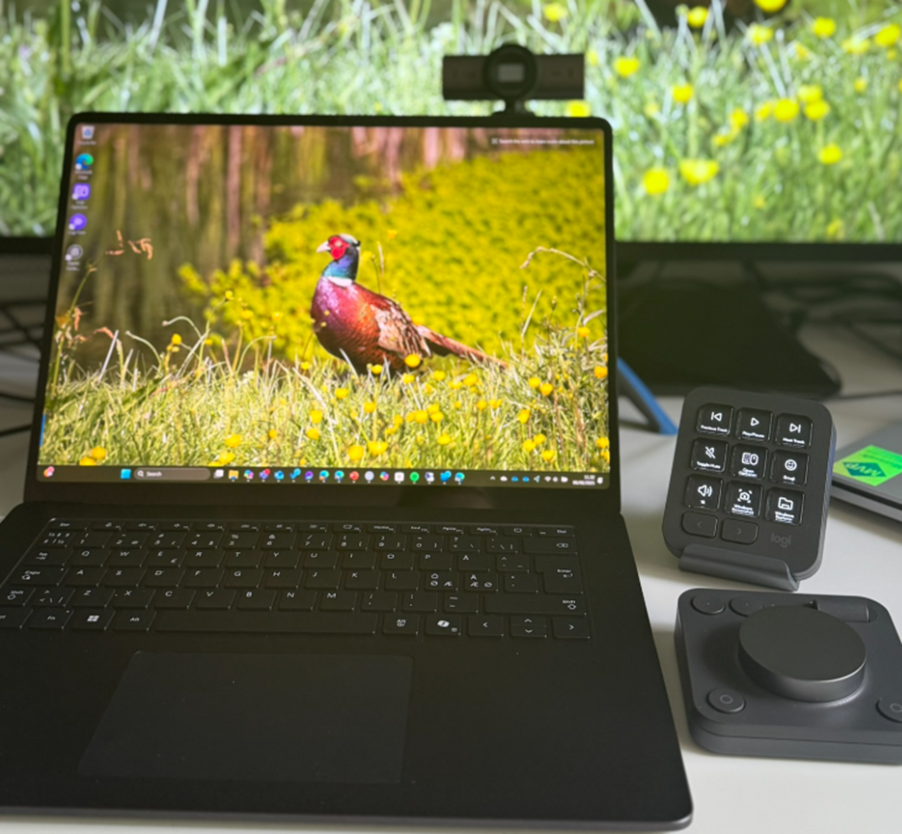
I did raise an eyebrow at Logitech’s decision to split the console in two. Would it be harder to have two devices, instead of one larger one? In practice, the separation feels natural: my right hand stays on the Keypad (mirroring where a Stream Deck used to sit) while my left hand rests casually on the Dialpad ready to nudge, twist the dial, or punch buttons as needed. In the image the Dialpad is still on the right, but I moved it to the left side quite quickly after taking the picture. The combined footprint is lightly larger than my Stream Deck but as the Dialpad is Bluetooth without wires it can be placed on the desk just like a wireless mouse.
You can discover tech specs and more info about the device from Logitech’s website.
Quick Setup
Getting started was refreshingly painless:
- Keypad: Plug the included USB-C cable into a spare port (like Microsoft Audio Dock or directly hook up to the laptop). Windows 11 recognises the device instantly.
- Dialpad: It wouldn’t be easier. Turn on the Dialpad and Windows will ask to connect to the device.
- Software: Download and install Logi Options+. The app displays both units on the home screen and you can use it to manage profiles and configure all buttons to your liking.
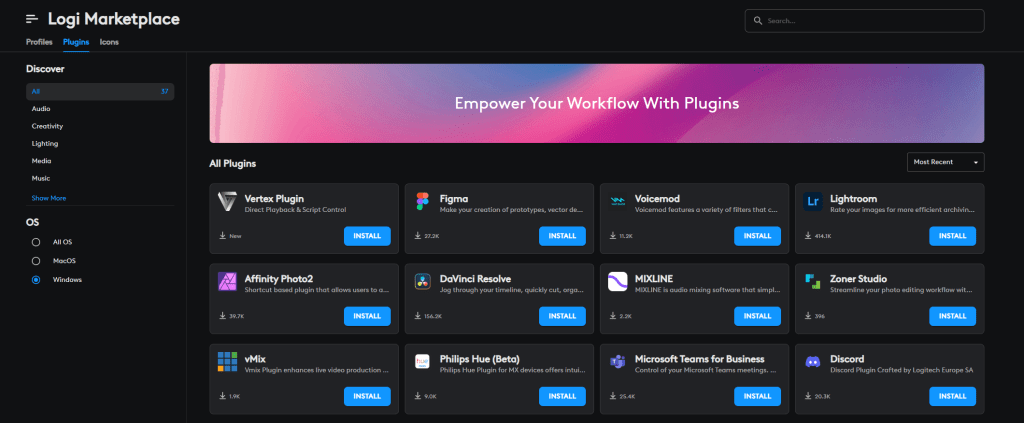
There is also the Microsoft Teams plugin in the Logi Marketplace. After installing and configuring the Teams plugin, it was the moment I realized the Console’s promise: my controls follow me, I do not chase menus nor switch pages manually in the keypad.
You can configure the Dialpad also to profiles in different apps – or just stick to a general one. But if and when you have more apps that will use dial differently, it makes sense to have dial function be app specific.

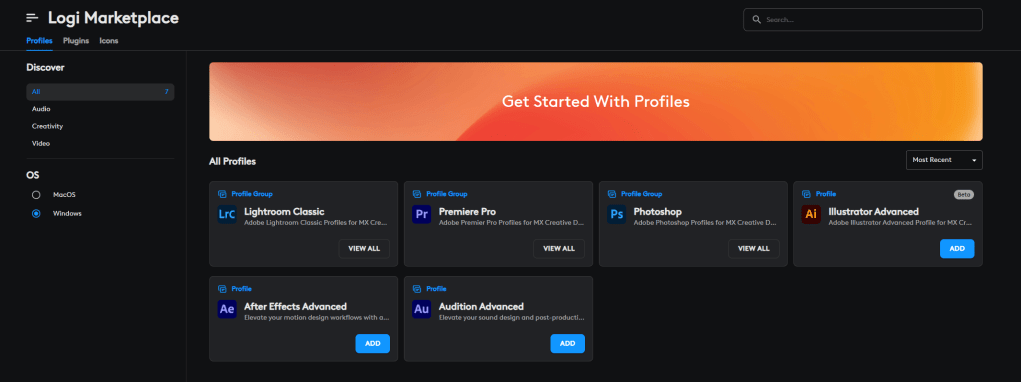
You can get some profiles directly from the marketplace, to get a head start for each app.
Application Aware Profiles
Application-aware profiles are not new, yet Logitech’s implementation feels especially fluid. When I switch from Browser to Teams, the Keypad icons change according to profile set for Teams.
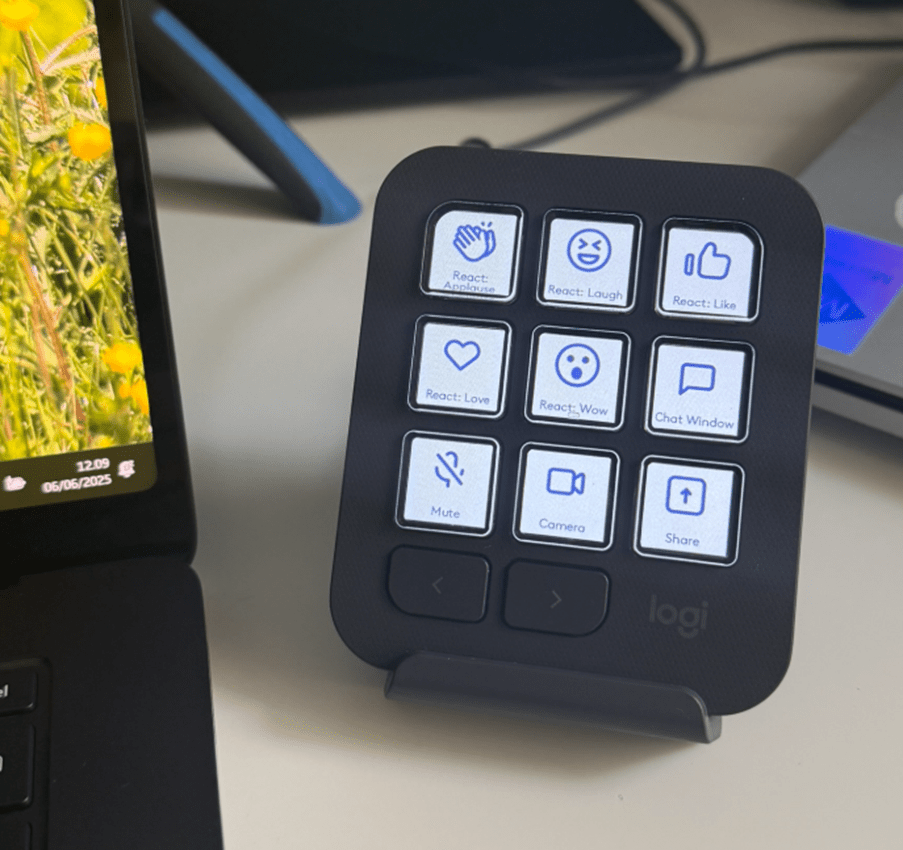
I like how there are physical buttons for page switching. On Stream Deck I had to reserve two buttons for next and previous page. It is up to debate which is better: keys you can configure, or physical buttons. Both have pros and cons, but as physical buttons are smaller than keys, it would either require the device to be larger (to fit more configurable keys) or assigning next and previous page functions to locations reducing the number of usable keys.
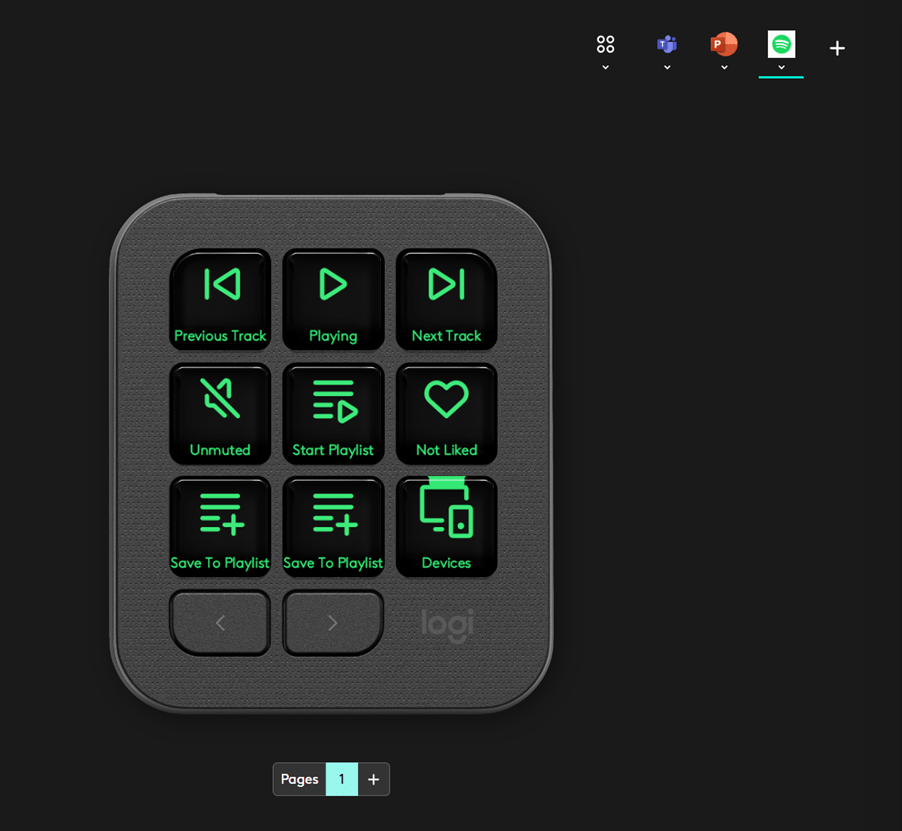
A surprise hit: the Spotify plugin. You can download Spotify plugin and create a profile for Spotify app, thus when you switch to Spotify that profile should become active. I say should, as it doesn’t happen to me. Perhaps it is a bug that will go away, I hope so. Otherwise, it will make the console less useful if it doesn’t switch to app specific profile when you are in the app. So, while the plugin is there it is no use for me at the moment – but the console has generic media buttons for play, next and previous which I put to the main page.
Creative Console vs. Elgato Stream Deck vs Surface Dial
| Device | Keys / Dials | Connectivity | Notable Extras |
| MX Creative Console | 9 LCD keys + aluminium dial + roller + 4 buttons | Keypad USB-C (wired); Dialpad Bluetooth | 3-month Adobe CC, 72 % recycled plastic |
| Elgato Stream Deck | 15 LCD keys (depending on Stream Deck model) | USB-A (wired) | Massive plugin library and lots of support from different apps. |
| Microsoft Surface Dial | Single rotational dial, press-and-hold menu, and press to select | Bluetooth | Application specific tools, select tool (like volume or zoom) from the radial menu and use dial to control it |
I’ve had Surface Dial since 2019, but I admit it didn’t get as much usage as I though. It’s dial is larger than Creative Console’s dial but it doesn’t have a base, so the result is taking less space on the desk – but is much limited in other ways. Using Stream Deck and Surface Dial together would bring similar, but not the same, user experience than Creative Console alone.
Customizing Everything
Logi Options+ offers per-key, per-app, per-page customization for the console. You can assign shortcuts, media controls, system commands, text snippets, or many other actions to the device. This can be done to both Keypad and Dialpad.
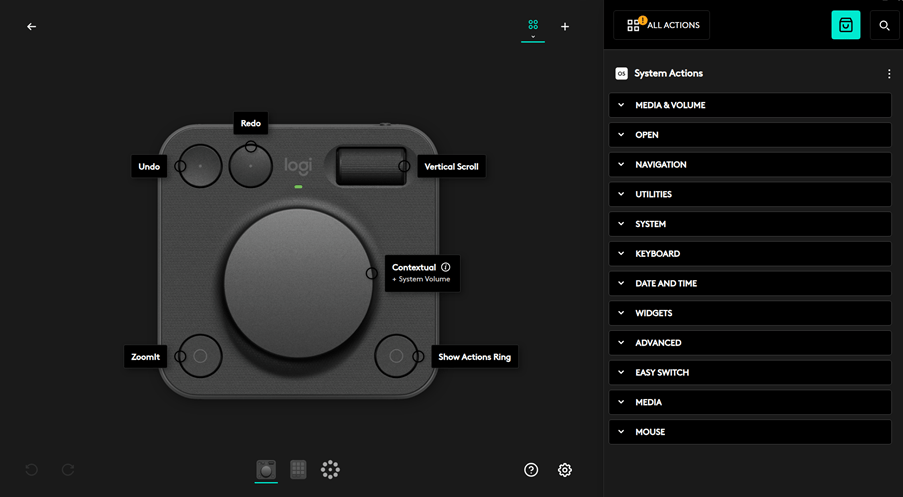
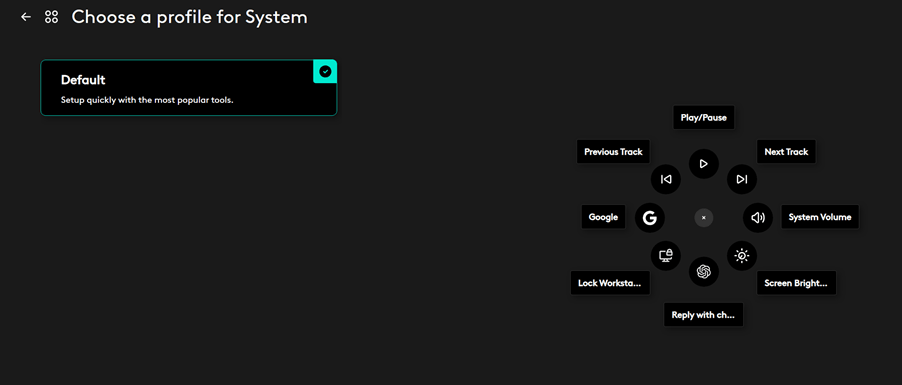
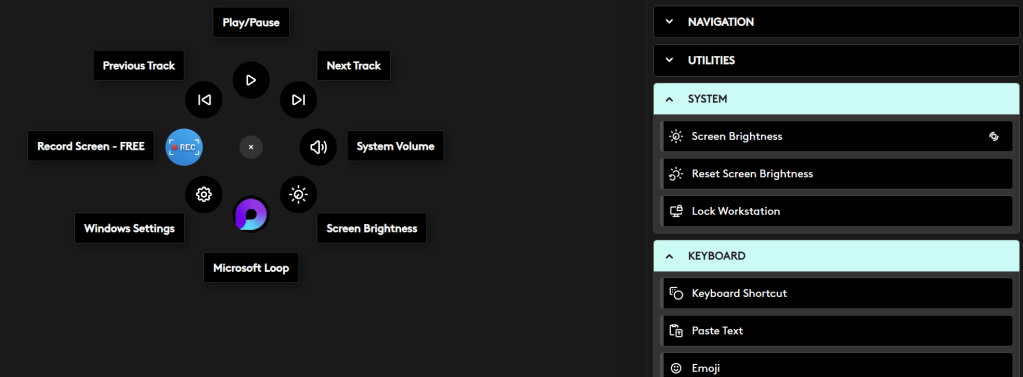
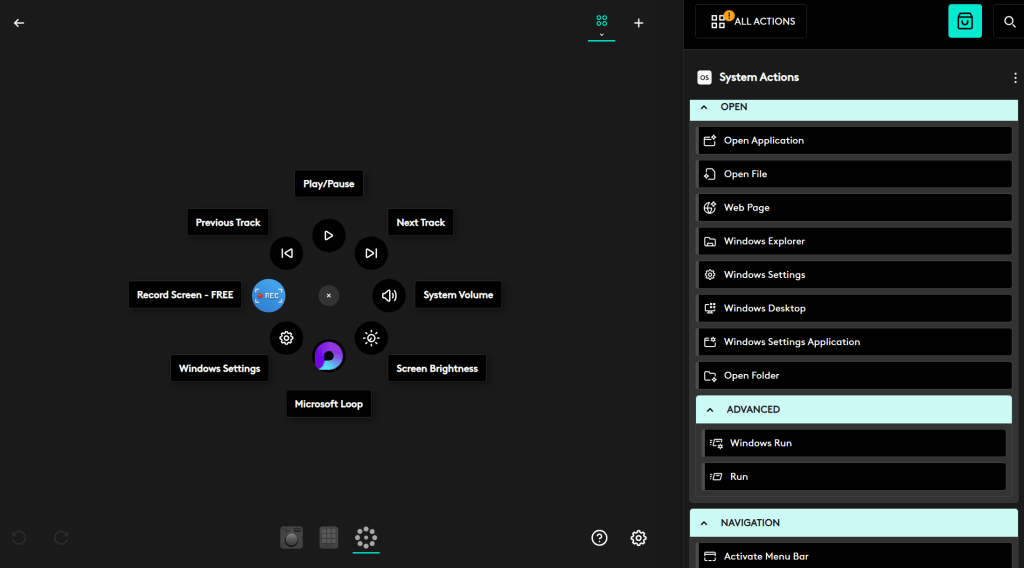
In addition to dials and buttons, you configure the Actions Ring. What I didn’t discover yet, will it be possible to make this work like Surface Dial: Selecting the ring and then using the wheel to select the action. Currently, I am using this in a way that I open the Actions Ring and then use mouse or finger ( touch screen) to select the feature I want to use.
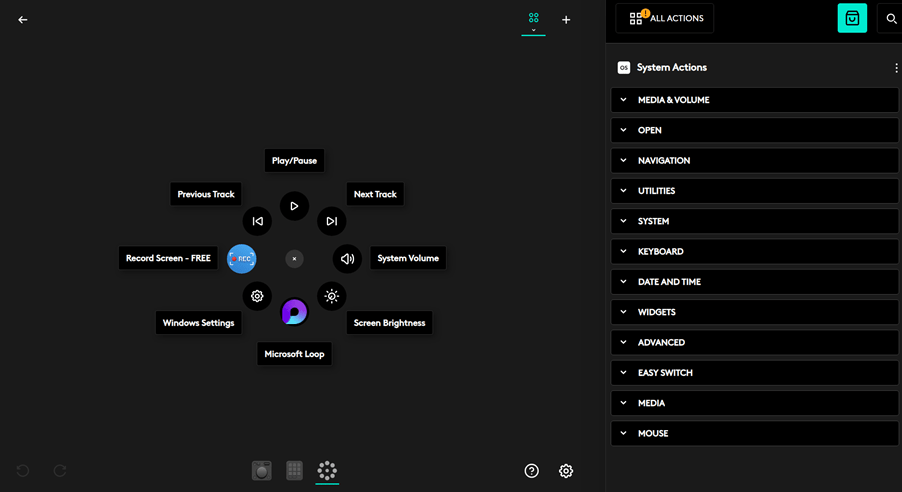
The Actions Ring works just like an extra set of buttons, but I haven’t dived deep to Action Ring yet – what it could do.
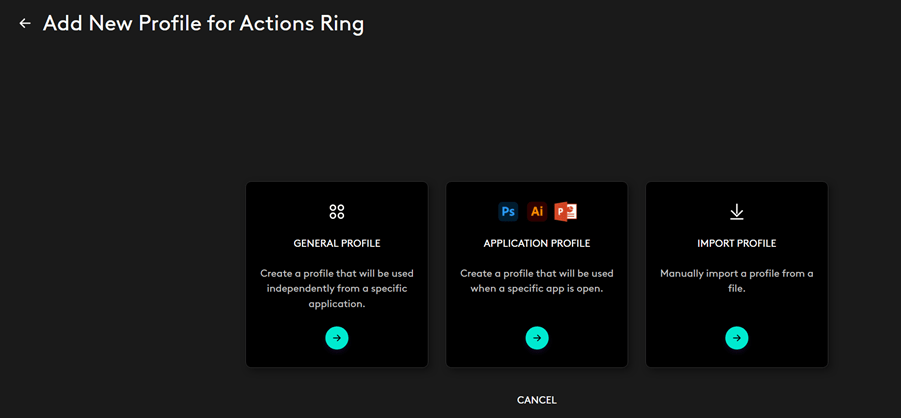
When creating a new General Profile for Actions Ring you can select it to have default features and tune it from there.
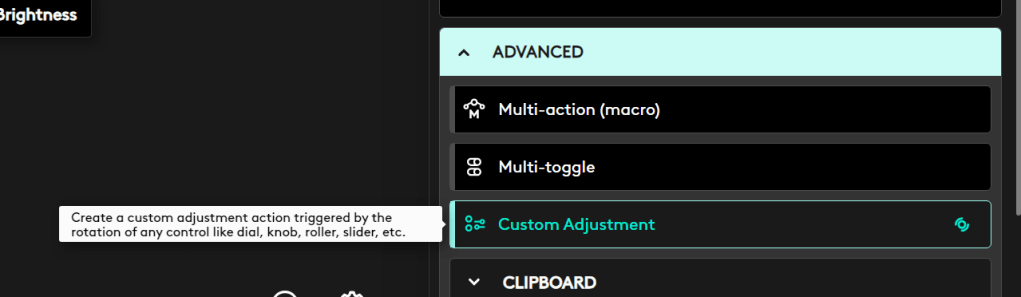
And customization options won’t stop there. You can create app specific profiles for different apps to all parts: Dialpad, Keypad and the Action Ring. There is a list of actions available, including multi-actions, multi-toggles and custom adjustments. It is easy to spend too much time customizing Creative Console to meet your all needs – I suggest to start with simple ones and then add more as you discover new needs on the way.
Conclusion
After a short but intensive trial, I find myself reaching for the MX Creative Console more than I did to Stream Deck. The separated layout let me tweak audio with the dial using my left hand while firing actions with the right. Logitech’s Marketplace is still a toddler compared to Elgato’s plugin galaxy, but I think it will grow over time.
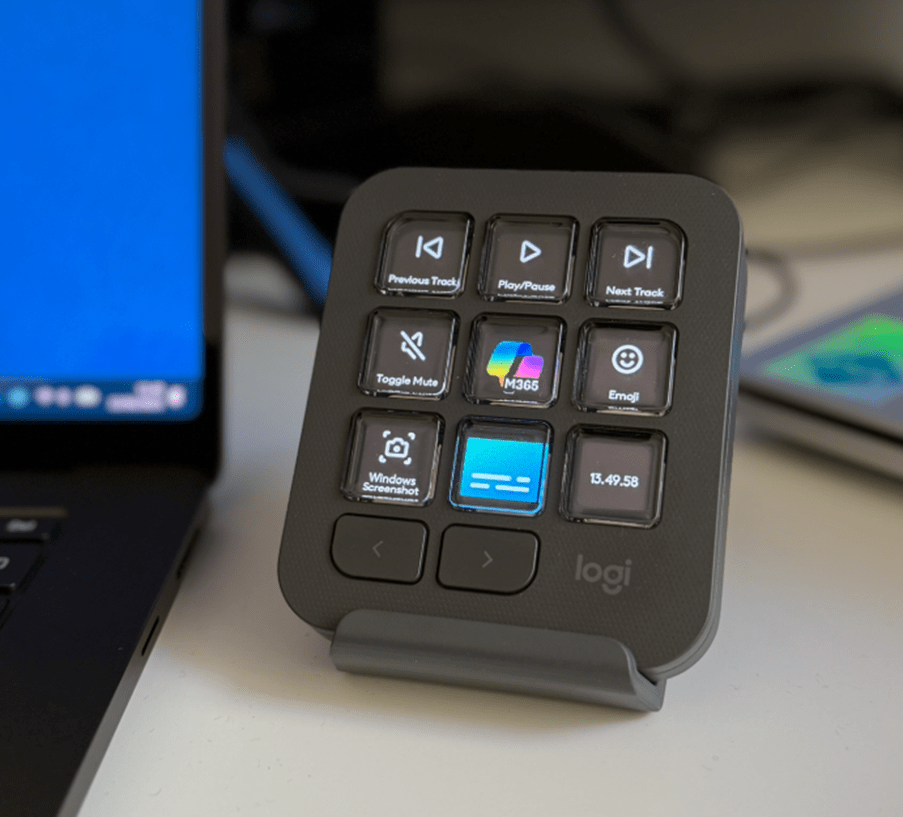
I know I will mostly use only the first screen of each profile, so I packed some controls there that could be useful – like media controls, muting the audio, Microsoft 365 Copilot, subtitles (perks of Copilot+AI PC) and of course the time.
The power of Creative Console lies in the customizations – there are already a large number of options for that, and when the Marketplace grows then there will be more and more options available for further customization.
Where does it fall short today?
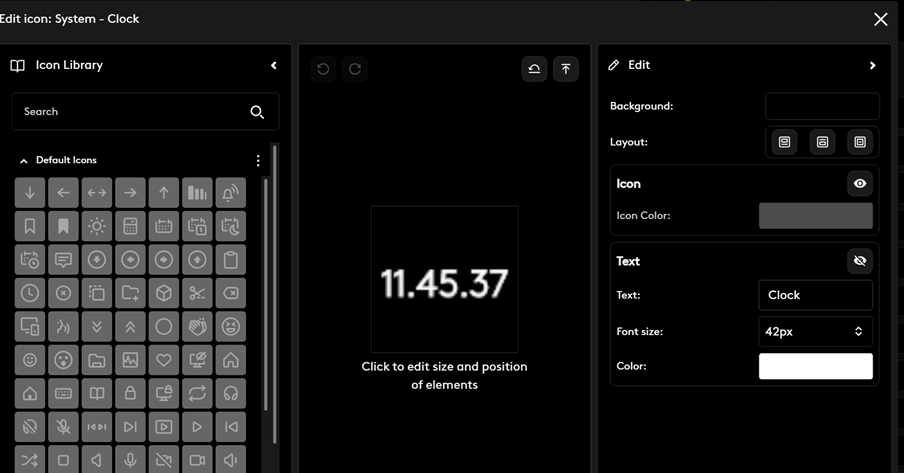
Some bugs, like it doesn’t switch to Spotify profile when Spotify is selected and not getting the time larger despite it is possible to edit it in the configuration. It just doesn’t reflect to the device – no matter if I make the time smaller or larger in profile editing.
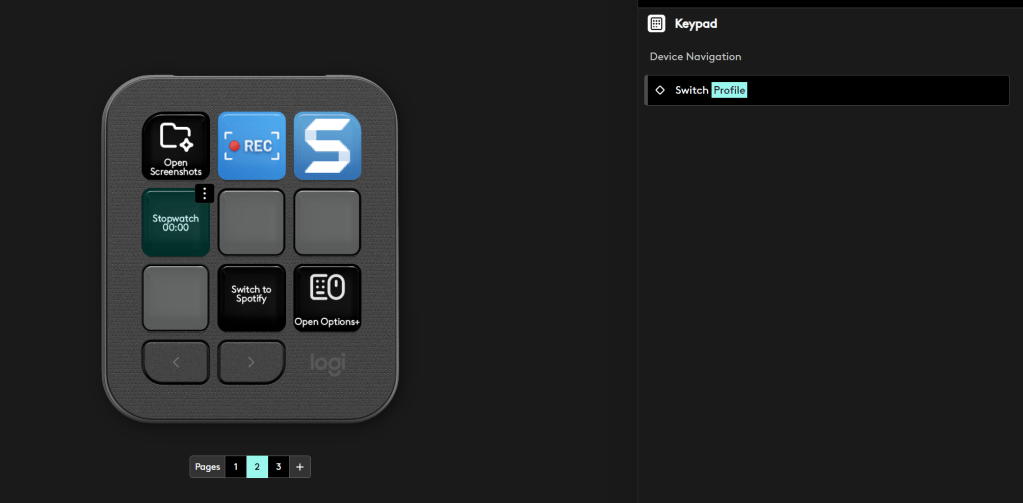
There is an option to switch profile manually too – by assigning it a key.. But it doesn’t work with Spotify profile (there must be something odd about that). Using this action to manually to switch to Teams profile – no problem, works as it should be. So either Spotify plugin is still work in progress and has a bug, or something is just not working on mine.
Nine keys occasionally feel tight ( Adding all Teams controls requires two pages – but you can have several pages per app profile), and I still have not cracked the code for controlling my Elgato Key Lights. Hue plugin is available, but unfortunately I have configured my Hues to another network. These are not deal breakers, as I have had issues with the Stream Deck controlling lights so it has been mostly unusable unless I restart Stream Deck app or Control Center..
The Dial Wheel could benefit from having the press-feature like Surface Dial has, so I would just open the Actions Ring with it and then select the action without having to use mouse separately. But even being able to select the button using the wheel after pressing the Action Ring button would be a plus.
Overall
Logitech MX Creative Console looks like a great alternative to Stream Deck—and it’s still only version 1 and on its first steps. I will spend more time on use experiences and discovering what else console will offer to me. Compared to Surface Dial Creative Console outperforms it in many ways – unless you just want a dial that doesn’t take much space on the desk and you don’t need extra buttons. But for those who want more physical devices to control things, using both Creative Console and Surface Dial together, with different wheel actions, can add new options to work without using mouse for everything. I will probably try the combo together for a while but end up using just Creative Console on my primary computer and then use Surface Dial with Stream Deck on another computer.


 Vesa Nopanen - Future Work today
One thought on “Hands on with the Logitech MX Creative Console”