Are you already using Microsoft Loop? Have you been waiting for the opportunity to use Loop with people who are external to your organization?
Microsoft Loop is used to create Loops, which are flexible and fluid documents that can contain text, images, videos, charts, tables, lists, and more. You can also embed these fluid Loop components into various application: Teams chats and channels, Outlook, Word, OneNote, Whiteboard and so on. Loop components are reusable and adaptable parts of loops that can be edited, and they are updated real-time across different apps and platforms. This allows you to collaborate with your team in real-time, using chat, comments, @mentions, and various others co-authoring features. When using Microsoft Loop application, you can create and work in Loop workspaces and pages, and you can embed Loop components to pages as well – or embed a page to other application as a Loop component. You can see the point here: Loop is very flexible. And I am not even mentioning that there are application integrations to Planner, Jira, Trello and more. In summary: Microsoft Loop is a very versatile future work application that meets the needs the modern world has for co-authoring and collaborating with others.
One of the most waited features of Microsoft Loop has been the ability to invite external guests to your Loops. We want to be able share our Loops with people outside your organization, such as partners, vendors, or customers, and work with them on your Loops. Now it is possible, as inviting guests to work in your Loop components, pages and workspaces is rolling out!
This opens up new possibilities for collaboration and productivity, as you can leverage the power of Microsoft Loop for various business scenarios. And to be frank: limiting a tool to work only with inside organization is not the way to go. But as with every new solution, there are always priorities and decisions made. Loop has become quite an impressive tool, which I use every day, and adding this option to invite external people to collaborate with you in Loops.. It is just expanding the possibilities!
In this blog post, I will explain how to share Loops with external guests, and how to collaborate with them. If your IT policies allow, users within your organization will be able to share Loop workspaces, pages, and components with people outside of your tenant via B2B guest sharing. Pages and components can be shared outside your tenant via Specific People share links. Guest users cannot create Loop workspaces.
Microsoft Loop guest access is rolling out and should be in all tenants during May-June. I got an early access and permission from the Loop Product Group to write about it. If your tenant has sensitivity labels in use, you can’t use guest access in Loop yet – the support is coming later this year.
- Enable inviting external guests to your tenant
- How to invite external guests to your loops
- Sharing the workspace
- Sharing a Loop component
- Things to look out for
- Conclusion
Enable inviting external guests to your tenant
To enable inviting external guests to your Loops, you need to follow these steps:
- In the SharePoint admin center, set the organization-level external sharing settings for SharePoint to allow content to be shared with new and existing guests or existing guests.
- Enable the B2B invitation manager for your tenant. This is required so you can easily invite new people and people who are not using EntraID (AAD) accounts – like Gmail.

Your admins may also want to check what kind of policies are required for B2B guests. It is possible to configure settings for guest users, such as which domains they can come from, what permissions they have, access reviews, and how long they can stay in your tenant.
Note: if sensitivity labels are in use at the tenant, then guest sharing won’t work yet. The support is coming later this year.
How to invite external guests to your loops
Let’s create a Loop Workspace, a page and invite people to work with us there.

Assume that I want to edit this blog post with someone who is not in the same organization as I am. As this sharing works with guest users, you might already have the person in your tenant as guest. In that case just go to the page sharing or workspace members and add that person – usually this works the best by using their email address.
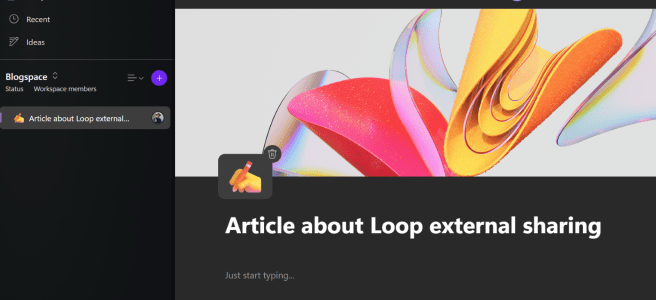
In this case, I will invite a new person to work on this blog article with me. I go to the page sharing to get started.

Loop sharing automatically creates a sharing link for everyone in your tenant, but that is not what we want. Lets click on Settings so we can specify the invite.

Select People you choose and specify the email address here.

Make sure you have Can edit selected. You can also see the heads-up warning that the user is external to your organization.

Then we just click Apply.

And you can get the link

Copy the link and deliver it to the person you shared the Loop with.

And from external user’s (Beverly Troi, one of my demo users) perspective it looks like this

Beverly clicks on the link to get started.
First there is a sharing link validation.

Next, after the sign-in, Beverly needs to accept permission since this is the first time she is using Loop as external guest user.

This is needed, as Beverly is added as guest user. You may need to sign-in again if you haven’t been signed in to your organization’s Loop in the web browser.
And now Beverly can see the Loop page and start making edits! She has Office 365 E5 license, so she would not be able to create Loop workspaces on her home environment. But she can work on those.

Beverly can then start working on the Loop page content.

She can not just edit the text, but she can also add comments, reactions and boosts – and more.
And as the original user (who shared the Loop) I can see what she has been doing and I can also, for example, atMention her.

And we can see that in the / menu there are plenty of other tools available when working as a guest.

The only thing missing seems to be the Copilot.
Sharing the workspace
Just like when working when other shareable documents in Microsoft 365, like Word, you can share the document easily with a guest as it creates a guest account using B2B Invitation Manager. Just like that happens with the Loop page.
When you want to add a guest to Loop workspace, you need to have the guest account readily in your tenant’s guest users. The easiest way to do this now is to share the page first with an external and then, after waiting an hour or so, add a person to the workspace. The wait time is needed so the guest account is provisioned fully and then synchronized to be usable. I have had this succeed in just 5-10 minutes, and sometimes I have had to wait for 30 minutes. One hour is a very safe wait time.
Perhaps our needs changed, and we need to give Beverly access to the whole workspace. We do that by clicking on the workspace members (1 Workspace member in this example) text.

When someone is added to a Loop workspace that person gets access to all pages there.

I just use her email to find her guest account and add her to the space.


If you get message that “We are unable to add members at this time” then it means that the guest account is not synchronized fully yet. Just wait for 10-20 minutes and try again. It may even take hour, so sometimes it is good to add the person as a guest directly beforehand to EntraID, but this is either via a process (if you have one on adding guests) or asking IT Admin to do it.

When I tried again, after a bit of wait, the adding was successful

As Beverly, when I refresh the page I can see the whole workspace and pages in it instantly.

And as the original sharer, my own identity, I can see Beverly is there

Sharing a Loop component
The same method applies to sharing the Loop component. When the user is a guest in the tenant, then just share the component normally using the sharing link. It is possible via various ways
Let’s create a Loop component – this one is in the OneDrive since I created it in Teams.

Open the component in web application, so you can share it to the guest.

Sharing is initiated from the top right area – by pressing the Share and selecting the page link.

And like before, we just add Troi’s email address when we are sharing the component.

Take the link and deliver it to your guest, so they can open the Loop component.

And like before, there is a sharing link validation first

And now Beverly can make edits to the Loop component.

And all changes are synchronized everywhere – just like normally with Loop. In Teams chat we can see via the component it has been shared with an external guest.

That’s pretty cool, isn’t it? You can also share components in your OneDrive by going to the file and using the normal OneDrive sharing feature to perform the same.
Things to look out for
There are a few things to look out for with external guest sharing. One is that your guest needs links to be able to open your workspace, pages, and components. So, it is a good idea to mention people in the loop, so they get the atMention or added to workspace emails and can find their way via those easily. Once guest is inside the Loop page, they can see all workspaces by clicking the Loop icon on top left area.

In essence, guest access in Loop is like Teams guest: you need to do a tenant switch to be able to work with external content. When you go to the Loop main page, you can see a message reminding that you are in the guest tenant.

Currently the only way to get back to your home tenant Loop is to sign out and then sign back in with your account.
In my example the guest user has Office 365 E5 -license. With that license you can’t create or share workspaces or pages. But that doesn’t stop you from working with workspaces and pages that have been shared with you!

Finally, don’t get confused by the message you get when you click on the link to open guest Loop workspace. Clicking the link from email, when you are signed onto your organization’s Loop, pops out the message

When you click Switch account you are taken to the Loop page where you haven’t been signed in. Sign in to get to the guest Loop workspace.

And after signing-in we can see the guest workspace again.

Unfortunately, there isn’t a tenant switcher just yet. But as a tip, when you click on the Loop icon+text on the top-left area you are taken to the main Loop page of the tenant you are in. This way you can get access to all workspaces, that are shared to you, easily.
Conclusion
As you can see, sharing Loop with guests is on its first steps but it is very powerful already today! This is rolling out to tenants already, so check with your IT admins the sharing and guest inviting settings ( & sensitivity labels) to be in order so you can start Looping with people from other organizations.
Start Looping!

 Vesa Nopanen - Future Work today
I followed all of the steps but still couldn’t get it to work. Although they are added on the user list in Entra ID, the guest name does not come up in the name list when trying to share the workspace. Is there any steps you think I might be missing?
LikeLike
The feature might still be rolling out. Schedule mentioned was May-June. You may still need to wait. Unfortunately there is no way knowing when the feature is activated in your tenant – except by testing does it work.
Do you have sensitivity labels defined in your tenant? If yes, then you need to wait (later this year) until Loop guest sharing supports those.
Is your sharing level correct? When you sharing to a specific people, can you see it mention about people internal and external to your tenant?
Thank you for reading the article! I am happy you found it interesting.. and hopefully it is also useful once you get the sharing work in your environment!
LikeLike
GOod afternoon,
Thank you very much for all your guidance.
We have a problem in our enterprise where we cant add members to our workspace. WE have a AZure Hybrid environment and we dont have exchange online. Could you please guide me?
Thank you and best,
Yamael
LikeLike
Are you talking about internal users? TBH I don’t know if you can get Loop working in a hybrid environment. You will need Onedrive and SharePoint online for users at least. And extending that to guest Loop access – it is using B2B there, so if you have Loop working you can maybe also invite externals to your workspaces. But I don’t have any experience with hybrid settings on this. If you can send me privately more information about your setup and what are your use cases, I can reach out to people at Microsoft and ask from them about it.
LikeLike