Microsoft Teams got, after a long time of waiting, new collaborative meeting notes earlier this month. The old Wiki-notes faded away and were replaced with a modern Loop component. I have written earlier about Loop Components in Using Microsoft Loop Components in Teams, Microsoft Loops in Whiteboard, Word Online and other new features, How to use Loop Components in Outlook and Teams. and How to stay in the Loop using mobile Teams!. And there will be more posts to come about Loops. Now we can add Teams Meetings to the list.
There are several advantages when using new collaborative meeting notes
- Notes are available during the meeting, and participants can see each other’s edits real time
- Component can be copied and pasted to locations where it is needed – thus preserving the Flow of Work
- Wherever anyone does changes, those changes are instantly replicated to all places where the component has been placed to
- At this moment it is possible to use Loop Components in Teams chat, Outlook Online, Word Online, Whiteboard and in Loop application. There will be more endpoints such as OneNote. This means that your meeting notes can be viewed and edited in those apps before, during and after the meeting.
- This allows to share meeting notes easily to people not in meeting and they can add in their edits as well – or just review to stay up to date
- Tasks in meeting notes create a light-weight Planner plan and status is updated between Loop component, Planner and ToDo by the Planner integration.
What happens in the background, is that when meeting organizer clicks to add notes the Loop component is created to organizer’s OneDrive to a folder named Meetings.

But let’s take a look how you can use these new Collaborative Meeting Notes!
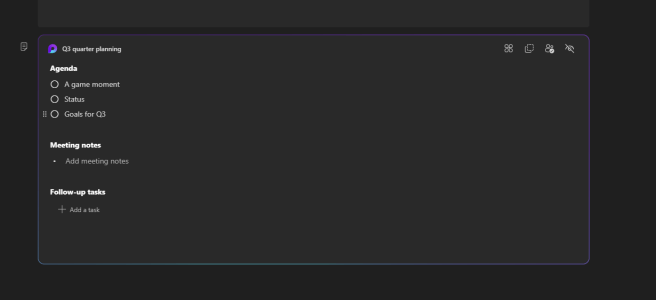
First, click on the bottom “Add an agenda others can edit” to add a Loop component to the meeting.

Now you can see you can easily add Agenda. And not just you, but everyone else invited to the meeting from your organization. At the moment Loop components don’t work between organizations.

You can start to form up the Agenda – or whatever you want to add there.

You are not limited to these sections – you can add new parts, paragraphs, text and anything that is supported in Loop components.

At this blog I just keep those parts standard, but it is good to keep in mind that Loop components are very flexible! Using them in meetings is no exception!
From the top right corner you can see shared locations, copy component, see who has access and hide the component in meeting details.

Once you have invited people to the meeting, they can see the component as well.

They can edit notes, so it makes sense to use these new notes to prepare for meetings – making meetings better and hopefully shorter as well.
Once you are in the meeting you can see Notes-tab opening automatically.

This is where you can edit notes during the meeting and everyone’s edits are instantly visible to all participants.
I have both attendees side by side so you can see how notes are changing for everyone.


When you add tasks you can (and should) put in the assigned person and due date.

And just like in meeting details page, you have options to see shared locations, who has access and copy component & open it in the browser. Browser can be useful if you have a lot of notes since you can then use a lot more screen to see notes and make edits.
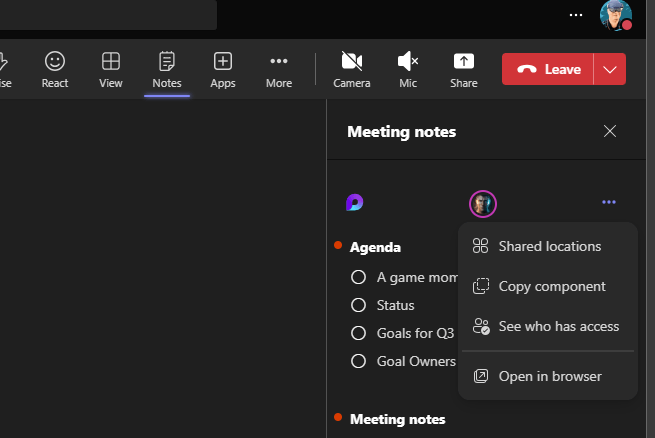
If we copy the component, we can drop it onto Whiteboard or Teams chat – for example.

Chat can be useful if you want to engage other people – even when they are not in the meeting.

Other endpoints you can use are Word and Outlook Online & Loop application.
You can see tasks assigned to you in your To Do.

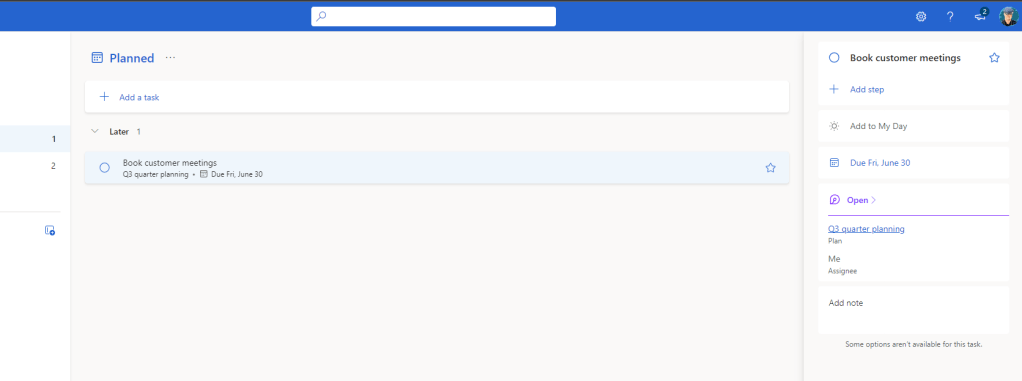
When task is opened, there is a link to a plan. When you click it, it will open Planner.

Every meeting notes gets its own Planner. There is integration is taking care of syncing tasks between Loop component, Planner and To Do. Once you click something done, it is synced done in all endpoints.
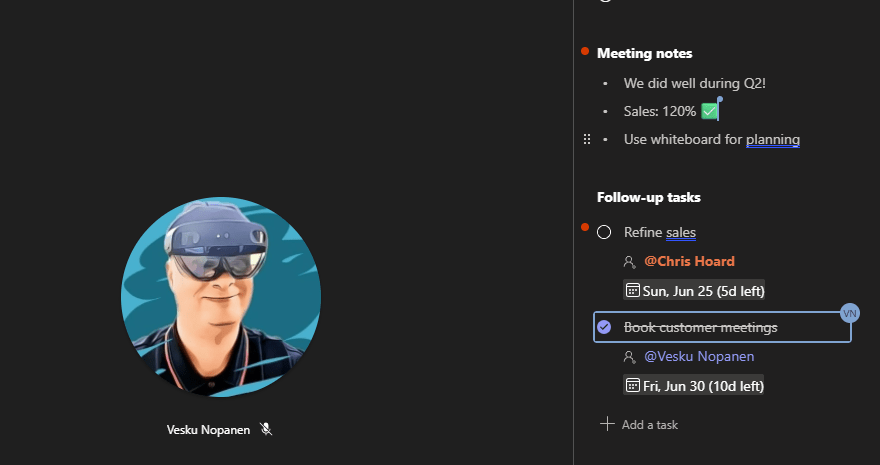
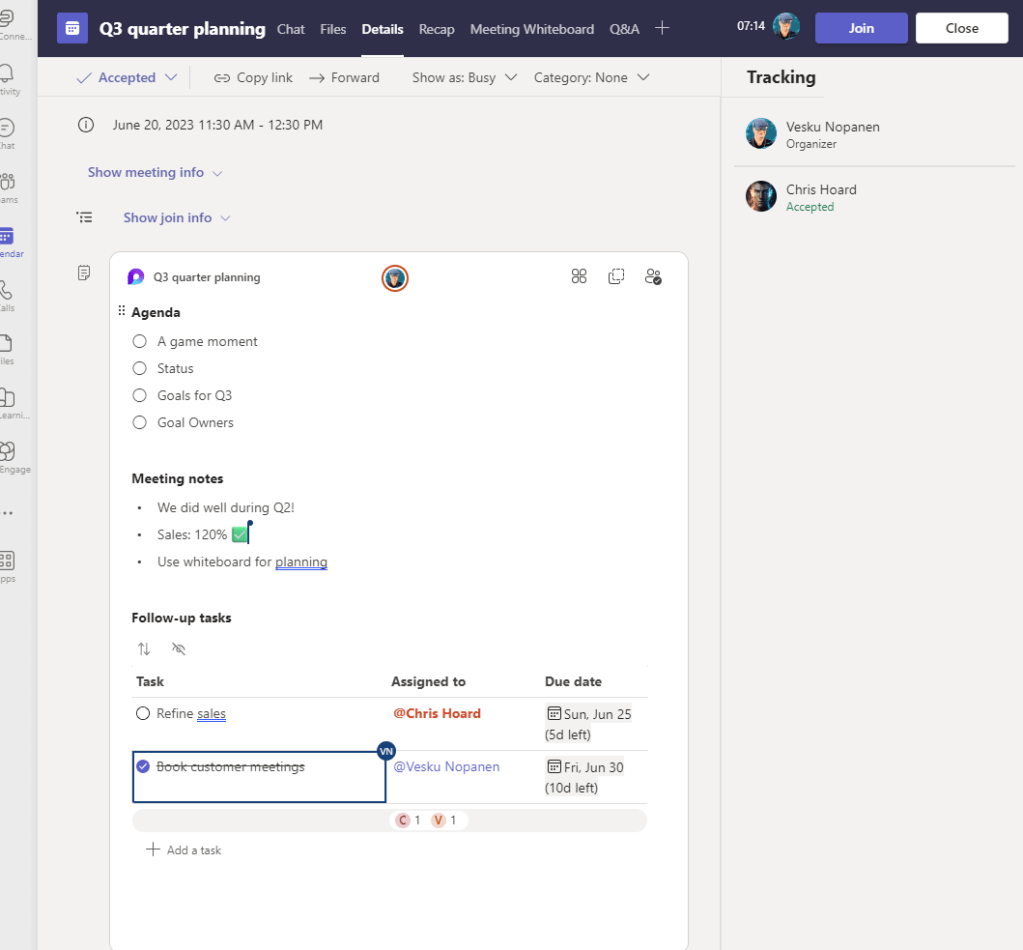

This is very cool! This tasks syncing is not limited to meeting notes – it is working now with any Loop component.
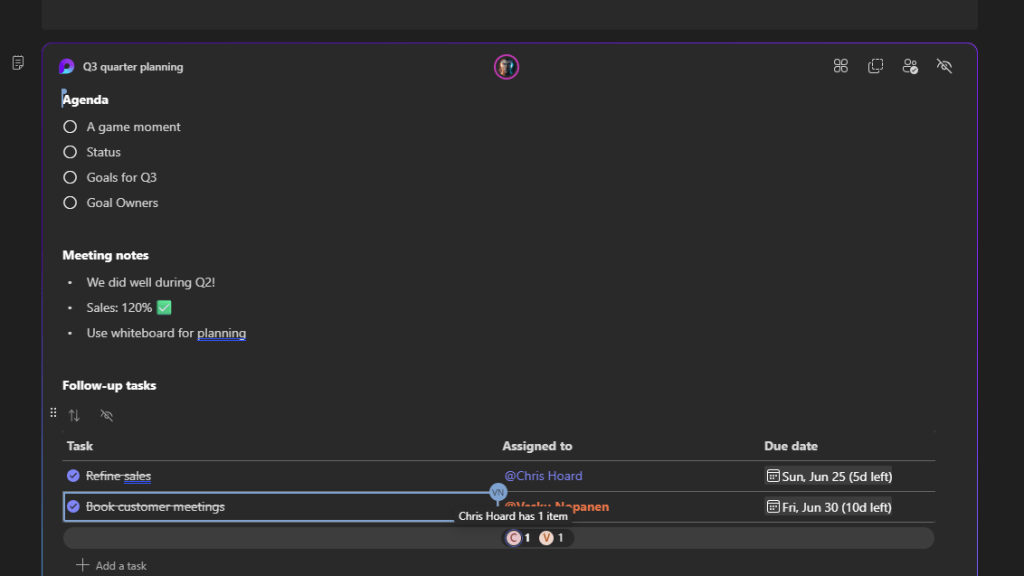
And checking the Planner in the end: we can see tasks done.
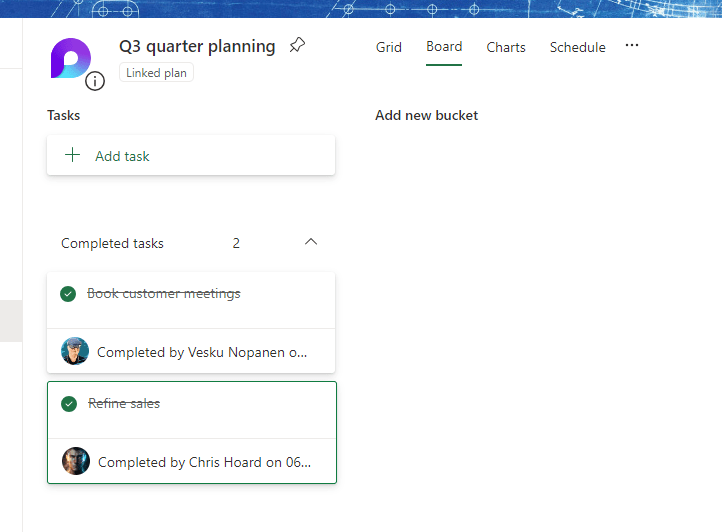
And yes, tasks are also done in the Whiteboard.

I really like these new notes. Looping them around (heh, pun intended) to other endpoints add value. And the best thing is that copying these components don’t duplicate them but instead create a new “window” or “instance” where it can be edited and viewed. Fluid Framework is the tech behind Loop components that is enabling his.
This feature is currently in Public Preview. You can use these currently in Windows, macOS, Google Chrome and Microsoft Edge Teams.
And as a reminder: you can not use Loop components between organizations – only within yours. That is a limit for sure, that I am looking forward to be lifted in the future to enable a lot more usability for components!

 Vesa Nopanen - Future Work today
How does it handle recurring meetings? Ideally you’d want a fresh agenda every occurence, but pulling through unchecked items and incomplete tasks…
LikeLike
For that, I think you would need to come up with a way how to manage it. There is just one note for all meetings – and to me it makes sense to continue using same collaborative notes on recurring meetings. You end up copy-pasting in case you want to store meetings notes from each meeting. But at least you can have everyone updating them during meeting. It should save some trouble.
Loops are not meant to be “permanent” storage – these are live and as such can’t answer to all needs. Document (or notes) lifecycle is one of those where, if required, is a need to store the final version somewhere else.
LikeLike