Here are couple of tricks, I thought would be interesting to share. Despite it feels that Copilot is getting all updates, it is not so. Microsoft Teams, Loop, Whiteboard, and other apps are not left out. If you haven’t seen these before, I hope this article is useful and will help. If you have: congrats on utilizing them!
Loop application within Microsoft Teams
Did you know that you can open the Loop application inside Microsoft Teams? Just go to … dots and search for Microsoft Loop.
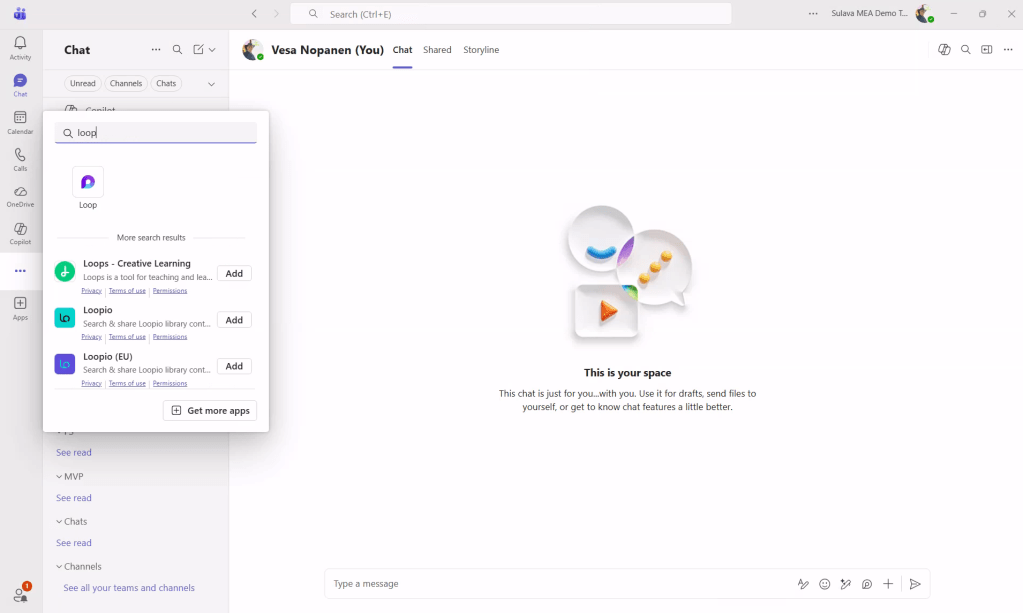
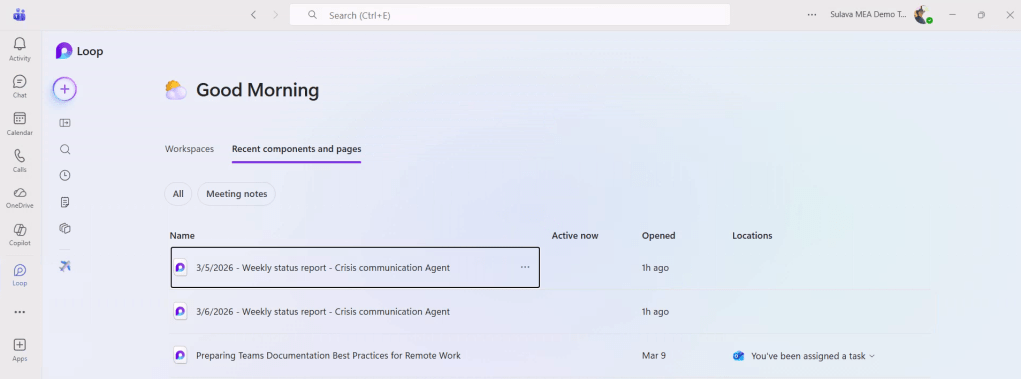
You can then open the Loop app inside Teams. This works for both web and desktop. And you can see the Loop then on the left rail.
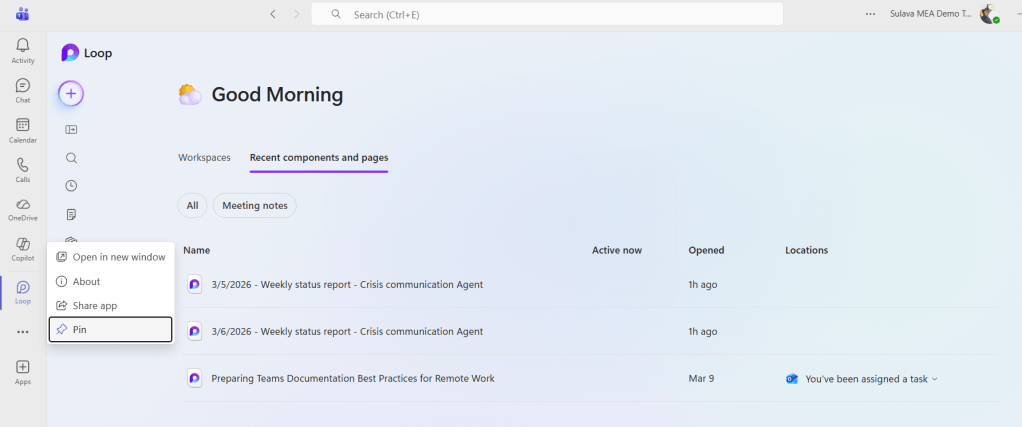
We are not going to stop there. Since we have the Loop application open in Teams, we should pin it to the left navigation with the right click on top of left navigation Loop icon.
This application has all features than opening & installing Loop application from the web https://loop.cloud.microsoft/. Instead you are using Loop directly from within Teams. It depends on your preference how you want to access the Loop app: web browser installed application can be made to auto-start when you log in to your Windows, while using from Teams is very simple and don’t have to worry about different user accounts ( usually a consultant’s problem when you have multiple accounts, not a normal knowledge worker’s).
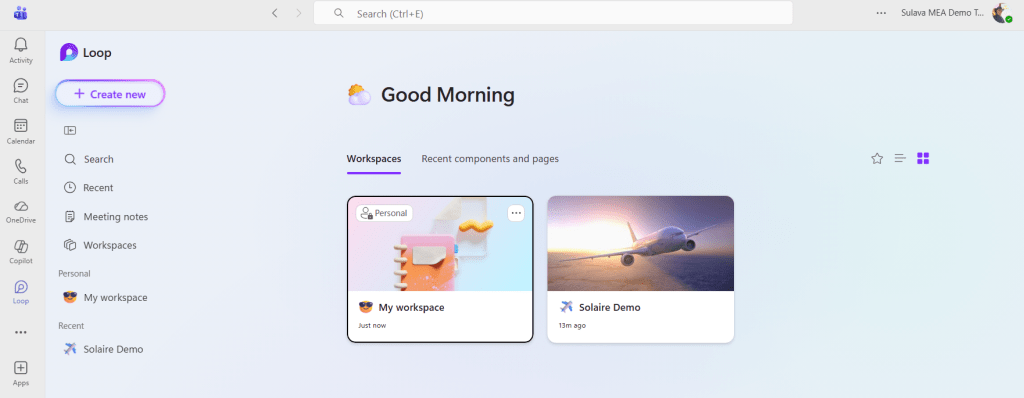
Open Loop application in Teams in a new window
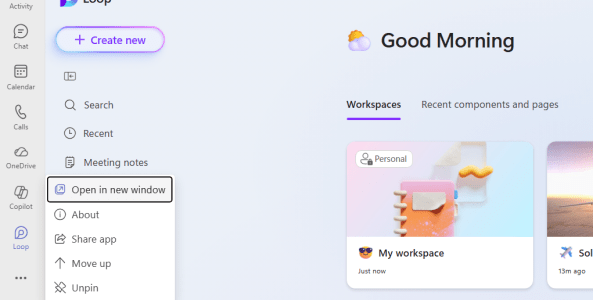
This feature has been in Teams Desktop apps for quite some time. As you can see from the screenshot above (and below), when you right click an application in Teams you can choose to open it in a new window.
This open in new window doesn’t apply just to Loop app – you can do that to many applications and Teams content. You can “pop-out” a channel, group or meeting conversation(chat), meeting share, or even Teams Activity, Chats, Calendar etc.
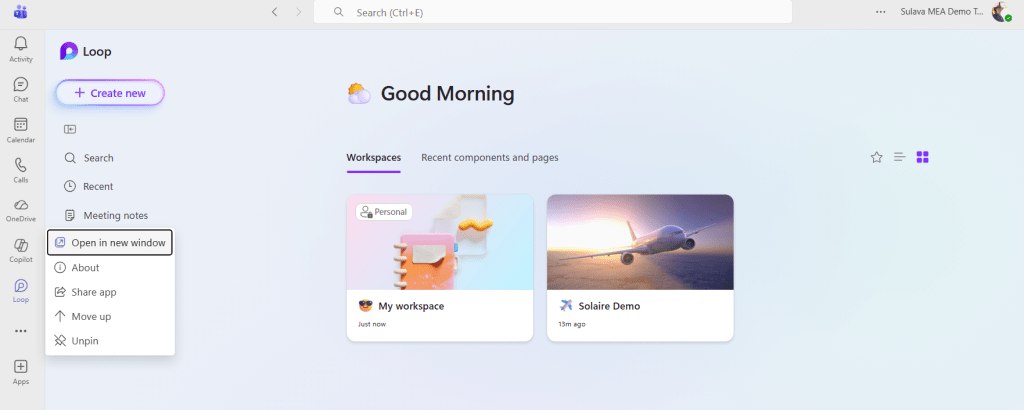
This way you can utilize Loop app in a separate window and keep on using Teams as you like.
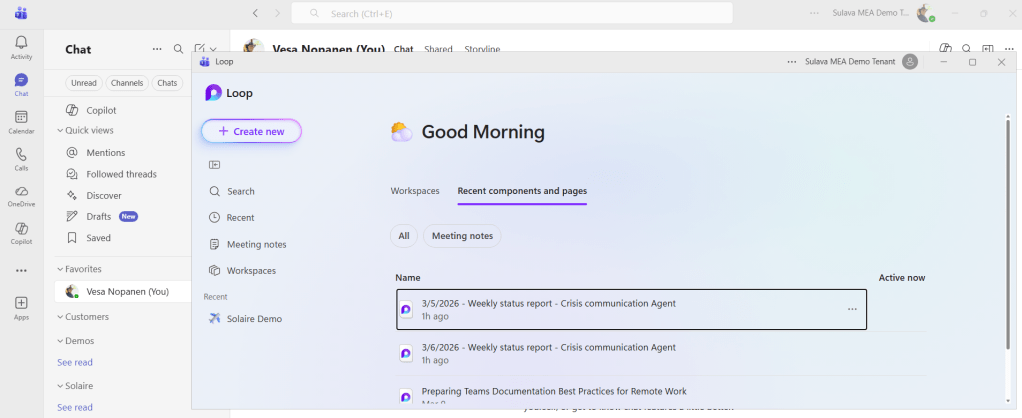
And yes, you can even change to another tenant or account.
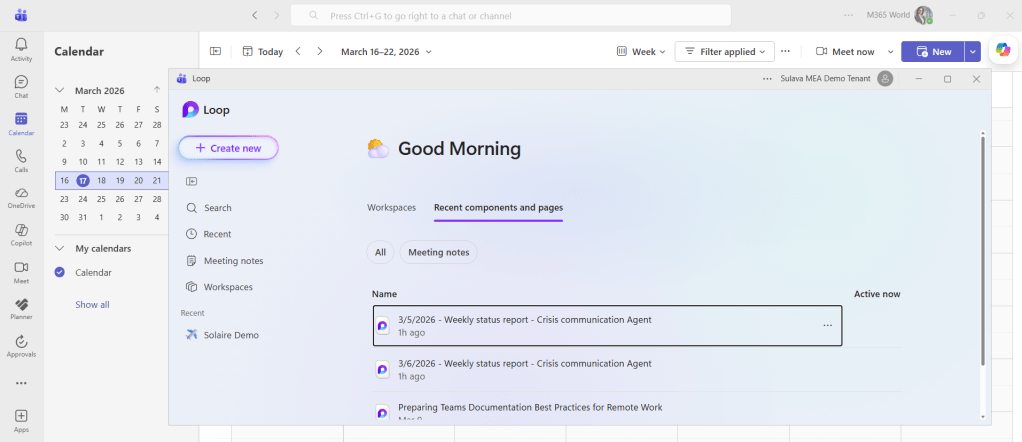
And just like normally, you can switch between Teams windows from the Windows taskbar or when using Alt+Tab.
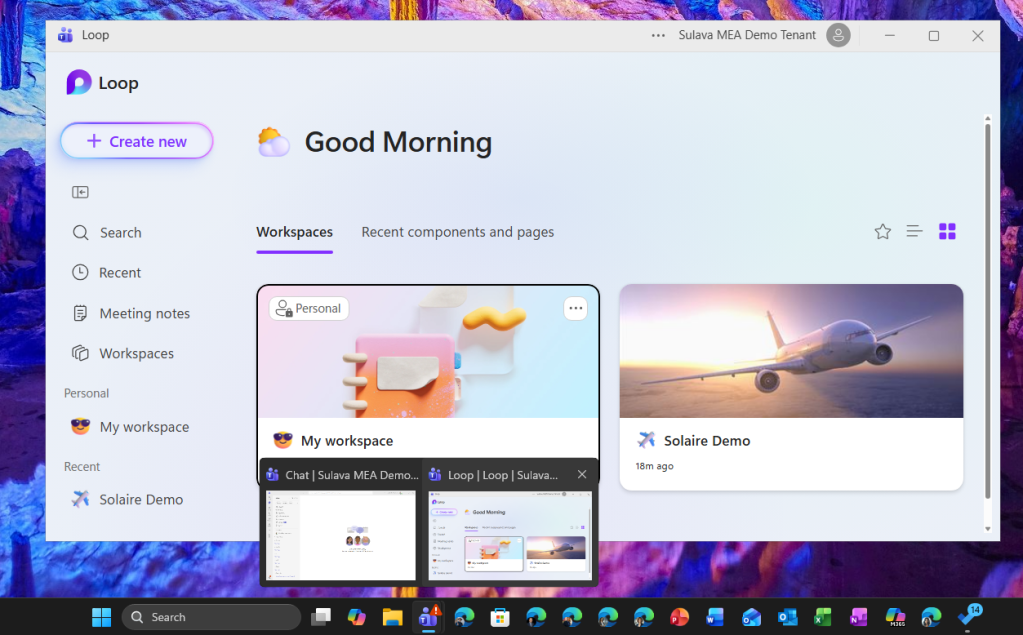
I think this makes Loop app very easy to use – right form within Teams Desktop!
Where are my Teams notifications?
You may have been wondering what happened to your Teams notifications. We have seen them by our profile picture on top-right corner for years and years, but now notifications has a new home at bottom left!
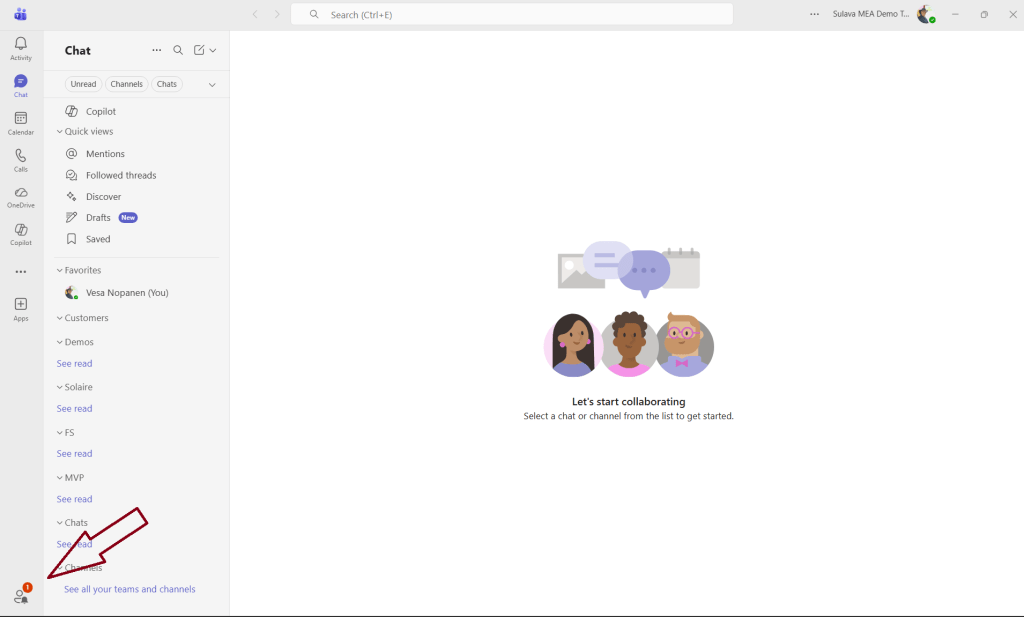
Clicking on the person-figure opens your notifications.
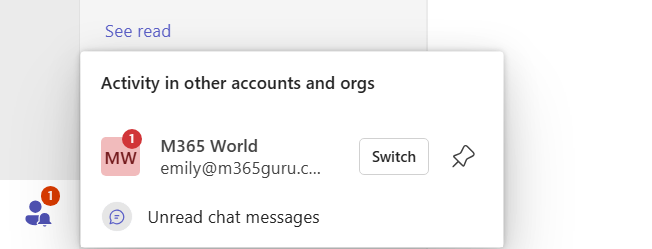
The new way makes it open to notification activities quickly – just clicking on the Unread chat messages takes me to those right away: the correct chat group opens directly into a new window, so my Teams desktop is not switching a tenant.
This is a very useful update to Teams, but I am sure it has caused some confusion “Where are my notifications”..
Whiteboard update
Yes, I did mention Whiteboard is getting updates. After the summer 2026 Whiteboards created in Teams channels will now be stored in SharePoint 🙂
The change will happen ( estimate) September 2026. This information was already shared to administrators in Message Center MC1253753.
Currently when you use Whiteboard app on a team channel, any Whiteboards created there will be stored in creator’s OneDrive. After this change , in September 2026, Whiteboards will be created in the team channel’s SharePoint site.
This is what will happen:
- Whiteboards created from a Teams Channel tab will be stored in the channel’s SharePoint site.
- All channel members will have consistent access based on channel permissions.
- Existing Microsoft 365 compliance and security policies continue to apply.
- Whiteboards will be discoverable from the Whiteboard board picker.
- The change is enabled by default.

 Vesa Nopanen - Future Work today