I am excited how Microsoft Loop boosts internal collaboration but I have heard that not everyone has been happy to have to manage Loop workspace permissions separately from the Teams project team. Working with externals in a Loop has been also a bit difficult. But now things are taking a step forward! It is possible to add Loop workspaces to team channels! And you know what? These work with guest users too! This feature is now in public preview, so you may not see that yet in your tenant. Either you ask your admin to be part of the First Release / Teams Public Preview or wait until it becomes generally available.
- How to add and use Loop workspace in team’s channel
- Loop Workspace in Teams channel tech specs
- Guest access
- Guests and Loop components in the team
- Channel meetings notes and guests
- Conclusion
How to add and use Loop workspace in team’s channel
It is as easy as adding a tab to the team: click the plus. This works on standard channels only.

A very easy way, is to search for Loop and then select the Loop app to add.

You will get a dialogue to confirm adding Loop.

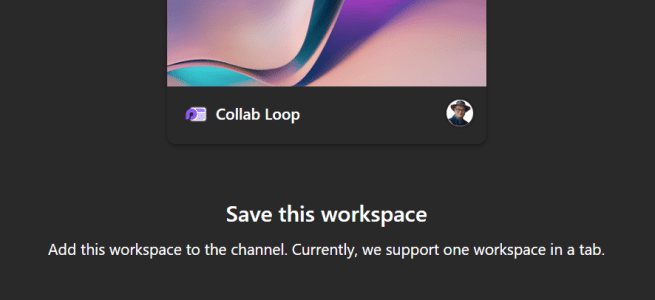
After clicking Save, you can name your workspace.

The default name is the channel’s name. Feel free to change it. I named it Collab Loop
It will take a few moments, so wait a bit. Don’t open another tab or team, keep the Loop app window open until it finishes.

And then it is there! We have a Loop tab in a channel!

You can work with the Loop normally, the same way as using the Loop app.

If you click on the Loop page name, or actually anywhere in this area showing the Page name

–> the workspace navigation opens.

This navigation stays closed, until you click it open. The idea is to save more collaboration space you as Teams app canvas area is already smaller than using the Loop app.
Looking at the top right Loop menu, you can see you have all the usual Loop features available.

- See shared locations
- Copy as component
- Share
- Three-dots …
All but Share work normally. You can get a Page link and copy the page as Loop component normally, but sharing a Workspace is different.

As it is the team membership that defines who has access to the workspace, this Workspace share doesn’t have a purpose. You manage it just like managing team members.

Team owners will be Loop workspace owners, and team members can collaborate in the workspace.
The three-dots menu is also the usual one. But I don’t know if you noticed yet, that it is possible to lock a Loop Page to view only?

Loop Workspace in Teams channel tech specs
Short summary of technical specs regarding Loop Workspaces in Team’s team channels:
- Works only on Teams standard channels
- There can be only one Loop workspace per team channel. Yes, you can add another Loop tab but it is the same workspace and not a new one.
- Each channel will have their own workspace
- It is not possible to add existing Loop workspace to team channel ( at least not yet, hopefully so in the future)
- Team channel workspace membership is managed by Microsoft 365 Group (= Teams team)
- You can access all your workspaces in Teams’ channels in the Loop app too
- If a Loop tab is deleted from the channel, the workspace is not deleted
- If Loop tab is then added back, the workspace created earlier is added – a new workspace is not created
- Loop workspaces in a team are deleted, when the team is deleted
If (when) you delete a Loop Page from the workspace, there isn’t a recycle bin option in Teams, but you can do so in the Loop app. Look to the bottom of the page, in the page list, to see Recycle bin.

In Recycle bin you can see all deleted pages and you can restore them.

Just note, items will be deleted from Recycle bin after 93 days.
Guest access
Loop workspaces in Teams’ channels also work with guest users. If you have guests in your team, then guests are able to work along with you in workspaces and in Loop components that are stored in team channels!
Let’s test this by inviting Elmeri (our happy demo user) to the test team.

This is not any different than when inviting guests to work with you in a team.
After the guest has accepted the invite, and navigates to the team they can see the Loop workspace tab in the channel.

And when Collab Loop is opened, it takes a while (I have seen tab opening misbehave a few times, but nothing a jump to a different tab and back would not fix) and then the Loop workspace opens.

And the guest user is in, and can start to Loop in, using versatile collaboration features Loop has.
From the host tenant user perspective ( my demo user) , we can see Elmeri has the page open.

❗What is not possible, is to atMention a guest user. That is still missing,
Guests and Loop components in the team
When you add Loop components to the team, guests can collaborate and participate in those too!

Elmeri can edit Loop contents, in the channel conversation just like internal members can.

As long as the loop file is stored in team files, guests can collaborate in it.

Channel meetings notes and guests
Guests can now, the first time, also participate in meeting notes – as long as the meeting is a channel meeting, they are a member of the team and they have joined the meeting with their guest identity (not their home identity).
Let’s see this in action by creating a meeting.

Elmeri (our happy demo guest user) can open the meeting in team channel – and they collaborate in the meeting agenda / notes just like internal users can.

Guest users can collaborate with Notes during the channel meeting, and have full Loop features available to them.

Why this works? Since the channel meeting notes is a Loop component, stored in team files.

Note: guests won’t have access to private scheduled meeting notes, as those notes are stored in organizer’s OneDrive. Only channel meetings allow guest participation. This is now a good moment to think, which of meetings should be channel meetings after all – instead of scheduled “normal” meetings (private meetings).
Conclusion
To me, all this is really exciting! Not only we can use Loop workspaces in Team’s channels which connects Teams team teamwork (sorry, I had to ) with the modern / futuristic Loop capabilities. Directly from within Teams! It is opening a lot of new possibilities for organizations to work better together!
The second reason, why I am so hyped about this, is guest usage. Guests (external project members) can now, finally, collaborate with us (internal project members) in Loop workspaces in an easy way. Guest use has been in the Loop for a year, but it wasn’t this easy to use. And that is not all, as guests can also co-author Teams channel meeting notes with us during the meeting!
What do you think, will you Loop in your Teams channels?

 Vesa Nopanen - Future Work today
2 thoughts on “How to work with Loop Workspaces in Teams Channels”