
The future is here, or at least a bit of the scifi-future is now be usable by Microsoft 365 Copilot licensed users who are using Microsoft Teams. The Interpreter Agent just hit Public Preview, and I of course I tested it out. I did not do a video how it works, but in this post I will explain the use and experience to you.
- What is the Interpreter Agent?
- Turning the Interpreter on
- The experience
- Availability and licensing
- Admin controls
- How the Interpreter Agent works
- More information
What is the Interpreter Agent?
It is a new feature in Microsoft Teams, that is available for users with Microsoft 365 Copilot license. The agent designed to help users overcome language barriers during meetings as it provides nearly real-time speech-to-speech translation, allowing meeting participants to speak and listen in their preferred language seamlessly. In the preview phase there are limited number of languages available, but this applies only to which language the agent is translating to!
The Interpreter agent can also simulate your own voice, making it easier for others to recognize who is speaking and follow along naturally. Alternatively, you can select your voice from a set of few default voices.
The purpose of the Interpreter Agent is to make multilingual meetings more accessible and inclusive, allowing everyone—whether they’re colleagues across the globe or international clients—to communicate clearly and effectively in the language of their choice.
Turning the Interpreter on
To turn on the agent, go to Language and speech settings when you are in a Teams meeting.

When you turn on the Interpreter Agent the first time, you will get a settings dialogue, where you are selecting your preferences.

You will select first the language you want to hear, when other speak. In other words, the language to which everything in the meeting is interpreted to. Next setting is the balance how much you want to hear the original audio, compared to when the agent is speaking. I would slide this to quite a lot to the right side as sometimes you will hear both the speaker and the interpreter.
The cool setting is the next one: your voice representation. This means, that you can select how others (who use interpreter) will hear you. The Simulate my voice takes a couple of sentences when Teams learns your voice and will then use a pretty good replica of your voice.
If you don’t like your voice to be cloned, then just choose of one default voices that will represent you.

Personally, I will select to simulate my voice.
Languages the Interpreter Agent can use (during the preview) are English, French, German, Italian, Japanese, Korean, Portuguese (Brazil) and Spanish.

When you confirm your settings, you are good to go! If you want to change any of these settings later, you can open Interpreter settings via Language and speech menu.

When someone has turned on the Interpreter in the meeting, you will see a dialogue telling about that.

Just click Turn on for me, and go through settings.
When you have your settings done, consequently turning on the Interpreter will be smoother, just letting you know your language and having the easy way to get into settings.

The experience
How the Interpreter works in practice? When a meeting participant speaks, it takes a few moments before the interpreter catches it on and makes the translation. Then the agent speaks the translated message to you, using the language you selected. In case the other party has selected that their voice can be simulated, the agent will, pretty soon , sound like the participant.
The cool? It is possible to speak in any language and the interpreter will translate that to the language you chose. The language is detected automatically, I tested a bit of speaking a sentence in Swedish (nope, I don’t know a lot of Swedish language – those who know me can guess what I said) and then continued in Finnish. Interpreter translated both to English without any issues.
Due to the delay, interpreter won’t work in a fast-paced conversation. It works better when people are speaking for longer time (in a structured way, like an organized meeting), rather than shortly (like table talk at happy hours), as there is a short delay before the translation is done.
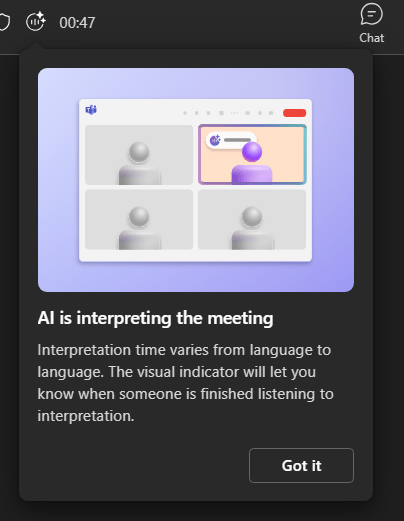
Overall, as translation lags a bit behind, it is good to learn a new meeting practice when using the Interpreter. When someone is speaking, it is a good idea to pause for a few moments before continuing. This way the Agent can catch the message up to everyone in the meeting. Basically: avoid speaking so that you overlap the agent. You can keep an eye on the interpreter indicator (top left area) to see when others have finished listening to interpretation. The new meeting practice is then to keep a short break after you have spoken. And depending on language, the interpreted audio may take longer time until it has spoken. Having breaks adds to accuracy and keeps the meeting pleasant for all participants.
Availability and licensing
The Interpreter Agent is , at the moment, available only during scheduled (ie: meetings created in the calendar) or channels meetings in Teams. There is no support for calls (VoIP, PSTN), town halls, or Teams Rooms at the moment. Also, you need to use Desktop client: I didn’t see the agent in either web nor mobile Teams. I would suspect that at least the mobile Teams will be getting the support.
Users who want to use the Interpreter Agent need to have Microsoft 365 Copilot license. You can use the interpreter in cross-organizational meetings also. For example if you join a meeting where are people from different organizations, and you have the M365 Copilot license, you can turn on the agent. Others who have joined the meeting can use the agent only if they also have the Copilot license. Based on message center bulletin, licensing may change : Beyond preview access, additional licensing details will be communicated prior to general availability.

Interpreter is supported on the following platforms and clients:
- Teams desktop (Windows and Mac)
- Teams mobile (iOS and Android)
- Teams web (Chrome, Microsoft Edge, and Firefox)
- Scheduled meetings
- Channel meetings
- Virtual Desktop Infrastructure (VDI)
Interpreter isn’t supported on the following platforms and clients:
- Unscheduled 1:1 calls (VoIP or Public Switched Telephone Network (PSTN))
- Meetings scheduled using Microsoft Teams Rooms or personal devices
- Town halls
- Webinars
- Microsoft Teams free
Admin controls
Admins can use PowerShell and set Teams meeting policy with Set-CsTeamsMeetingPolicy to control if the interpreter and voice simulation options are available in the organization or not.
-AIInterpreter
Enables the user to use the AI Interpreter related features
Possible values:
Disabled
Enabled

-VoiceSimulationInInterpreter
Enables the user to use the voice simulation feature while being AI interpreted.
Possible Values:
Disabled
Enabled
How the Interpreter Agent works
The Interpreter Agent operates by executing real-time speech-to-speech (STS) translation through Azure Cognitive Services, facilitating multi-speaker and mixed-language dialogues during Teams meetings. The process involves several steps.
First, Speech Recognition (ST) converts spoken language into English text. Next, Machine Translation (MT) translates the text into the desired language. Subsequently, Text-to-Speech (TTS) generates translated speech in the selected language, with the capability to either replicate the speaker’s voice or utilize a predefined voice in accordance with user preferences and administrative policies.
The agent transmits the meeting audio for cloud-based processing, delivering translations nearly instantaneously.
More information
Microsoft has released a good information page about the Interpreter Agent in Microsoft Learn:
https://learn.microsoft.com/en-us/microsoftteams/interpreter-agent-teams

 Vesa Nopanen - Future Work today
3 thoughts on “Interpreter Agent in Teams is in Public Preview”