
You might have faced a problem with the video quality when you share your screen or window in Microsoft Teams meeting. The share may seem to lag, stutter, or drop frames for the other attendees, making it hard to view. This can occur when you share content that needs a higher frame rate, such as a video or you want to share an application like virtual reality Microsoft Mesh.
There is a simple fix to this problem. You just need to enable high motion screen sharing in Teams, which can enhance the video quality and smoothness.
What causes the video display to be slow in Teams screen sharing?
The problem with the video display being slow in Teams screen sharing is that Teams is not recognizing motion fast enough. By default, the frame rate for screen sharing in Teams is on the low motion option. This is because most of the content that people share in Teams, such as documents, spreadsheets, or slides, is still or has little movement. The low motion setting makes sure that the attendees see the best possible resolution of the shared content.
However, when you share content that has a lot of movement, such as a video, an app, or an animation, the low motion setting is not enough. The frame rate is too low to capture the quick changes in the screen, resulting in a rough or slow video display. Usually, Teams notices when higher motion content is shared, and it automatically raises the frame rate. However, there are situations in which this does not happen, such as when the content is not full-screen, or when the network bandwidth is low.
How to enable high motion screen sharing in Microsoft Teams?
If you want to improve the video quality of Teams screen sharing when there is a lot of motion on the screen, you can press a keyboard shortcut to turn on high motion screen sharing. This will make the frame rate higher to show the motion on the screen better. But this might also lower the quality of the shared content, depending on the device performance and the bandwidth you have.
Enable high motion screen sharing in Teams meeting:
- Ensure your Teams is in version 1.6.00.12455 or later
- Start sharing your screen in Teams.
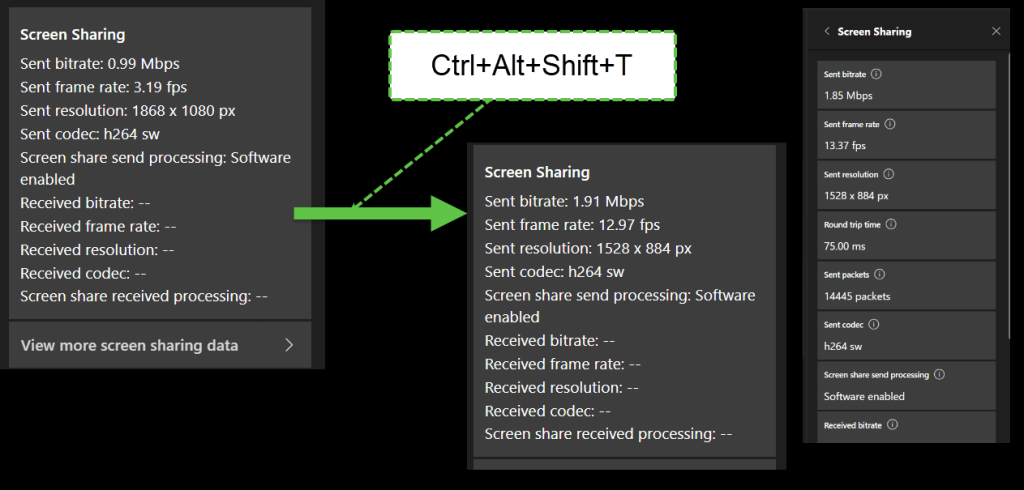
- Select the Teams app, and then press Ctrl+Alt+Shift+T on your keyboard.
- You will not see any visual indication that high motion screen sharing is enabled, but you should notice an improvement in the video quality and smoothness.
- You can also ask the audience, “Did the experience get better?”
That keyboard shortcut is a toggle. If you press it again, the Teams app will return to the default behavior of not forcing high motion screen sharing.
How to see the frame rate and resolution of the shared content?
You can use the Call health feature in Teams to see the information of the content that is shared in Teams. This will display the details of the screen sharing session, such as the frame rate, the resolution, the bandwidth, and the latency.

To check the frame rate and resolution of the shared content, use Call health found in Teams meeting settings at the Screen Sharing section. Notice how Teams reduced the resolution while boosting the frame rate of shared app.
To learn more, from the source, visit the following web page: Fix video display lag issue in Teams.
How to create this kind of cartoonish avatar picture?

Oh, and if you want to create your own cartoonish avatar, use this Microsoft Designer URL to get started. As Designer template, it contains the basic prompt and has placeholders that need to be filled in by you to generate your own picture.
I found this great prompt & link at LinkedIn, from Jack Rowbotham. This is a great prompt and I am happy Jack person shared it!
When you have created a great prompt, you want to share and make customizable click the Share in Microsoft Designer to get started creating your own template.

This opens the template dialogue.
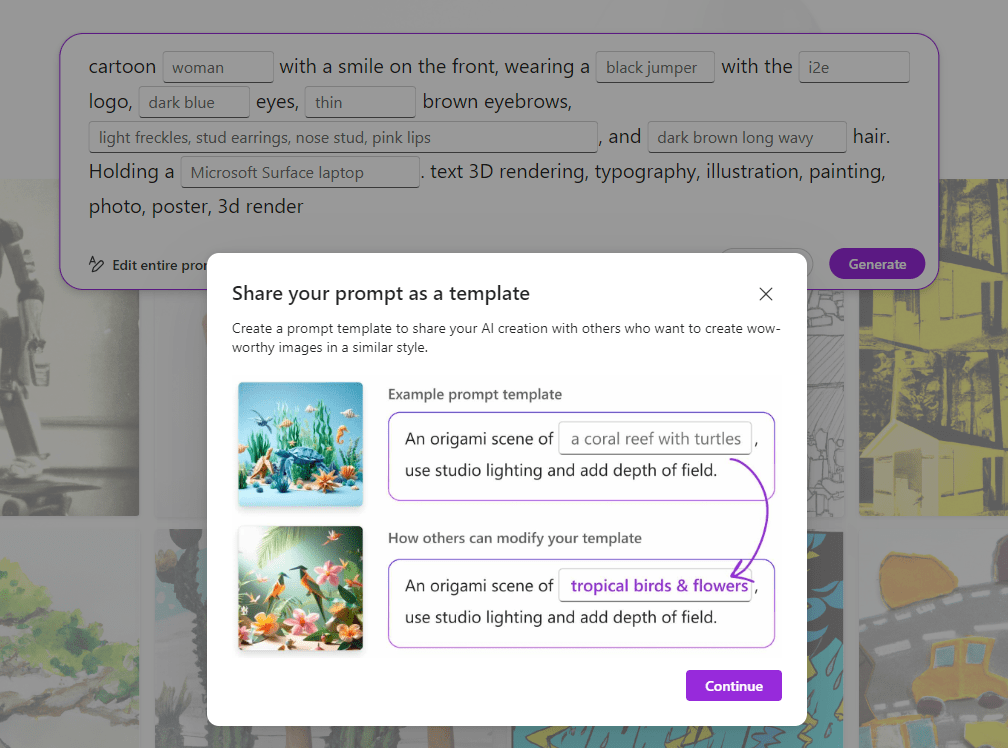

And then you just continue and get the link for sharing. 😎


 Vesa Nopanen - Future Work today
One thought on “Boosting Teams screen sharing performance ”