
Microsoft Loop components got their name upgrade from Live Components to Loop Components in Teams. For some time editing Loops was limited in mobile Teams client, but now the support is there. And I have to say, it is rather good one in user experience. I enjoy the UI, it makes staying in the Loop really easy – even when you are on mobile. For desktop experience and get your to the loop with the Loop please check my earlier post.
With mobile Teams you can use Microsoft Loop components for
- Creating new Loops via Teams
- Editing existing ones via Teams
Mobile OneDrive is still showing them as Live Components and doesn’t understand what they are. Instead I recommend you to get started with Office -application on mobile – it can be used to discover and edit Loop components. Including those shared to you.
Microsoft Loop components on Teams mobile
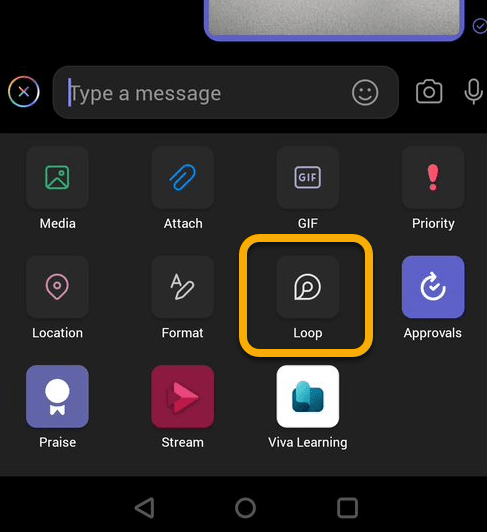
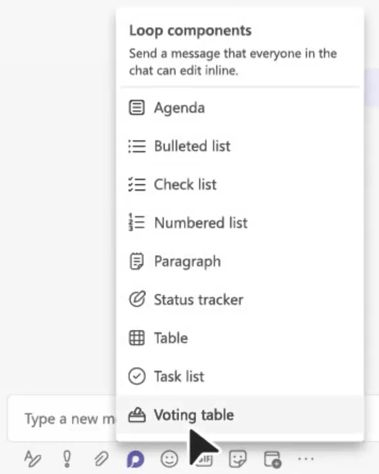
You can create a new Microsoft Loop component by pressing + in the chat and selecting Loop from the list.
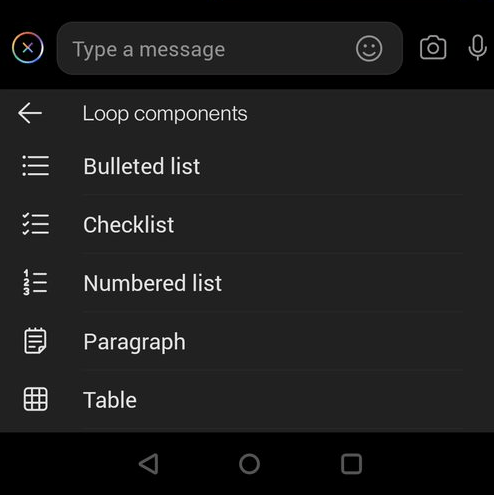
Then you will select the component type. My best practice / recommendation is to use Paragraph which gives you a canvas/page kind of starting pois. Of course others are valid also, I just have found out that personally I like to get started with a canvas.
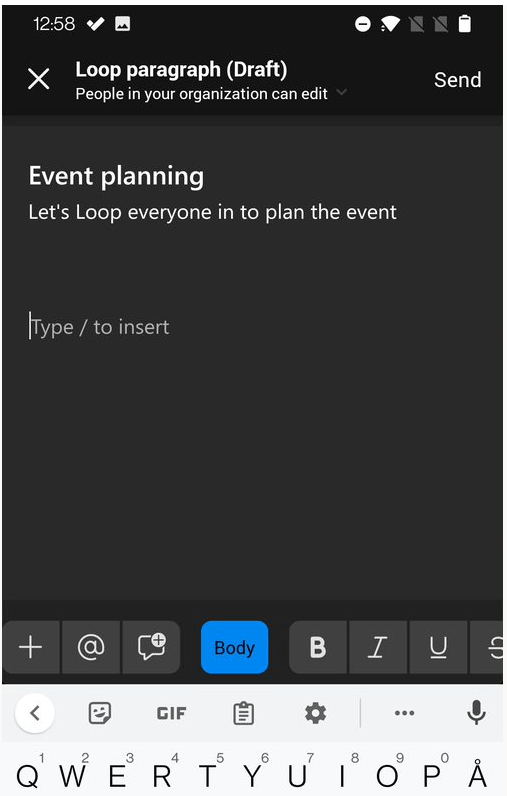
After a few moments you will have an empty canvas available (when choosing Paragraph) where you can add title and content.

You can freely type in information and add lines as needed.
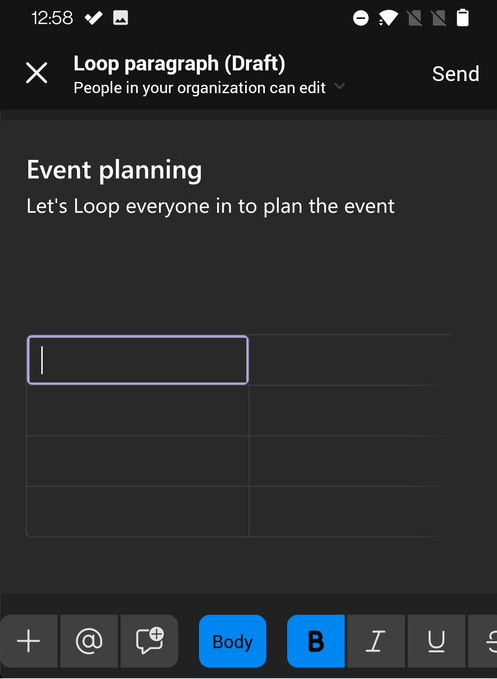
And yes, typing / will give you an option to add a new Loop component there. But I have found it easier to hit + on the left of toolbar.

This way you can add tables, agenda and other content you require.
The toolbar lets you do various actions

- + Adding a loop component
- @ atMentioning a person in the chat (there is a list of people, so you can easily select). Those atMentioned will get a notification.
- Adding a comment with your name
- Switching between Body – Header 1 (H1) – Header 2 – Header 3 just by pressing on body.
- Bolding
- Italic
- Underline
You can then swipe the toolbar left / right to find more actions as needed for strikethrough, indent, unindent, undo, redo, delete component, bulleted list, numbered list, tasks and link.


That is a really clever toolbar I think. The same is also available at Office app when editing Loops.
Note: Until you have sent the message with the Loop the other participant doesn’t know anything about it. It is on draft and only visible for you (just like any other message). Once you send it the chat participant(s) get notification and join you in the Loop.
You can see the Loop in the chat with some content visible.

You can open the Loop just by pressing on it – it has been recently quite fast to open when I have used it.
In the (near,soon) future we will get two more components to add: Status tracker and Voting table.
Looping in the Office app and finding missing Loops
I used Office app with my alter ego chat participant, to whom the Loop message was sent to. It was very easy to find the Loop component after a bit of refresh time.
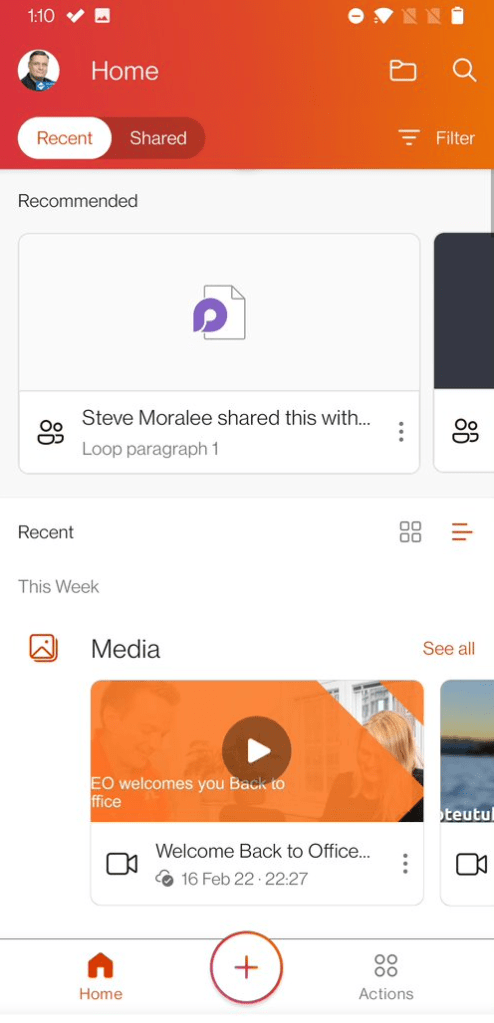
Opening the Loop seems to take a few moments longer than in Teams.

The user interface is exactly the same one as in Teams. I just have a light theme on in the phone.
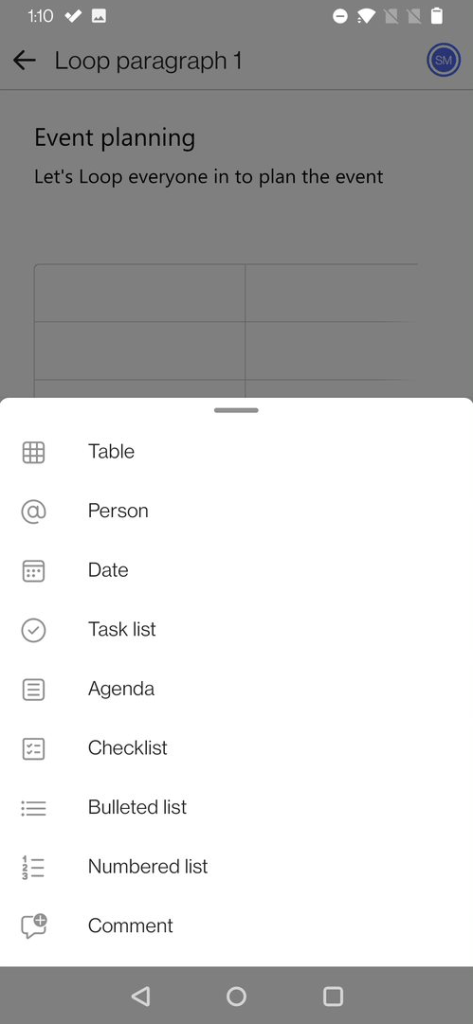
It is really easy to participate and discover Loops using Office app. If you know you are going to need to discover and edit a Loop or other document you might really want to check out Office app. It works much better on this than OneDrive – especially if you want to work with Loops.
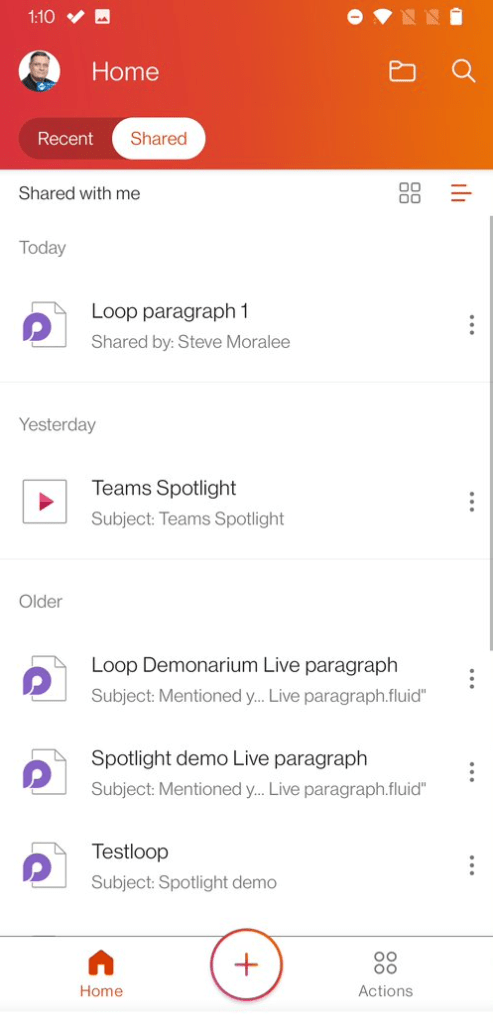
The Shared -tab is very likely the one where you can find Loops recently shared with you.
You can use Search to find Loops and files – but also refine the results to filter in only Loop components.
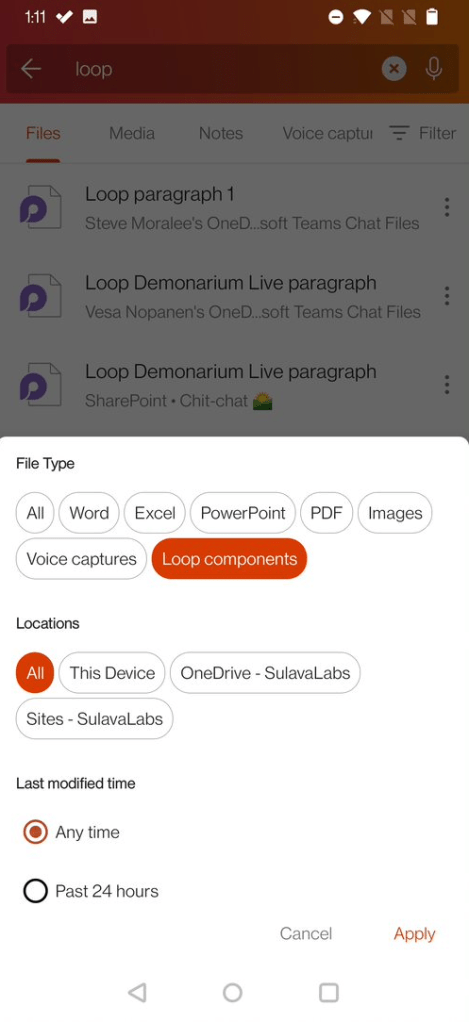
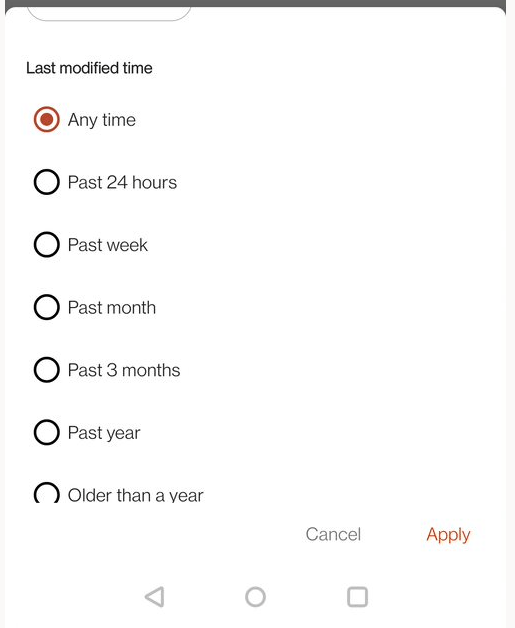
And specifying a search time-window might be useful to find the accurate file quickly.
Using Microsoft Loop in mobile Teams and Office is very easy and intuitive. Work is not a place and you can work from anywhere. And Microsoft Loop is one of Metaverse building blocks that enable to work seamlessly synchronously and asynchronously.

AI-First Future with Microsoft 365 Copilot
Work is changing. Imagine a workday where AI seamlessly integrates into every task, transforming the way we operate. This is not a distant future; it’s happening now with Microsoft 365 Copilot. Recently, I’ve been to Microsoft 365 Community Conference and listened to keynotes and sessions about what’s next such as Microsoft’s new M365 Copilot app,…

How to work with Loop Workspaces in Teams Channels
I am excited how Microsoft Loop boosts internal collaboration but I have heard that not everyone has been happy to have to manage Loop workspace permissions separately from the Teams project team. Working with externals in a Loop has been also a bit difficult. But now things are taking a step forward! It is possible…
Copilot Pages
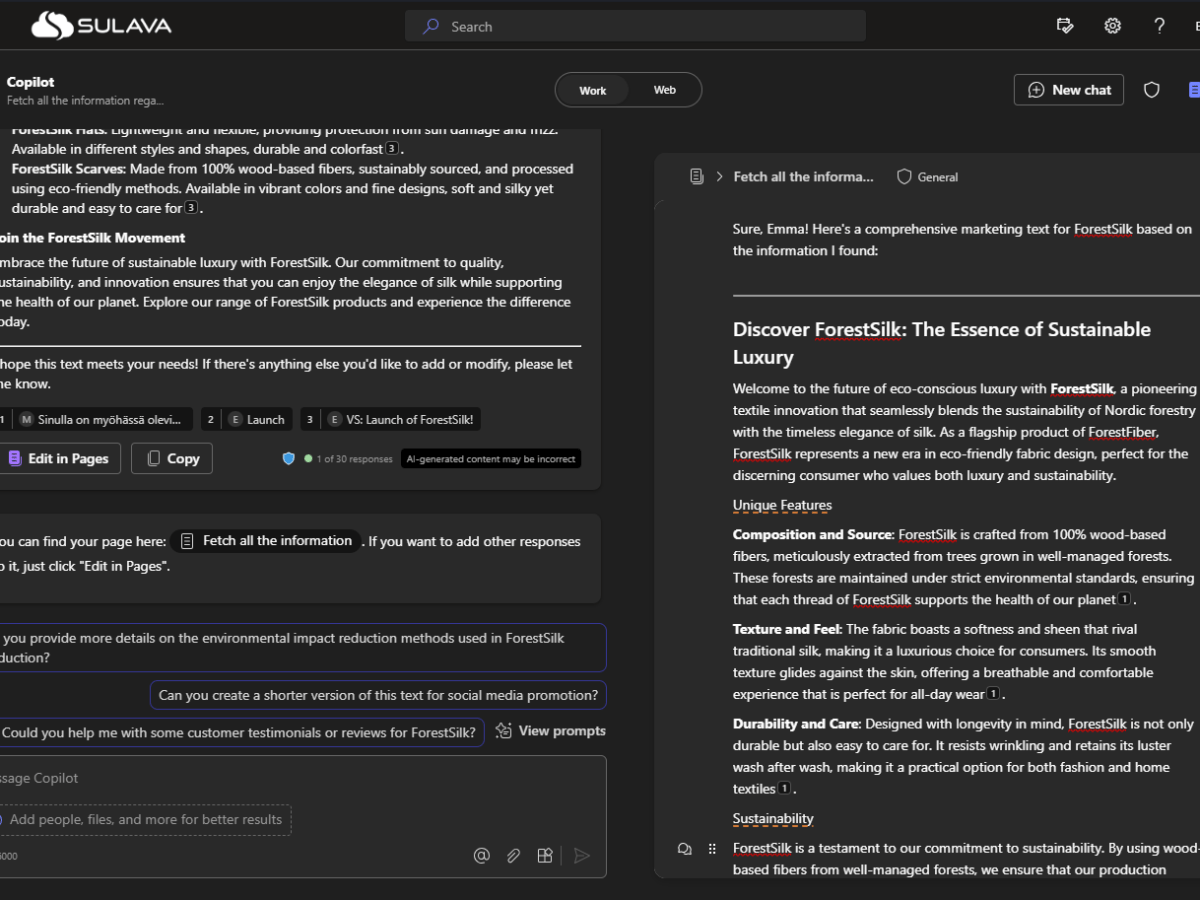
Have you already tried one of the latest features to Microsoft 365 Copilot: Copilot Pages? These are dynamic, persistent canvases designed specifically for multiplayer AI collaboration ( = working together with others in the same Page in real time). This feature can be used to make spontaneous, AI-generated content durable, editable, and shareable. That’s what…

 Vesa Nopanen - Future Work today
5 thoughts on “How to stay in the Loop using mobile Teams!”